
How To Rewrite Emails In Gmail For Better Clarity
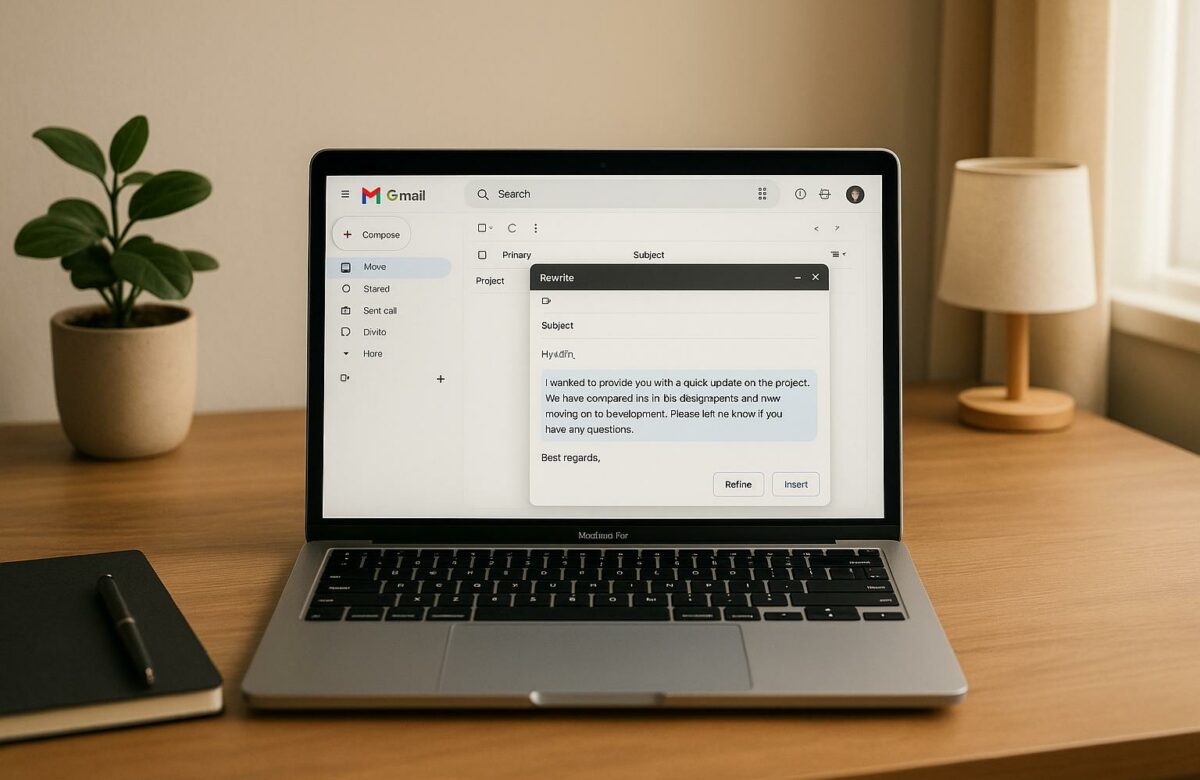
Writing clear emails is essential for effective communication. Gmail offers tools like Smart Compose, Smart Reply, and Help me write to simplify email drafting and improve clarity. Here’s what you need to know:
- Smart Compose predicts text as you type, saving time and reducing errors.
- Help me write, powered by Gemini AI, generates or refines emails based on prompts, adjusting tone, length, and content.
- Use concise subject lines like "[Response requested]" to grab attention and set expectations.
- Structure email bodies with short sentences, clear formatting (e.g., bullet points), and a logical flow.
- Proofread by reading aloud, checking tone, and reviewing grammar.
For extra precision, tools like the BeLikeNative Chrome extension can rephrase emails for clarity and natural phrasing. These features ensure your emails are professional, easy to understand, and impactful.
Transform Any Text, On Any Site, In Seconds
Rephrase, translate, and improve text with one shortcut. Works everywhere you write.
Add to Chrome - It's Free!Gmail AI | Write Emails with AI in Gmail
Writing Clear Subject Lines and Greetings
Gmail Email Greeting Formality Guide: When to Use Dear, Hi, or Hey
How to Write Effective Subject Lines
The subject line of your email often determines whether it gets noticed or ignored. A well-crafted subject line should clearly convey the email’s purpose and urgency. For instance, in September 2022, Molly McHugh-Johnson, a contributor at The Keyword, used a vague subject line, "Happy Friday", for an email about project action items. This lack of clarity led to confusion and delayed responses. After consulting with Sergio Civetta from Google’s Strategy and Operations team, she revised it to "[Response requested] Project kick-off meeting action items" – a change that made the email’s intent immediately clear.
"The subject line doesn’t indicate what the email is about. The solution: I should have started with a much more specific subject line", says Sergio Civetta, who works in Strategy and Operations and has helped with email courses for Googlers. "People are busy, and getting to the point helps them manage their inboxes and figure out what needs their attention".
Leaving the subject line blank is another common pitfall. McHugh-Johnson experienced this firsthand when she sent an email with "(no subject)" while asking about travel details. Using Gmail’s Smart Compose, she revised it to "[Response requested] Questions about the upcoming trip". Including phrases like "[Response requested]" in subject lines can set clear expectations, especially when action is required.
Once you’ve nailed the subject line, the next step is to think about how your greeting sets the tone.
Choosing the Right Greeting
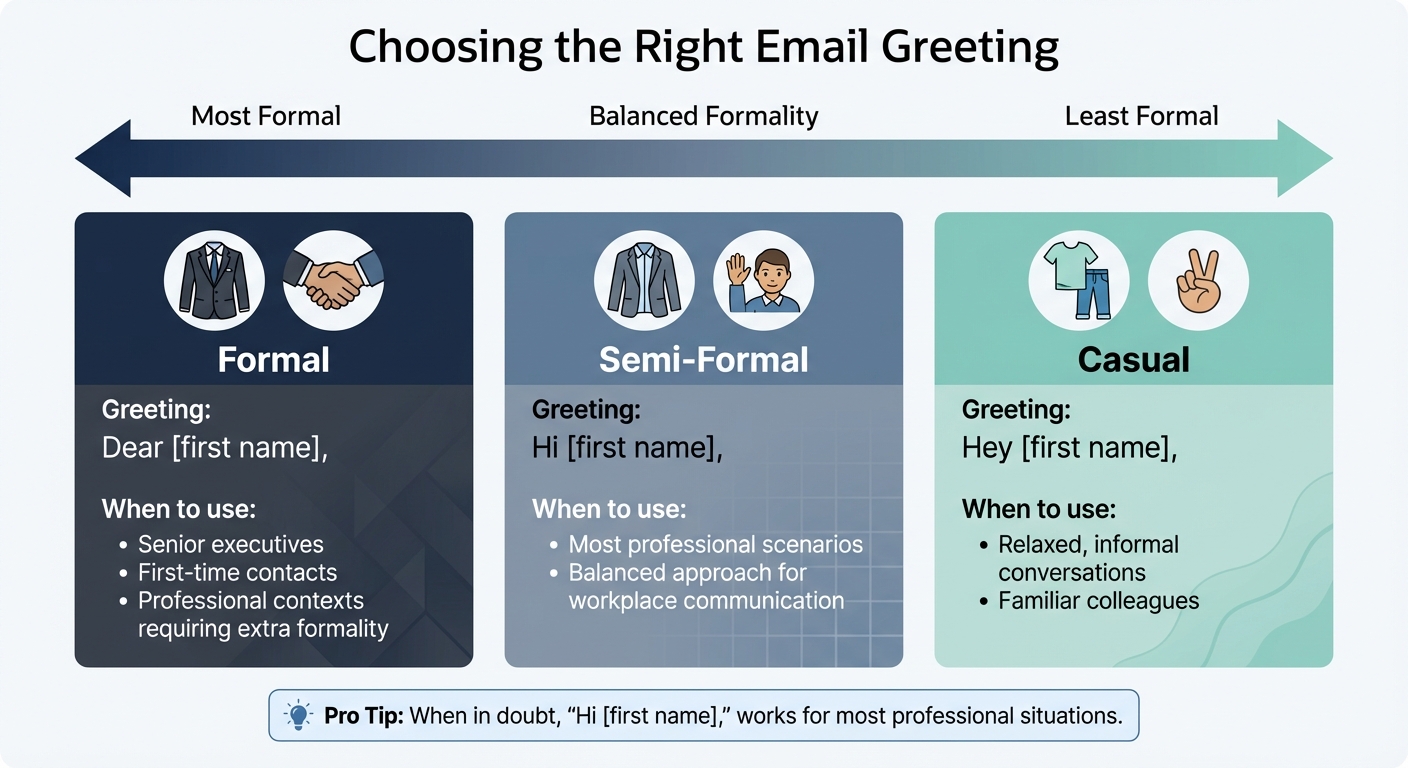
The greeting in your email establishes the tone and influences how the recipient perceives your message. Picking the right greeting depends on the formality of the situation and your relationship with the recipient. For formal emails, "Dear [first name]", works well. Semi-formal situations often call for "Hi [first name]", while "Hey [first name]", is better suited for casual exchanges.
In professional contexts, "Hi [first name]", strikes the right balance for most scenarios. When addressing senior executives or someone you’re contacting for the first time, "Dear [first name]", adds a touch of formality. Save "Hey [first name]", for more relaxed, informal conversations. The greeting you choose affects how your message is received, so take a moment to match it to the situation rather than defaulting to one style for every email.
Organizing Your Email Body
Using Short Sentences and Clear Formatting
The body of your email should be easy to skim. On average, readers spend just 8 seconds scanning an email, so long, dense paragraphs can quickly lose their attention. Stick to short paragraphs – two to three sentences max – and leave plenty of white space to avoid overwhelming your reader, especially given the flood of emails most people receive daily.
Take advantage of Gmail’s formatting tools to make your message more readable. Use bullet points or numbered lists to break down instructions or key details. Bold text can help highlight critical points, but don’t overdo it – if everything is bolded, nothing will stand out. Choose a simple, readable font like Arial or Times New Roman in a size between 11 and 14 points, and always stick to left-aligned text for better readability.
"You are much more influential when you use simple, straightforward and short sentences."
- Paola Pascual, Co-host of Talaera Talks
Adopting these formatting habits ensures your email is clear and easy to follow.
Creating a Logical Flow
Once you’ve nailed the subject line and greeting, the email body needs a logical structure. Start by stating your purpose right away – don’t bury your main point under unnecessary details. For example, in October 2025, Sarah revised an email to Professor Smith by clearly stating her request upfront. She highlighted key points using bold text, CC’d the professor’s assistant, and included her availability. This approach led to an immediate response and a scheduled Fall rotation. In contrast, her earlier emails, which lacked clarity, resulted in delays and multiple follow-ups.
To maintain clarity, consider using the "House Technique": begin with your purpose and call to action, add supporting details, and wrap up with closing formalities. Each paragraph should start with a topic sentence that acts as a mini headline, followed by a few supporting sentences, and finish with a line that reinforces your message. Stick to one main topic per email to avoid confusion. End with a clear call to action, specifying the next steps or the response you’re looking for. This structured approach keeps your email focused and effective.
Using Gmail’s Built-In Writing Tools
How to Use ‘Help me write’
Gmail’s ‘Help me write’ feature, powered by Google’s Gemini AI model, is designed to help you draft and polish emails directly in the compose window. Since professionals often spend a considerable amount of time crafting emails, this tool can make the process quicker and more efficient while ensuring your message is clear.
To get started, click Compose and then select the ‘Help me write’ icon. Provide a prompt that includes details like the recipient, the subject, and the tone you’d like to convey. Once you’ve entered the information, click Create to generate a draft. If the result isn’t quite right, you can click Recreate to try again with the same prompt.
If you already have a draft and want to refine it, write your message first and then click ‘Help me write’. From there, you can choose options such as Formalize, Shorten, or Elaborate to tweak the tone and length. To apply the changes, click Insert on desktop or Replace on mobile. Just make sure to review the AI-generated content to ensure it aligns with your tone and is factually accurate.
Now, let’s take a look at another Gmail feature that works hand-in-hand with this tool.
How Smart Compose Works
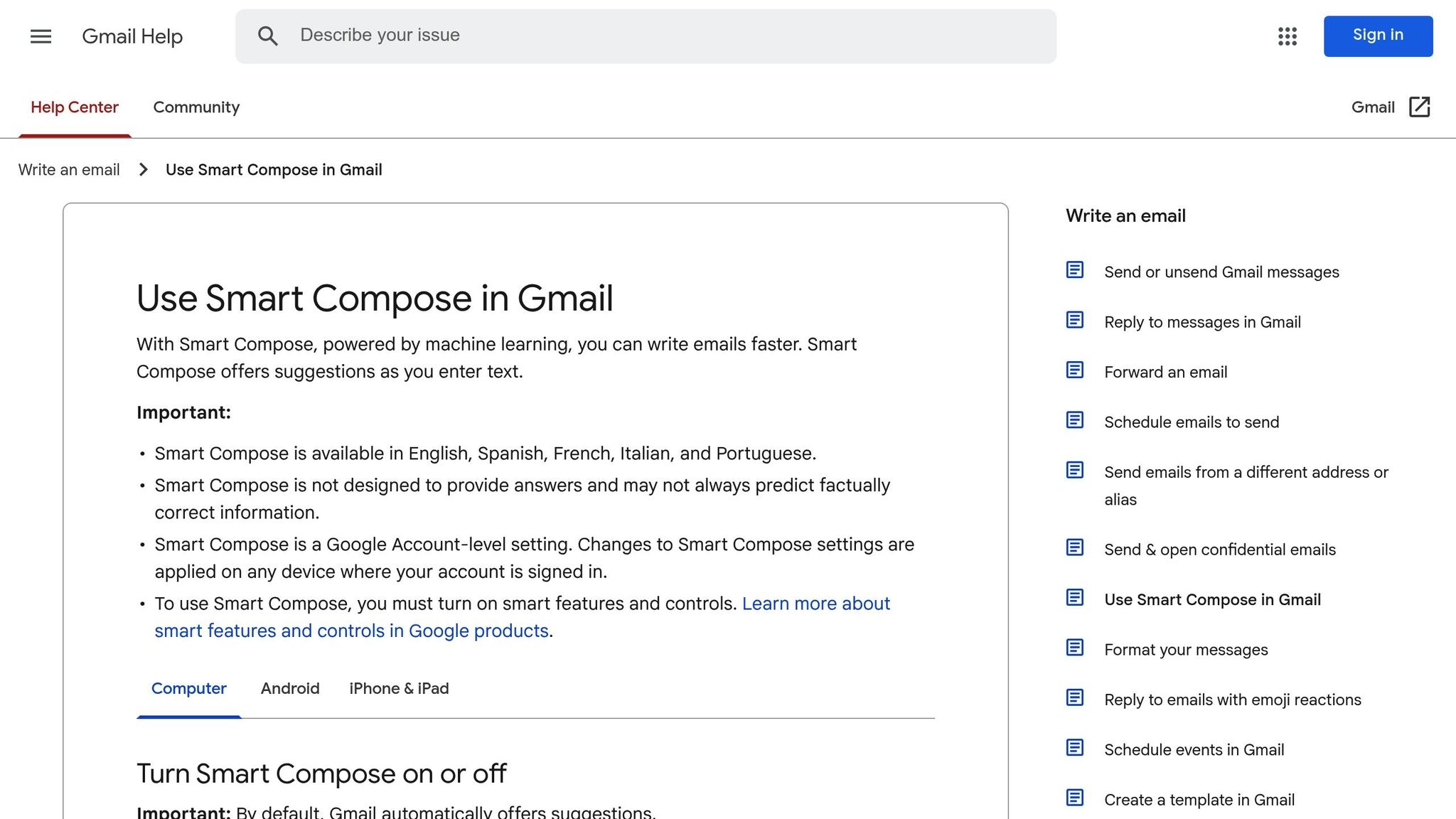
Smart Compose offers real-time text predictions, showing grayed-out suggestions as you type. You can accept these by pressing the Tab key. This feature not only saves time by reducing repetitive typing but also helps catch common grammar and spelling errors.
Maalika Manoharan, a Gmail Product Manager, highlights an additional benefit:
"Most people probably think of Smart Compose as filling in responses, but it can also help fill in subject lines".
Simply draft the body of your email, and Smart Compose can suggest a subject line that you can quickly accept with Tab. Over time, as you use the feature and provide feedback, it learns your preferences and adapts to your writing style. This makes it especially useful for handling routine emails efficiently while keeping them polished and professional.
sbb-itb-32359dc
Using BeLikeNative for Email Rewriting
How to Install and Use BeLikeNative
The BeLikeNative Chrome extension builds on Gmail’s existing tools, offering a quick way to improve email drafts by rephrasing your text directly from the clipboard. To get started, download the extension from the Chrome Web Store. Once installed, write your email draft in Gmail as you normally would. Highlight and copy the text you want to refine, then use your designated BeLikeNative shortcut to instantly rephrase and paste the polished version back into your email.
What makes BeLikeNative stand out is its ability to tailor language, tone, and style to suit your specific needs. Whether you’re crafting a formal business proposal or a casual note to a coworker, the extension adapts effortlessly. Plus, since it works with your clipboard, it’s not limited to Gmail – you can use it on other platforms too.
BeLikeNative Pricing Plans
BeLikeNative offers several pricing options to fit different needs:
- Free Plan: 5 uses per day, up to 500 characters.
- Learner ($4/month): 25 uses per day, up to 2,000 characters.
- Native ($6/month): 50 uses per day, up to 4,000 characters.
- Premium ($14/month): 125 uses per day, up to 6,000 characters.
All plans include support for over 80 languages and come with tools for improving spelling, grammar, clarity, and fluency. These options ensure you can fine-tune your emails with ease, leaving only the final proofreading step before hitting send.
Proofreading Before You Send
Reading Aloud and Checking Tone
Proofreading is the final step to ensure your email is clear and professional. One effective method? Read it aloud. This simple practice slows you down, making it easier to catch awkward phrasing, missing words, or issues with the flow.
"When you are communicating via email, your words are not supported by gestures, voice inflections, or other cues, so it may be easier for someone to misread your tone."
Put yourself in the recipient’s shoes as you review. How does the tone come across? If you’re unsure, try reading it aloud to a colleague or friend for feedback. Even small touches, like ending with a friendly line such as "I hope this helps" or "Thanks for your time", can leave a more positive impression.
Quick Grammar and Clarity Checks
Once you’ve read your email aloud, take a moment to check for grammar and clarity. Gmail’s built-in spell-checker is a handy tool, flagging typos and misspellings. Carefully review each underlined word and make corrections as needed. Double-check critical details like names, dates, and numbers – mistakes here, like misspelling a recipient’s name or giving the wrong meeting time, can hurt your credibility.
If you’ve used Gmail’s "Help me write" tool, consider running its "Polish" option for a final review. For crucial emails, step away for a short break and return with fresh eyes – you’ll often catch errors you missed the first time around.
Conclusion
Writing clear, effective emails isn’t just about hitting "send" – it’s about using smart strategies and tools to make sure your message gets across. By focusing on clarity, you save time, minimize misunderstandings, and present yourself professionally, which can positively impact both your career and personal relationships.
The tips in this guide work hand-in-hand to improve your email game. Start with a concise subject line and a polite greeting. Then, organize your message with short, straightforward sentences that follow a logical flow. Don’t forget to take advantage of Gmail’s features like "Help me write" and Smart Compose to make the process even smoother. This combination ensures your emails are not just sent but understood.
At the heart of it all, clarity is key. Your recipient should grasp your purpose immediately – no rereading, no guessing. Clear emails lead to quicker responses and fewer follow-ups, making communication more efficient and effective. By applying these techniques, you can take your email communication to the next level.
FAQs
How can Gmail’s ‘Help me write’ feature make your emails clearer?
Gmail’s ‘Help me write’ feature makes crafting emails a breeze. It takes your input and generates clear, concise drafts, improving phrasing and even suggesting adjustments to match the tone you’re aiming for. The result? Emails that are polished, straightforward, and perfectly aligned with what you want to convey.
Whether you’re tackling a formal business email or a casual note, this tool fine-tunes the language and structure to help you communicate your message with ease and precision.
What are the best tips for crafting clear and effective email subject lines?
To craft email subject lines that work, aim for clarity, brevity, and relevance. Use straightforward language that immediately conveys the email’s purpose, and keep it short to catch attention at a glance. Adding a personal touch – like the recipient’s name or a mention of a shared topic – can make it feel more tailored. Stay away from vague or overly general phrases, and if timing matters, clearly indicate deadlines or urgency. For a finishing touch, tools like Gmail’s Smart Compose can help fine-tune your wording and maintain a professional tone.
How can I make sure my email tone fits the recipient and situation?
To strike the right tone in your emails, think about who you’re writing to and the purpose of your message. For professional communication, stick to a formal tone and include polite expressions like "please" and "thank you." On the other hand, casual emails can have a more relaxed vibe – but always maintain respect.
Steer clear of language that comes across as pushy or overly demanding. Instead, adjust your tone to match the recipient’s level of familiarity or the norms of their industry. Finally, wrap things up with a thoughtful sign-off. For formal emails, something like "Best regards" works well, while "Take care" suits a more casual note.
Related Blog Posts
- How to Reword Any Text Like a Pro – AI Tools That Make Rewriting Effortless!
- How to Simplify Any Text with AI – Best Tools & Tips for Clearer Writing
- Convert Informal Text To Formal With Ai For Professional Writing
- Sound More Professional? Business Email English Improvement for Non-Native Speakers
BeLikeNative fixes grammar, rephrases, translates, and simplifies text on any website in 1 second — just highlight and hit a keyboard shortcut. No tab switching. Try it free →

