

How To Write Better GitHub Comments As A Developer
GitHub comments are essential for effective collaboration. They explain the "why" behind code, help teams align, and create a record of decisions for future reference. Writing clear, actionable, and professional comments reduces confusion, saves time, and improves code quality. Here’s how to make your GitHub feedback more impactful:
- Be clear and concise: Focus on one idea per comment and use direct, simple language.
- Provide context: Explain why a change is needed, not just what to fix.
- Use labels: Terms like "Nitpick", "Optional", or "Blocking" help prioritize feedback.
- Structure matters: Start with a summary, use bullet points for details, and separate critical points from minor suggestions.
- Stay professional: Focus feedback on the code, not the developer, and maintain a respectful tone.
- Leverage tools: Features like GitHub’s "Insert a suggestion" can streamline revisions.
Well-written comments not only improve current projects but also serve as valuable documentation for future developers. By following these principles, you can ensure your feedback is constructive, efficient, and easy to understand.
Transform Any Text, On Any Site, In Seconds
Rephrase, translate, and improve text with one shortcut. Works everywhere you write.
Add to Chrome - It's Free!Friendly and Effective Code Reviews on GitHub

Core Principles for Effective GitHub Comments
GitHub comments should be clear, concise, and actionable. The most effective feedback provides the necessary context without overwhelming readers. Here’s how to ensure your comments make an impact.
Provide Context and Keep It Short
Every comment should address one key question: why? As Hal Abelson, Professor at MIT, famously said:
"Programs must be written for people to read and only incidentally for machines to execute".
Stick to one idea per comment. If there are multiple issues, create separate comments for each. Instead of rewriting details, link to external references to give readers the full context without cluttering your message.
Clarity is key, so use simple, direct language.
Use Direct Language and Active Voice
Avoid vague statements that can lead to confusion. For example, instead of saying, "This condition might need fixing" or "Have you considered refactoring this?", be specific and direct. Say, "Fix this condition to handle null values" or "Refactor this method to reduce complexity." Using the imperative mood eliminates ambiguity and ensures your request is understood. Interestingly, this approach mirrors how Git itself generates messages for merges and reverts.
Always focus your feedback on the code, not the developer. For instance, replace "Why did you use threads here?" with "Use a single-threaded model here because there’s no performance benefit to concurrency". This keeps the tone professional and the discussion centered on the implementation.
Separate Summary from Details
The first line of your comment is prime real estate. Keep it to 50-60 characters and treat it as a subject line that summarizes your point. Follow it with a blank line before diving into the details. This structure isn’t just for readability – it’s crucial for Git tools like git log --pretty=oneline and git rebase to interpret your comments correctly. As Tim Pope, creator of tbaggery.com, points out:
"The blank line separating the summary from the body is critical (unless you omit the body entirely); tools like rebase can get confused if you run the two together".
For more complex feedback, break down your points into bullet points using hyphens or asterisks. This makes your comment easier to scan and visually digest.
How to Comment on Pull Requests and Code Lines
GitHub provides several ways to give feedback, and understanding the best approach for each situation can make your code reviews both efficient and constructive.
Commenting on Pull Requests
When reviewing a pull request, it’s best to leave technical feedback in the "Files changed" tab rather than the general "Conversation" tab. This ensures your comments are tied directly to the relevant code, making it easier for the author to locate and address the feedback. Start by reviewing the overall structure before diving into specific lines. To help the author prioritize, use labels like "Nit", "Optional", or "Blocking." For instance, you might write "nitpick: Extra whitespace here" for minor issues or "issue: Missing null check here" for critical problems. These labels make it clear which changes are essential and which are just suggestions.
Be sure to explain your reasoning in comments. Instead of saying, "Don’t use threads here", try something like, "Use a single-threaded model here because concurrency doesn’t improve performance in this case." As Sarah Vessels, Staff Software Engineer at GitHub, puts it, "I see a pull request as the beginning of conversation." Framing your feedback as part of a collaborative discussion fosters learning and improvement.
Commenting on Specific Code Lines
When commenting on specific lines of code, precision is key. In the "Files changed" tab, hover over the line you want to comment on and click the blue plus icon. For multiple lines, click and drag or use Shift+click on the line numbers. GitHub also offers the "Insert a suggestion" button, which lets you propose a code change that the author can apply with one click – streamlining the revision process and reducing misunderstandings.
Keep each comment focused on one issue. If the same issue appears in multiple places, comment on one instance and mention that it’s a recurring pattern. This avoids unnecessary repetition. Phrase your feedback as questions when appropriate, such as, "Would it make sense to extract this into a separate method?" rather than issuing direct commands. Also, keep in mind that your comments may be read by future maintainers, so avoid slang or references that may not stand the test of time.
When to Use Batched Reviews vs. Single Comments
Deciding between batched reviews and single comments depends on the situation. For multiple suggestions or questions, opt for a batched review. Click "Start a review" instead of "Add single comment" to group your feedback into one submission. This approach reduces notification overload by sending a single alert and works particularly well for pull requests generated by GitHub Copilot.
For quick clarifications, isolated questions, or short praise, single comments are more appropriate. When wrapping up a batched review, use the summary field to provide a big-picture overview. Highlight which comments are critical blockers and which are optional, giving the author a clear roadmap for addressing your feedback.
sbb-itb-32359dc
Writing Professional and Actionable Comments
Use Clear Language and Justify Your Suggestions
The best GitHub comments zero in on what needs to change and why it matters. For instance, instead of saying, "Refactor this method", explain your reasoning: "The concurrency model here adds complexity without offering a clear performance improvement". This not only clarifies your feedback but also helps developers understand the intent behind it, turning the review process into a learning opportunity.
Keep your feedback focused on the code itself. As noted in Google’s Engineering Practices:
"Be sure that you are always making comments about the code and never making comments about the developer".
By explaining the reasoning behind your suggestions, you’re doing more than addressing a single issue – you’re contributing to better code quality in the long run.
Use Bullet Points for Clarity
When you have multiple suggestions or detailed feedback, breaking things down into bullet points or numbered lists can make your comments more digestible. This structure helps reviewers quickly grasp your points, especially when dealing with large pull requests or numerous files. Markdown formatting can also help organize your feedback into manageable chunks that authors can tackle one by one.
Focus on clarity rather than nitpicking minor grammar issues. Simple, straightforward language minimizes misunderstandings, especially for global teams. If a comment requires a lengthy explanation, it might indicate that the code itself needs refactoring or that a comment should be added directly to the source file. Beyond structure, the tone of your comments plays a key role in effective collaboration.
Keep a Respectful and Constructive Tone
Once your feedback is clear and actionable, the way you deliver it matters just as much. Neutral comments can often come across as negative. Keavy McMinn from GitHub highlights this:
"If content is neutral, we assume the tone is negative. Can you use positive language as opposed to neutral?".
Framing feedback as questions – like "What about trying…?" instead of "Don’t do…" – fosters a more collaborative atmosphere. This approach turns the review process into a conversation rather than criticism.
Emojis can also help set the tone in asynchronous communication. As GitHub Engineering explains:
"Emoji and animated GIFs are the facial expressions and body language of online writing. Use them to convey emotion / tone and celebrate wins".
A simple 👍 or ✨ can make your feedback feel more supportive and show you’re working toward the same goal. Avoid harsh language or absolutes like "stupid" or "never." Instead, use phrases like "I’m not sure, let’s explore…". Starting with appreciation – especially when offering critical feedback – acknowledges the effort already put into the work and creates a more constructive dialogue.
Using BeLikeNative for Multilingual and Polished Comments
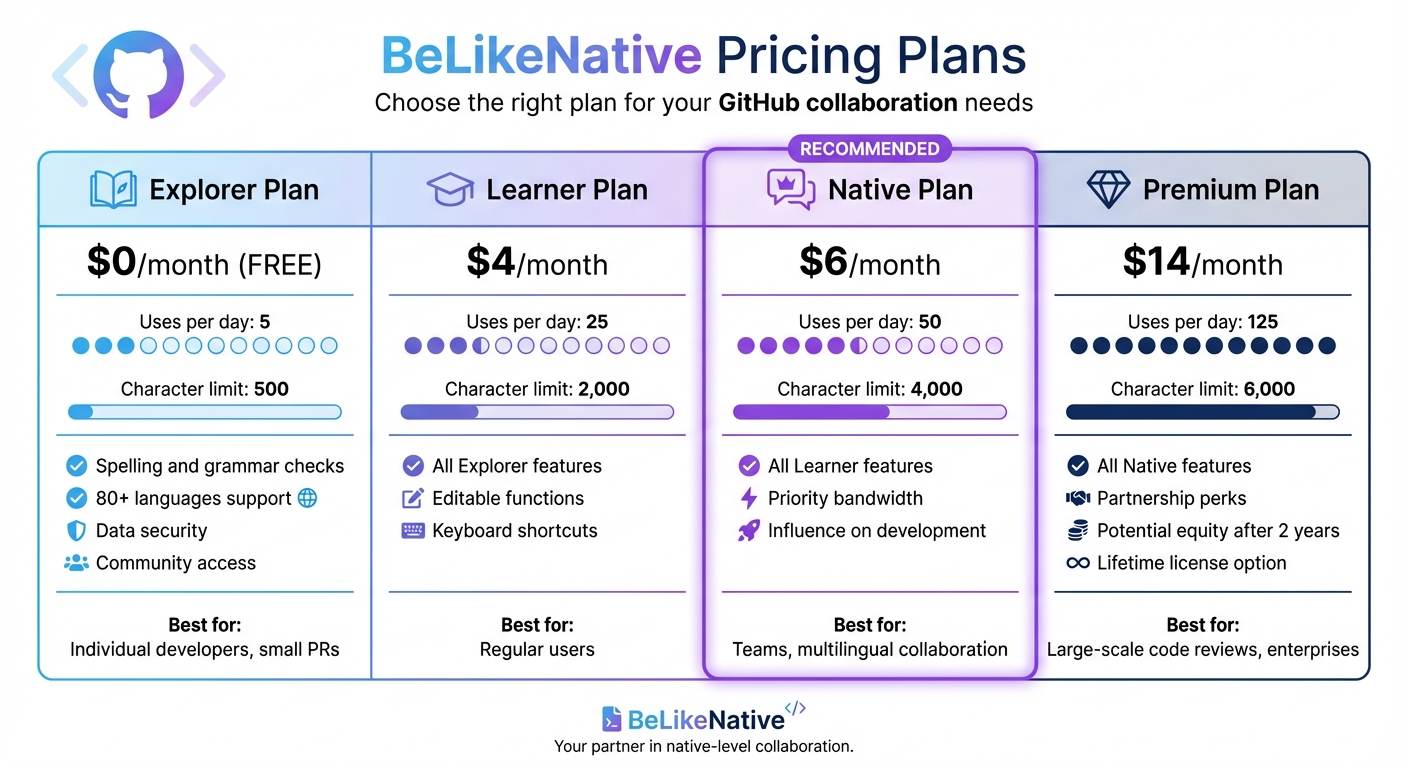
BeLikeNative Pricing Plans Comparison for GitHub Developers
BeLikeNative Features Overview
Clear communication is the backbone of effective collaboration, especially for distributed teams. BeLikeNative, a Chrome extension, is here to make that process smoother. It helps developers refine their GitHub comments by rephrasing, translating, and improving text clarity in over 80 languages – all without disrupting your workflow. With a simple clipboard-based system, you can tweak your comment using a single keyboard shortcut before posting it.
One standout feature is its ability to rephrase comments to focus on the "why" behind a change, not just the code itself. As the Swimm Team aptly puts it:
"Incorrect information is worse than no information at all"
BeLikeNative ensures your comments steer clear of ambiguity by simplifying technical jargon into plain language, making it easier for all team members to understand your intent – no matter their primary language.
BeLikeNative Pricing Plans
BeLikeNative offers four subscription options to suit different needs:
| Plan | Price | Uses/Day | Char. Limit | Key Features |
|---|---|---|---|---|
| Free | $0 | Limited | 500 | Spelling and grammar checks, support for 80+ languages, data security, community access |
| Learner | $4 | 50 | 4,000 | Includes Explorer features, plus editable functions and shortcuts |
| Native | $6 | 125 | 6,000 | Includes Learner features, priority bandwidth, and influence on extension development |
| Premium | $14 | 180 | 10,000 | Includes Native features, partnership perks, potential equity after 2 years, lifetime license option |
The Free plan is perfect for individual developers trying out the tool on smaller pull requests. For teams managing multilingual collaboration or tackling large-scale code reviews, the Native or Premium plans offer more flexibility with higher character limits and daily usage.
Adding BeLikeNative to Your Workflow
Integrating BeLikeNative into your daily routine is simple and seamless. Once installed, draft your comment, copy it, and hit the shortcut key to rephrase or translate it. This functionality is versatile, working across issue comments, PR summaries, and specific code line reviews. The result? Consistent tone and clarity, every time.
The rephrasing tool helps you keep feedback focused on the code, ensuring constructive and empathetic communication. Full-stack developer Dominika Zając emphasizes the importance of empathy in software engineering, and BeLikeNative makes it easier to strike the right tone before hitting "Comment." For multilingual teams, the translation feature ensures technical nuances aren’t lost, making it easier for reviewers to understand and act on feedback. This reduces the cognitive load on everyone involved and often leads to quicker merge times.
Conclusion
Writing thoughtful GitHub comments helps your team move forward with clarity and purpose. Instead of just pointing out the "what", emphasize the "why" behind your suggestions to provide meaningful context.
To keep feedback productive and respectful, use tools like suggestion blocks and severity labels (such as "Nit" or "Optional") to help prioritize changes effectively. Consolidating your feedback into a single review, rather than sending multiple individual comments, also minimizes notification overload – a small change your collaborators will greatly appreciate. This concise and organized approach ensures every comment contributes to smoother collaboration.
As your project grows, well-crafted comments become an essential part of its institutional knowledge. They provide future developers with insights into past decisions, making it easier to understand the project’s evolution. Clear comments not only speed up code reviews but also reduce unnecessary back-and-forth and pave the way for better software development.
For even more consistency, tools like BeLikeNative can help rephrase and translate comments, especially when working across distributed teams. Whether you’re coding solo or collaborating globally, the same principles apply: be clear, be considerate, and always explain your reasoning.
FAQs
What’s the best way to write clear and professional comments on GitHub?
When writing GitHub comments, aim to keep them short, clear, and centered on the code rather than the individual. Maintain a respectful and professional tone, and make sure to explain your reasoning to offer constructive feedback. Avoid making vague remarks – be direct and provide actionable suggestions.
A good structure can make your comments more effective. Start by identifying the issue, explain why it’s important, and then suggest a solution or improvement. This method helps ensure your feedback is useful and easy to follow, promoting smoother collaboration and better communication.
What are the advantages of using labels like ‘Nitpick’ or ‘Blocking’ in GitHub comments?
Using labels like ‘Nitpick’ or ‘Blocking’ adds clarity to your feedback by clearly indicating its purpose. These labels help your teammates quickly grasp the priority and context of your comments, minimizing misunderstandings and encouraging faster responses.
For instance, a ‘Blocking’ label signals that the issue must be addressed before progress can continue, while ‘Nitpick’ points out minor suggestions that aren’t urgent. This kind of structured labeling doesn’t just make communication clearer – it also helps keep workflows running smoothly within your GitHub projects.
How does BeLikeNative help developers write better GitHub comments for multilingual teams?
BeLikeNative equips developers with practical tools and strategies to craft clear, concise, and translation-friendly comments on GitHub. By emphasizing effective comment structure and a professional tone, it promotes better collaboration within diverse teams.
For teams working in multiple languages, BeLikeNative helps ensure that comments are simple to translate and easy to comprehend. This approach streamlines communication, boosts workflow efficiency, and keeps everyone on the same page when it comes to project objectives.
Related Blog Posts
- Managing Feedback in Multilingual Writing
- Managing Regional Feedback in Localization
- how to write value-add comments on x
- Make Your LinkedIn Comments Sound Professional Instantly
Looking for profession-specific writing shortcuts? BeLikeNative Prompt Packs give you one-click transforms built for software development workflows.
Ready to improve your language skills?
Visit belikenative.com to get started!
✨ Related BeLikeNative Tools
- 📝 Text Summarizer — Summarize long texts quickly
- ✍️ Paraphrasing Tool — Rephrase any text to sound more natural
- 🔍 Grammar Checker — Fix grammar errors instantly
All tools are free to use with the BeLikeNative Chrome extension. View pricing plans →
BeLikeNative fixes grammar, rephrases, translates, and simplifies text on any website in 1 second — just highlight and hit a keyboard shortcut. No tab switching. Try it free →

