
How To Change Passive Voice To Active Voice Online
Active voice makes your writing clearer, shorter, and more engaging. Instead of saying, "The cake was baked by Sarah", say, "Sarah baked the cake." This shift focuses on the doer of the action, making sentences more direct and easier to understand. Passive voice often adds unnecessary words and can confuse readers.
To quickly convert passive sentences to active ones, AI tools like BeLikeNative are a game-changer. This browser extension analyzes text, identifies passive voice, and provides active voice alternatives instantly. It works across platforms like Gmail, Google Docs, and LinkedIn, allowing you to edit text seamlessly.
Key Takeaways:
- Passive voice: Focuses on the receiver of the action (e.g., "The report was written by John").
- Active voice: Highlights the doer of the action (e.g., "John wrote the report").
- Spot passive voice: Look for "to be" verbs (e.g., is, was, were) followed by a past participle (e.g., written, done).
- BeLikeNative Features: Converts passive to active voice, supports 80+ languages, and integrates with popular platforms.
- Plans: Free option available; paid plans start at $4/month for more features.
Switching to active voice improves clarity and impact. Tools like BeLikeNative simplify this process, helping you write better, faster. Whether you’re editing emails, reports, or social posts, active voice ensures your message is clear and direct.
How to Change Your Writing from Passive to Active Voice in 4 MINUTES || Scholarly Writing
sbb-itb-32359dc
What Is Passive and Active Voice?
Passive Voice vs Active Voice: Structure, Examples, and Identification Guide
Understanding the difference between passive and active voice is crucial for clear and impactful writing. Both are common grammatical structures in English, but they serve different purposes. Let’s break down what each one means and how to identify them.
What Is Passive Voice?
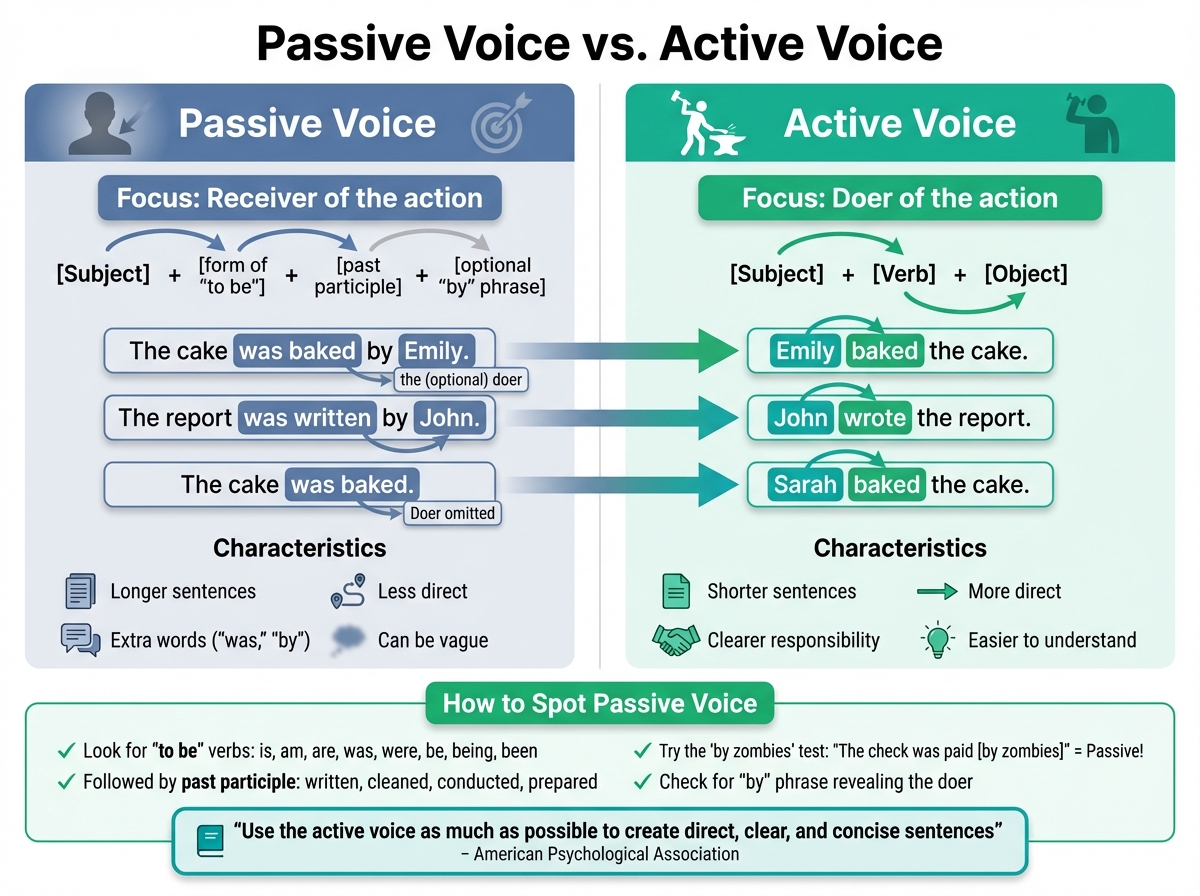
In passive voice, the focus is on the receiver of the action rather than the doer. The subject of the sentence doesn’t perform the action – it simply receives it. The typical structure looks like this: [subject] + [form of "to be"] + [past participle] + [optional "by" phrase].
For example: "The cake was baked by Emily." Here, "the cake" is the focus, while Emily – the one who actually baked it – is tucked away at the end. In some cases, the doer is left out entirely, as in: "The cake was baked." This often leaves readers guessing about who performed the action. Passive voice also tends to use extra words like "was" and "by", making sentences longer and less direct.
What Is Active Voice?
Active voice, on the other hand, puts the subject in charge. The structure is straightforward: [Subject] + [Verb] + [Object]. For example: "Emily baked the cake." In this case, Emily is clearly doing the action, and the sentence feels more direct and lively.
"Use the active voice as much as possible to create direct, clear, and concise sentences, especially when you are writing about the actions of people." – American Psychological Association
Active sentences are often shorter and easier to understand. They eliminate unnecessary words and make it immediately clear who’s responsible for the action. This clarity is why tools like BeLikeNative prioritize active voice for quick and effective sentence rephrasing.
How to Spot Passive Sentences
Identifying passive voice is easier than you might think. Start by looking for "to be" verbs – like is, am, are, was, were, be, being, been – paired with a past participle (e.g., written, cleaned, conducted, prepared). For example: "The report was written."
A fun trick is the "by zombies" test: insert "by zombies" after the verb. If the sentence still makes sense – "The check was paid by zombies" – you’ve got passive voice. Another clue is the presence of a "by" phrase that reveals who performed the action, though this can often be omitted, leaving the sentence vague.
Passive sentences can slow down understanding because readers often have to mentally rework them into active ones. Recognizing these patterns not only sharpens your writing but also helps you decide when to revise for clarity. Tools like BeLikeNative make this process even faster by converting passive sentences into active ones in no time.
How BeLikeNative Converts Passive to Active Voice
BeLikeNative is a Chrome extension powered by AI that transforms passive sentences into active ones. It works by analyzing sentence structure – specifically the subject, verb, and object – to identify the agent performing the action. In passive voice, the agent is often either omitted or placed after the word "by." BeLikeNative rearranges these elements, bringing the agent to the forefront and making sentences more direct and easier to understand.
The tool detects passive voice by spotting "to be" verbs (e.g., was, is, has been) followed by past participles (e.g., written, seen, done). Once identified, it restructures the sentence so the subject takes charge of the action. This process happens in real time across platforms like Gmail, Google Docs, Microsoft Word, and Outlook. Below, we’ll walk through how to install and use BeLikeNative for smoother sentence transformations.
Installing the BeLikeNative Chrome Extension
Getting started with BeLikeNative is quick and easy. Head to the Chrome Web Store and search for "BeLikeNative." Click Add to Chrome, then confirm by selecting Add Extension in the pop-up. Once installed, you’ll find the BeLikeNative icon in your browser’s toolbar. Clicking the icon lets you customize settings like language, tone, and style. Once set up, the extension works instantly across all your open tabs.
Using Clipboard Shortcuts for Voice Conversion
BeLikeNative integrates seamlessly with your clipboard for fast editing. Just highlight or copy the text you want to adjust, then press your custom clipboard shortcut (configured in the extension settings). The tool analyzes the text and provides active-voice alternatives on the spot. You can review and replace the original text with a single click. This feature works on platforms like WhatsApp Web, Notion, LinkedIn, and nearly any text field in your browser.
BeLikeNative Plans and Pricing
BeLikeNative offers four subscription plans to suit different needs.
- The Explorer plan is free and allows 5 uses per day with a 500-character limit, perfect for occasional edits.
- The Learner plan, priced at $4/month, increases the daily limit to 25 uses and supports up to 2,000 characters. It also includes editable functions and customizable shortcuts.
- The Native plan costs $6/month, offering 50 uses per day with a 4,000-character limit and priority bandwidth.
- For power users, the Premium plan is $14/month, providing 125 daily uses, a 6,000-character limit, partnership perks, and even potential equity after two years.
All plans support over 80 languages and include additional features for improving spelling, grammar, clarity, and fluency.
How to Convert Passive to Active Voice with BeLikeNative
BeLikeNative makes switching from passive to active voice quick and easy. Whether you’re working on emails, reports, or blog posts, this tool helps you rewrite sentences with minimal effort.
Selecting and Rephrasing Sentences
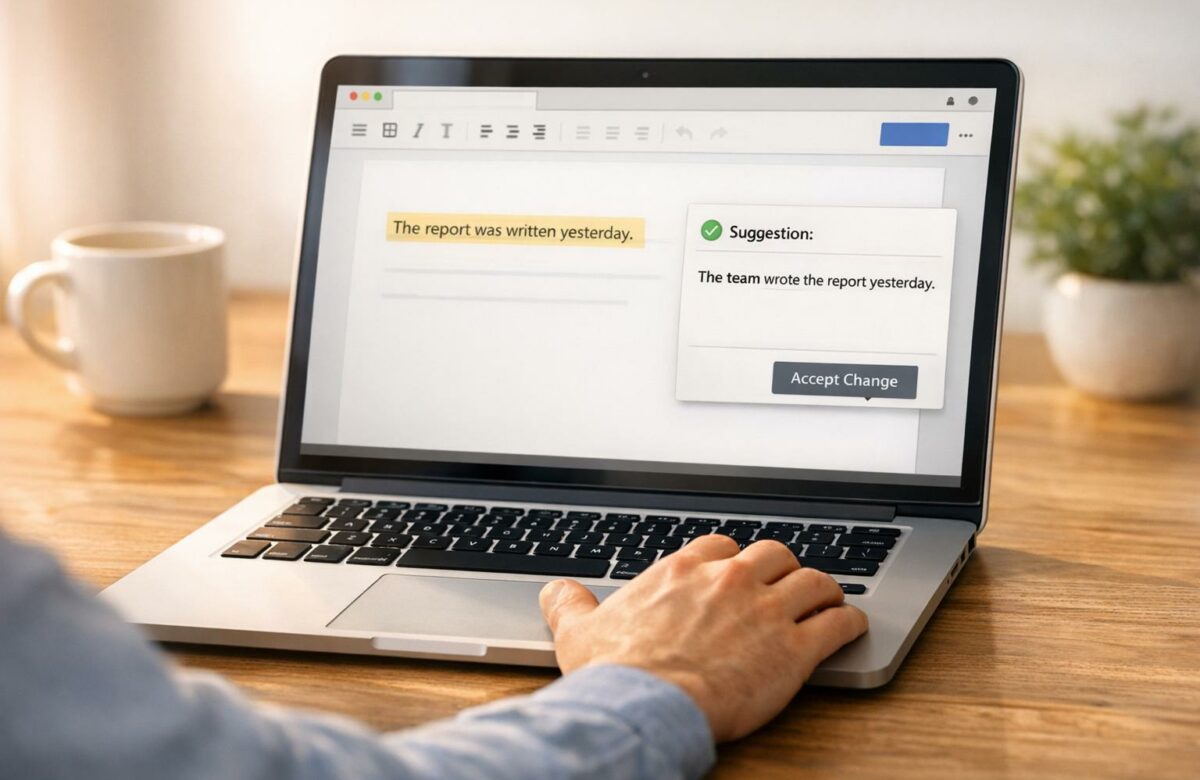
Take a passive sentence like "The report was completed by the team." Highlight it, and use your preset clipboard shortcut to activate BeLikeNative. Instantly, you’ll get an active-voice suggestion such as "The team completed the report." The tool shifts the focus to the doer, making your writing more direct and engaging. Once you’ve made the change, you can refine your text further by reviewing the suggestions provided.
Reviewing and Editing the Results
After generating active-voice suggestions, take a moment to review the options. BeLikeNative usually provides several rephrased versions, so you can choose the one that fits your tone and context best. If needed, you can make quick manual adjustments to fine-tune the sentence. With just one click, you can replace the original text, ensuring your writing is not only grammatically correct but also natural and precise. This seamless process works efficiently, no matter the platform you’re using.
Using BeLikeNative Across Different Platforms
BeLikeNative integrates smoothly with platforms like Gmail, Google Docs, Microsoft Word, Outlook, Notion, LinkedIn, and WhatsApp Web. Simply highlight the text and use your shortcut to transform it instantly. Since the extension runs directly in your browser, there’s no need for extra integrations or copying and pasting between tools. Whether you’re polishing a Google Doc or crafting a LinkedIn post, the workflow remains the same – select, activate, and replace. This uniform process helps you save time and maintain a consistent writing experience across all your tasks.
Tips for Better Voice Conversion
Converting Complex Passive Sentences
Tackling complex passive sentences can be tricky, especially when they involve multiple clauses or hidden subjects. When using BeLikeNative to suggest an active alternative, start by identifying the agent responsible for each action. If the actor isn’t explicitly mentioned, rely on context or use placeholders like "researchers", "the team", or "experts."
Passive voice typically follows this formula: [subject] + [form of "to be"] + [past participle of a transitive verb]. Watch out for irregular verbs – phrases like "was written" should change to "wrote", not "written". After converting, double-check that the verbs maintain the correct tense. Remove unnecessary auxiliary verbs (like "was" or "been") and omit the word "by" when it doesn’t add value.
Using BeLikeNative for Multiple Languages
BeLikeNative isn’t limited to English (en-US); it supports over 80 languages, including Spanish, French, and German. The process is simple: highlight your text, use the clipboard shortcut, and review the suggestions. This tool is particularly handy for managing multilingual content or collaborating with global teams. However, automated conversions might not fully capture the intended tone, especially in formal or technical writing. Always review the output to ensure clarity and accuracy in your message.
Writing Tips for Clear, Readable Sentences
Using active voice makes your writing more direct and assertive, which is especially valuable in professional and academic settings. After converting passive sentences to active ones, cut out filler words like "actually", "really", or "essentially" to sharpen your writing. Avoid starting sentences with phrases like "There is" or "There are", as these can make even active sentences feel indirect.
If a sentence feels too long or convoluted, break it into two shorter ones for better readability. That said, passive voice isn’t always a mistake – it works well when the doer of the action is unknown, unimportant, or when the focus is on the action’s recipient.
Conclusion
Using active voice makes your writing sharper and more engaging. It trims unnecessary words, clarifies who’s doing what, and keeps your readers locked in on your message. As Lindsay Kramer explains, "Many perceive active voice as stronger and more engaging. It’s generally preferred for its conciseness and clarity…". Switching from passive to active doesn’t just tweak sentence structure – it brings more confidence and precision to your writing.
Modern tools make this shift easier than ever. BeLikeNative streamlines the process directly in your browser, working seamlessly with platforms like Gmail, Google Docs, and Microsoft Word. Instead of reworking sentences manually, you can simply highlight the text and transform it with a quick clipboard shortcut. The tool takes care of tricky verbs, ensures correct tense, and supports over 80 languages.
Whatever you’re writing – emails, reports, or content for a global audience – BeLikeNative adjusts to fit your needs. It helps you communicate clearly and efficiently, turning passive, wordy sentences into active, concise ones. Give it a try, pick the plan that works for you, and see how it can elevate your writing. Your readers will notice the difference.
FAQs
How does BeLikeNative detect and help me fix passive voice in my writing?
BeLikeNative’s AI scans your text to spot passive voice by identifying patterns like a form of to be paired with a past participle. It also highlights phrases with "by…" that suggest who carried out the action.
When it detects passive voice, the tool highlights the sentence and suggests an active voice rewrite. This helps you shift the focus to the subject performing the action, boosting both clarity and reader engagement. Plus, it all happens in real-time, allowing you to fine-tune your writing as you go.
Why is active voice better than passive voice in writing?
Active voice creates writing that’s clear, direct, and easy to follow. When the subject takes action, sentences become shorter and more straightforward, cutting out unnecessary phrases and delivering a stronger, more engaging message.
It also boosts readability by trimming down extra words and keeping the focus on the action and the doer. This approach not only sharpens clarity but also gives your writing a confident and polished tone – helping you build a stronger connection with your audience.
Can BeLikeNative handle complex sentences or support multiple languages?
Currently, there’s no detailed information about whether BeLikeNative can handle complex sentences or if it supports multiple languages. For precise and up-to-date details on these capabilities, it’s a good idea to consult BeLikeNative’s official documentation or contact their support team directly.

