
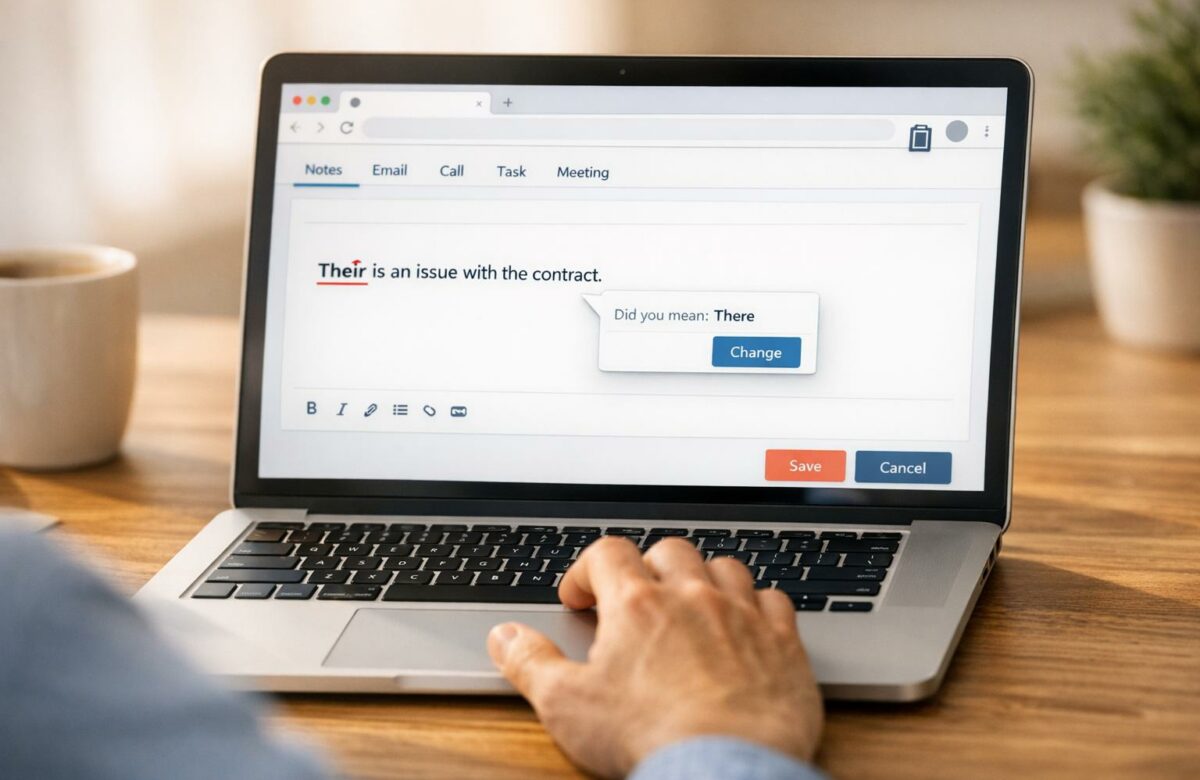
How To Fix Grammar In HubSpot CRM Notes
Struggling with grammar mistakes in HubSpot CRM notes? Here’s how to fix them effectively:
- Use your browser’s spell check: HubSpot relies on your browser for basic grammar and spelling checks. Enable this feature in Chrome for quick fixes.
- Install the BeLikeNative Chrome extension: This tool provides real-time grammar, tone, and clarity suggestions directly in HubSpot. It’s especially helpful for advanced corrections like rephrasing and improving tone.
- Refine notes with BeLikeNative: Copy your HubSpot note, edit it in BeLikeNative, and paste the polished version back into HubSpot. Use features like "Shorten" or "Humanize" for better readability and tone.
- Choose the right BeLikeNative plan: Options range from free (5 uses/day) to $14/month (125 uses/day) for heavy users, ensuring scalability based on your needs.
Pro Tip: Avoid iFrame issues in HubSpot by using BeLikeNative’s clipboard-based editing or drafting notes in an external editor before pasting them back.
Transform Any Text, On Any Site, In Seconds
Rephrase, translate, and improve text with one shortcut. Works everywhere you write.
Add to Chrome - It's Free!With these steps, you can ensure your CRM notes are clear, professional, and error-free, saving time and improving team communication.
Step 1: Turn On Browser Spell Check for Basic Grammar Fixes
HubSpot CRM doesn’t come with a built-in spell check tool. Instead, it relies on your browser’s native spell check feature. Diana Gomez, Community Manager at HubSpot, confirms this limitation: “HubSpot CRM lacks a native spellcheck tool”.
Enabling your browser’s spell check is a quick way to catch typos and basic grammar errors in your CRM notes. Without it, you might find yourself drafting notes in external tools, which can waste time and disrupt your workflow.
How to Turn On Chrome Spell Check
Chrome provides two levels of spell check: Basic, which uses your computer’s dictionary for local error detection, and Enhanced, which leverages Google’s technology for more precise suggestions by sending your text to their servers.
To activate spell check in Chrome:
- Click the three vertical dots (More icon) in the top-right corner.
- Navigate to Settings and select Languages from the sidebar.
- Find the Spell check section and toggle on Check for spelling errors when you type text on web pages.
- For better accuracy, choose Enhanced spell check, which offers more advanced suggestions.
If you still encounter issues, make sure your browser is updated and check for any plugins that might be causing conflicts.
What Browser Spell Check Can’t Fix
While browser spell check is great for catching basic spelling and punctuation errors, it falls short when it comes to more nuanced grammar issues. It won’t flag passive voice, awkward phrasing, or overly complex sentences. It also won’t help with tone – like identifying if your notes sound too harsh or lack confidence – or catch inconsistencies in verb tenses and subject-verb agreement.
"Some grammar checkers may just check the basics, like spelling and punctuation. More advanced programs can identify passive sentence structures, awkward phrases, and copy that is too complex for the average reader".
For critical client notes or customer-facing communications, relying solely on browser spell check isn’t enough. To address these gaps, you’ll need to explore more advanced grammar tools, which we’ll dive into in the next step.
Step 2: Install BeLikeNative Chrome Extension for Better Grammar Correction
Your browser’s built-in spell check might catch basic errors, but it often misses awkward phrasing, tone mismatches, or complex grammar issues. That’s where BeLikeNative, a Chrome extension, steps in. This tool is designed to polish your writing and enhance clarity across various platforms, including HubSpot CRM. It provides real-time suggestions as you type, ensuring your communication stays polished and professional. Here’s how to set it up and make the most of it in your HubSpot workflow.
How to Install BeLikeNative Extension
To get started, head over to the Chrome Web Store and search for "BeLikeNative." Once you find it, click Add to Chrome. After installation, the extension icon will appear in your browser’s toolbar. For quick access, click the puzzle-shaped icon in the top-right corner of your browser and pin the BeLikeNative icon.
Next, log into your BeLikeNative account. Open the extension settings and enable it specifically for the HubSpot domain. This step ensures the tool is fully functional within your HubSpot interface.
BeLikeNative Features for HubSpot CRM
BeLikeNative is a versatile tool, supporting over 80 languages while offering features like rephrasing, translation, and text enhancement. You can even customize settings to align with your business’s tone and style. For example, selecting the "Business" writing style helps maintain a professional tone when drafting CRM notes or emails.
A handy feature of BeLikeNative is its clipboard integration. With a quick shortcut, you can refine copied text without interrupting your workflow. Once activated, look for the BeLikeNative logo in the lower-right corner of HubSpot text fields. This confirms the extension is ready to help you catch grammar mistakes, sharpen clarity, and fine-tune tone – all without leaving the HubSpot interface.
Step 3: Fix Grammar in HubSpot Notes Using BeLikeNative
Once you’ve installed BeLikeNative, it’s time to put it to work on your HubSpot notes. With this tool, you can instantly improve the grammar and tone of your CRM notes. All you need to do is copy your note from HubSpot, refine it in BeLikeNative, and paste the polished version back. This simple process fits seamlessly into your HubSpot workflow.
How to Use BeLikeNative to Fix Grammar
Start by locating the note you want to edit in HubSpot. Notes can be found under Service > Help Desk or on the timeline of a specific contact, company, or deal record. Hover over the note and click the Edit icon to open it for editing.
Once the note is open, highlight the text and copy it using Ctrl+C (or Cmd+C if you’re on a Mac). Open the BeLikeNative extension by clicking its icon in your browser toolbar, then paste the copied text into the editor using Ctrl+V (or Cmd+V). The tool will immediately analyze your writing, offering suggestions to improve grammar, clarity, and tone.
If the note feels too lengthy, try BeLikeNative’s Shorten feature to make it more concise. For AI-generated or overly formal text, the Humanize option can help make the tone more natural and conversational. After reviewing and applying the suggested edits, copy the updated text from BeLikeNative and paste it back into the HubSpot note field. Finally, click Save to update the note.
Tips for Faster Grammar Correction with BeLikeNative
To speed up the editing process, consider these handy shortcuts. Set up a keyboard shortcut in the extension settings to refine copied text instantly through clipboard integration – no need to switch between windows.
Keep the BeLikeNative editor open in a separate browser tab for quick access while working in HubSpot. For team collaboration, use HubSpot’s @mention feature to tag colleagues in notes that need review after you’ve made corrections. You can also customize BeLikeNative’s writing style to align with your company’s tone. For professional CRM communication, selecting the Business mode ensures all edits maintain a polished and formal voice.
sbb-itb-32359dc
BeLikeNative Plans for HubSpot CRM Users
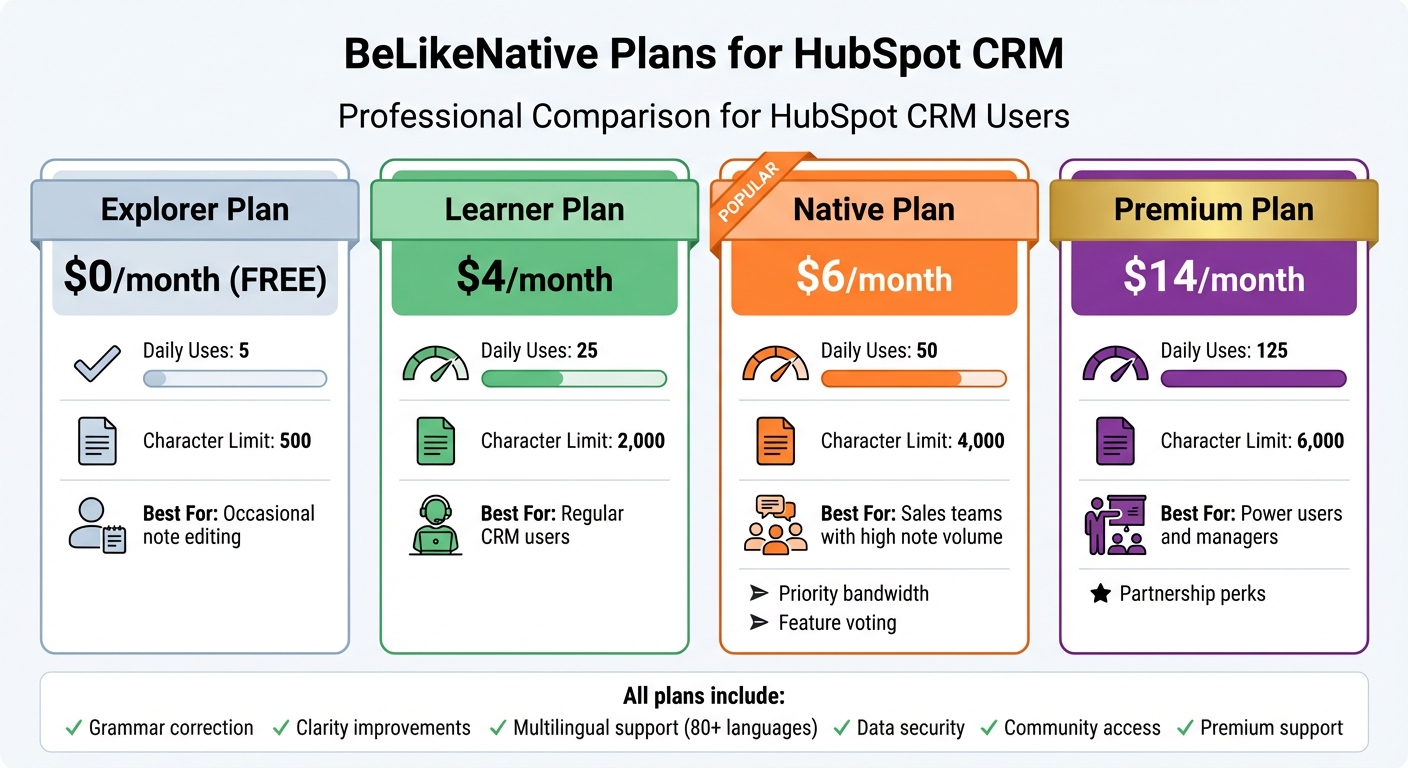
BeLikeNative Pricing Plans Comparison for HubSpot CRM Users
Once you’ve streamlined your grammar edits with BeLikeNative, it’s time to pick a plan that matches your HubSpot CRM needs.
BeLikeNative offers four subscription tiers tailored for HubSpot CRM users. Each plan includes essential features like grammar correction, improved clarity, and multilingual support. The main differences lie in daily usage limits and text capacity.
- The Free plan is completely free, giving you 5 uses per day – perfect for occasional note editing.
- For $4/month, the Learner plan provides 25 daily uses, making it ideal for regular CRM users, such as sales reps managing daily contact notes.
- The Native plan, priced at $6/month, offers 50 daily uses and a 4,000-character limit. It also includes priority bandwidth and a say in future feature updates – great for teams handling high volumes of notes.
- For heavy users, the Premium plan costs $14/month. It delivers 125 daily uses, a 6,000-character limit, and exclusive partnership perks, making it a solid choice for managers and power users.
Plan Comparison Table
| Plan | Price | Daily Uses | Character Limit | Best For |
|---|---|---|---|---|
| Free | $0/month | 5 | 500 | Occasional note editing |
| Learner | $4/month | 25 | 2,000 | Regular CRM users |
| Native | $6/month | 50 | 4,000 | Sales teams with high note volume |
| Premium | $14/month | 125 | 6,000 | Power users and managers |
Every plan includes core benefits like data security, access to the BeLikeNative community, and premium support. If you’re unsure where to start, try the Free plan for free and see how it fits your workflow.
These flexible options ensure that HubSpot CRM users of all levels can easily integrate advanced grammar tools into their daily tasks without disrupting productivity.
Fixing Common Grammar Tool Problems in HubSpot CRM
Technical issues can sometimes pop up when using HubSpot CRM, and one recurring challenge involves its text editors.
iFrame Compatibility Problems
HubSpot relies on iFrames for many of its text fields, which can make life tricky for certain browser extensions. As VocatiJon from the HubSpot Community pointed out: "It appears that Hubspot uses iFrame for its text areas. Unfortunately, iFrame is not supported by some grammar tools at this time". This setup can cause grammar tools to malfunction, with edits occasionally disappearing or failing to apply correctly.
BeLikeNative offers a clever workaround. Instead of trying to integrate directly into HubSpot’s text fields, it uses a clipboard-based approach. You copy your text, activate the tool with a keyboard shortcut, and then paste the corrected version back into HubSpot. This simple process avoids the iFrame issue entirely and ensures smooth functionality across all text areas.
If you run into these kinds of problems, exploring alternative editing methods can save time and frustration.
Backup Methods for Grammar Fixes
When iFrame limitations prevent direct grammar corrections in HubSpot, consider drafting your notes elsewhere. Use a basic text editor like Notepad (Windows) or TextEdit (Mac) to write and correct your text using BeLikeNative. Once polished, copy the text and paste it into HubSpot.
If pasting causes issues like freezing or formatting glitches, try opening HubSpot in a private or incognito browser window. Always copy your corrected text before saving it in HubSpot to avoid losing your work if something goes wrong.
Conclusion
HubSpot CRM doesn’t include a built-in grammar-checking feature. While browser-based spell check can catch simple mistakes, it often overlooks more nuanced issues like passive voice, verb tense mismatches, and tone inconsistencies. This limitation highlights the importance of using advanced grammar tools.
BeLikeNative offers a clever workaround for iFrame restrictions, using a clipboard-based method that allows you to edit text with a quick keyboard shortcut and paste it back effortlessly.
Accurate CRM notes not only enhance clarity for your team but also help build trust and set you apart from competitors. As Diana Gomez from HubSpot explains:
"Currently, we do not have a native tool for spellcheck. The system is designed to inherit the spell-checking capabilities of the browser that you are utilizing".
FAQs
How can I fix grammar and spelling in my HubSpot CRM notes?
To clean up grammar and spelling in your HubSpot CRM notes, start by activating your browser’s built-in spell check. If you’re using Google Chrome, head to Settings, navigate to Languages, and switch on Spell check. You can pick between basic or enhanced options for improved accuracy.
For an extra layer of support, try using tools like Grammarly. Install the browser extension, make sure it’s enabled for all websites (including HubSpot CRM), and let it provide real-time suggestions as you type. Grammarly helps catch grammar mistakes and spelling errors, ensuring your notes stay polished and professional.
By combining your browser’s spell check with a grammar tool, you can easily create clear, error-free CRM notes without breaking a sweat.
How can I improve grammar in my HubSpot CRM notes?
The BeLikeNative Chrome extension is a handy tool that helps refine your writing while you work on platforms like HubSpot CRM. It offers real-time grammar and spell-checking, providing instant feedback to correct grammar, spelling, and punctuation mistakes as you type.
Beyond basic corrections, it also includes style suggestions, paraphrasing tools, and content quality scoring. These features make it easier to craft polished and professional notes without needing to jump between multiple tools. Plus, the extension integrates effortlessly with a variety of web applications, ensuring your writing stays sharp and on point wherever you’re working.
How can I fix issues with grammar tools when editing notes in HubSpot CRM?
If you’re running into problems using grammar tools like Grammarly while editing notes in HubSpot CRM, the issue might stem from conflicts with browser extensions that rely on iFrames. These conflicts can block grammar suggestions from showing up or working as they should.
Here’s how you can address this:
- Adjust or disable conflicting browser extensions to prevent interference with HubSpot’s interface.
- Opt for grammar tools or integrations that are known to work seamlessly with HubSpot.
- Keep an eye on HubSpot updates – they might roll out built-in grammar-checking features down the road.
By tweaking your browser settings and sticking to compatible tools, you can streamline your editing process and keep your CRM notes polished.
Related Blog Posts
- How to Improve Your Writing Quality with Browser Extensions
- Ai Grammar Fixers That Improve Your Writing Instantly
- How To Fix Grammar In Notion Without Switching Tabs
- How To Fix Typos In Slack Before You Hit Send
BeLikeNative fixes grammar, rephrases, translates, and simplifies text on any website in 1 second — just highlight and hit a keyboard shortcut. No tab switching. Try it free →

