

How To Write Faster In Salesforce Without Typos
Tired of wasting time on typos and slow navigation in Salesforce? Here’s the solution: use built-in tools, shortcuts, and productivity extensions to type faster and ensure error-free data entry.
Key Takeaways:
- Keyboard shortcuts: Use commands like
Ctrl+sto save edits instantly or/to jump to search. - Inline editing: Update multiple records directly without opening individual pages.
- Productivity extensions: Tools like Grammarly and TextExpander catch errors and simplify repetitive typing.
- Custom layouts: Streamline your interface by hiding unnecessary fields and organizing key sections.
- Einstein Search: Use natural language queries to locate and edit records faster.
These strategies can save hours each week while keeping your data accurate. Let’s dive into the details!
Transform Any Text, On Any Site, In Seconds
Rephrase, translate, and improve text with one shortcut. Works everywhere you write.
Add to Chrome - It's Free!10 Salesforce Tips to Boost Productivity for Salesforce Users

Use Salesforce Tools for Faster Typing
Salesforce comes with handy shortcuts and features designed to cut down on clicks and make data entry a breeze.
Keyboard Shortcuts for Quick Navigation
Why waste time clicking around when you can use a few keystrokes? For example, press e to open the edit frame for a record. Once you’re done typing, hit Ctrl+s (Windows) or Cmd+s (macOS) to save your changes instantly. Need to search for something? Just press / to jump straight to the search box.
If you’re juggling multiple composer windows, use the Left/Right Arrow keys to switch between them, and Tab to navigate through fields. Want to insert predefined snippets? Press Ctrl+. (Windows) or Cmd+. (macOS). And if you need to cancel an edit or close a window quickly, simply hit Esc.
Keep in mind, these shortcuts are optimized for U.S. and U.K. keyboards. On other layouts, shortcuts using slashes or periods might not work as expected.
To see the full list of shortcuts, press Ctrl+/ (Windows) or Cmd+/ (macOS). Pair these shortcuts with inline editing to keep your workflow smooth and uninterrupted.
Inline Editing and List Views
Inline editing takes the efficiency of shortcuts to the next level, letting you update records directly from a list view without the hassle of opening each one.
Here’s how it works: click on an editable field, type your changes, and press Return to jump to the next field. Once all updates are made, simply click the Save button to apply everything at once. This feature eliminates the need for constant page loads, saving you time and keeping your focus intact.
To make the most of inline editing, ensure that "Enable Inline Editing" and "Enable Enhanced Lists" are turned on in your User Interface settings. With these options activated, you can even edit the same field across multiple records simultaneously. Just select the records, update one field, and apply the change to all selected items in one go.
Chris Stegall, Digital Marketing Director at MK Partners, highlights how this feature helps users stay in the "mental zone", allowing them to focus without the constant interruptions of navigating between pages.
Improve Accuracy with Productivity Extensions
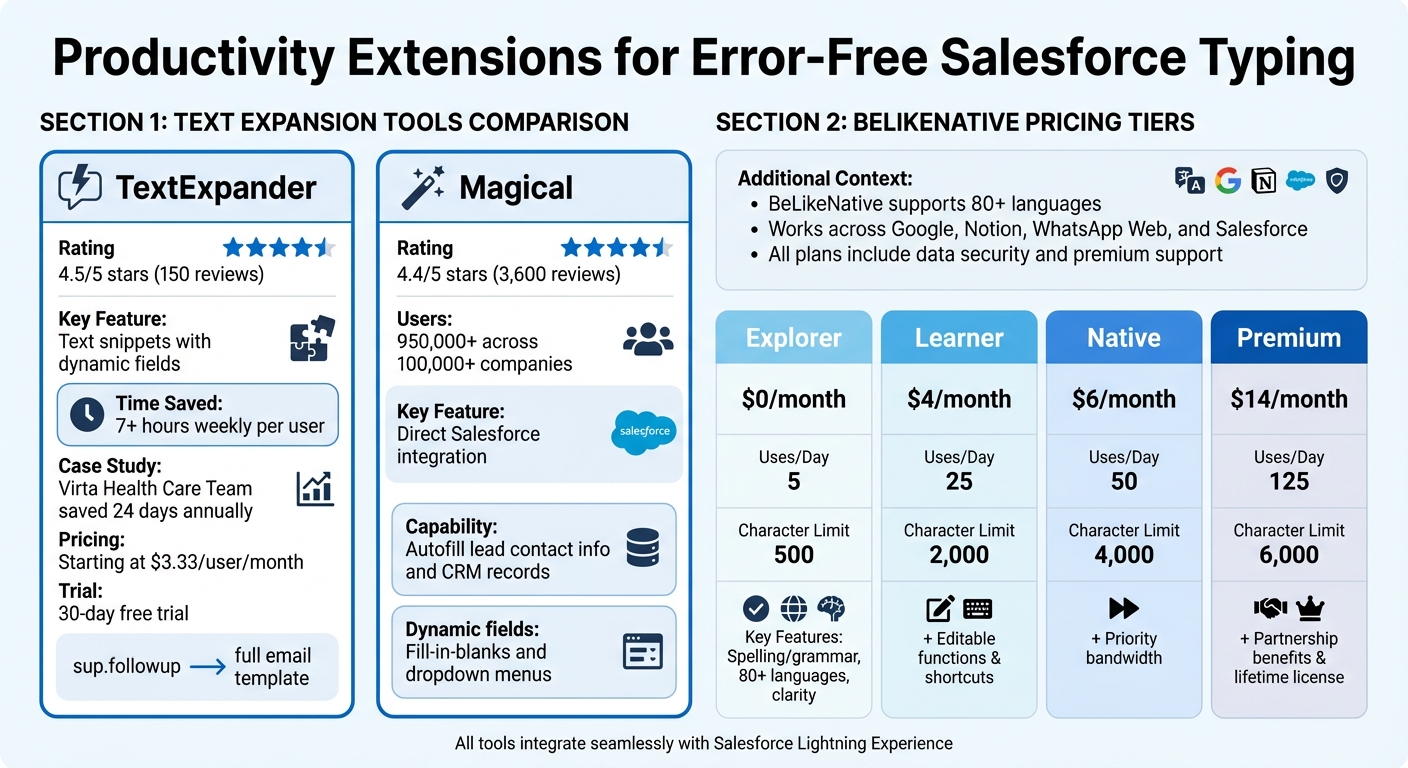
Comparison of Text Expansion and Multilingual Tools for Salesforce
Even with shortcuts and inline editing, fast typing often leads to typos. Productivity extensions and automation tools can help catch these errors instantly, ensuring accuracy and saving time.
Spell-Checking Extensions
Grammarly is a browser extension that checks your text in real time as you type in Salesforce fields. It flags errors instantly and provides suggestions for improvement across over 500,000 websites. You can pin the extension to your Chrome toolbar for easy access and set the language to "American English" for consistency. Plus, you can customize the dictionary to include Salesforce-specific terms, reducing false flags.
"Grammarly’s advanced AI suggestions go beyond simply flagging grammatical mistakes to offer intelligent suggestions for improving clarity, tone, and conciseness for whatever you’re writing." – Tom’s Guide
Modern spell-checkers like Grammarly also offer AI-powered rephrasing tools that enhance clarity and tone, moving beyond basic typo detection. While the free version covers essential grammar and spelling checks, the Pro version adds advanced features like tone adjustments and detailed rewrites.
Text Expansion Tools for Repeated Phrases
Text expansion tools simplify repetitive typing by turning short snippets into full sentences or paragraphs. For example, tools like TextExpander (4.5/5 stars from 150 reviews) and Magical (4.4/5 stars from 3,600 reviews) are popular options. Magical, in particular, is used by over 950,000 users across more than 100,000 companies.
These tools are especially useful for creating shortcuts for common Salesforce responses. For instance, typing "sup.followup" could instantly generate a complete follow-up email template. Many tools also allow dynamic fields, such as fill-in-the-blank sections or dropdown menus, to personalize content while reducing errors. Magical integrates directly with Salesforce, making it easy to autofill lead contact information and CRM records.
"We can use it in Salesforce, Microsoft Office, or literally any other text box. It allows us to standardize language and save time." – A. Thomas, Client Service Coordinator
On average, users report saving over 7 hours of repetitive work weekly. For example, the Virta Health Care Team saved approximately 24 days annually by using shared text snippets. TextExpander offers a 30-day free trial, with plans starting at $3.33 per user per month.
BeLikeNative for Multilingual Typing and Rephrasing
For multilingual contexts, BeLikeNative steps in to refine, translate, and rephrase text in over 80 languages directly within Salesforce. This Chrome extension integrates with your clipboard, allowing quick text improvements through shortcuts. You can adjust language, tone, and style to match your needs, whether you’re communicating with international clients or polishing your phrasing.
BeLikeNative works across platforms like Google products, Notion, and WhatsApp Web without requiring additional integration. It not only improves clarity and fluency but also ensures accurate spelling and grammar corrections. All plans include data security, community access, early feature access, and premium support.
| Plan | Price | Uses Per Day | Character Limit | Key Features |
|---|---|---|---|---|
| Free | $0/month | 5 | 500 | Spelling and grammar correction, 80+ languages, clarity enhancement |
| Learner | $4/month | 25 | 2,000 | Everything in Free, editable functions and shortcuts |
| Native | $6/month | 50 | 4,000 | Everything in Learner, priority bandwidth, influence on development |
| Premium | $14/month | 125 | 6,000 | Everything in Native, partnership benefits, lifetime license option |
The free Free plan is ideal for occasional use, while the Learner and Native plans cater to users needing frequent text improvements. For advanced users, the Premium plan offers the highest limits and added benefits like partnership perks and a lifetime license option.
sbb-itb-32359dc
Customize Salesforce Pages for Faster Input
To make data entry in Salesforce quicker and more accurate, simplify and tailor your page layouts. A cluttered interface not only slows users down but also increases the likelihood of mistakes. By customizing layouts, you can remove distractions, highlight key fields, and align the design with the productivity tools mentioned earlier.
Tabs and Accordions for Better Organization
Dynamic Forms give you the freedom to arrange fields anywhere on a record page, rather than being restricted to a single "Record Detail" block. This flexibility allows you to group related fields logically and hide unnecessary ones based on user roles. For example, if your consulting team doesn’t need sales-specific fields, you can remove them to streamline their experience and cut down on visual clutter.
Additionally, setting the tab-key order to "Top-down" ensures a smooth, vertical navigation flow. Placing high-priority sections in easily accessible areas minimizes scrolling and manual navigation, making data entry faster and more intuitive.
While optimized layouts improve efficiency, leveraging advanced search tools can make updates even quicker.
Einstein Search for Quick Record Updates
Einstein Search takes searching to the next level by allowing natural language queries like "my open cases" or "contacts in California" instead of relying on complex keywords. When you click the search box, it provides instant, actionable results, including record previews and quick actions like "Edit" or "Change Owner" directly from the dropdown menu. This means you can make updates without needing to load the full record page, saving valuable time.
"Einstein Search makes searches faster, easier, and more accurate. That makes users more productive." – Trailhead
For an even faster workflow, press the forward-slash key (/) from anywhere in Lightning Experience to immediately focus on the search box. With the potential to increase productivity by up to 50%, Einstein Search is available at no extra cost for Salesforce Professional, Enterprise, Performance, and Unlimited editions.
Conclusion
Typing faster and reducing errors in Salesforce comes down to using the right tools and techniques. Native features like shortcuts, Einstein Search, and customized layouts help cut down on unnecessary clicks and distractions.
Beyond Salesforce’s built-in tools, external extensions can take efficiency to the next level. For instance, text expansion tools and AI-powered extensions simplify repetitive tasks. Creating snippets for frequently used phrases or SOQL queries can save advanced users upwards of 30 hours of typing each month. For those working in multiple languages, tools like BeLikeNative can translate, rephrase, and refine text effortlessly – no app-switching required.
Voice dictation is another game-changer, allowing input speeds of about 160 words per minute compared to the typical 40 WPM.
FAQs
How do I turn on inline editing and use enhanced lists in Salesforce?
To turn on inline editing in Salesforce, head to Setup, type "User Interface" into the Quick Find box, and enable the option for inline editing. Just ensure you have the necessary permissions to access and use this feature.
For enhanced lists, take advantage of list views and related lists that support inline editing. This feature allows you to update records directly from the list view, eliminating the need to open each record individually. It’s a great way to save time and minimize mistakes.
How can text expansion tools improve your workflow in Salesforce?
Text expansion tools are a game-changer for streamlining your workflow in Salesforce. They automate repetitive typing tasks like commonly used phrases or standard responses, helping you save time and focus on more important work.
These tools also improve consistency and accuracy in your communication and data entry. By cutting down on manual effort, they reduce typos and errors, ensuring your work remains efficient and polished. This is especially useful in high-pressure environments where both speed and precision matter.
How can Einstein Search help me work more efficiently in Salesforce?
Einstein Search makes working in Salesforce easier by offering personalized, natural language search results that align with what you’re looking for. It helps you locate the information you need quickly and precisely, cutting down on wasted time and effort.
What’s even better? You can take action directly from the search bar. Whether it’s updating a record or creating a new task, Einstein Search lets you handle these tasks on the spot. This not only simplifies your workflow but also keeps things moving smoothly, even when you’re juggling a lot.
Related Blog Posts
- How To Polish Your Writing With Chrome Ai Extensions
- Effortless Text Editing – Translate, Paraphrase, and Correct with Keyboard Shortcuts
- How To Fix Typos In Slack Before You Hit Send
- How To Proofread Google Sheets Cells Instantly
BeLikeNative fixes grammar, rephrases, translates, and simplifies text on any website in 1 second — just highlight and hit a keyboard shortcut. No tab switching. Try it free →

