
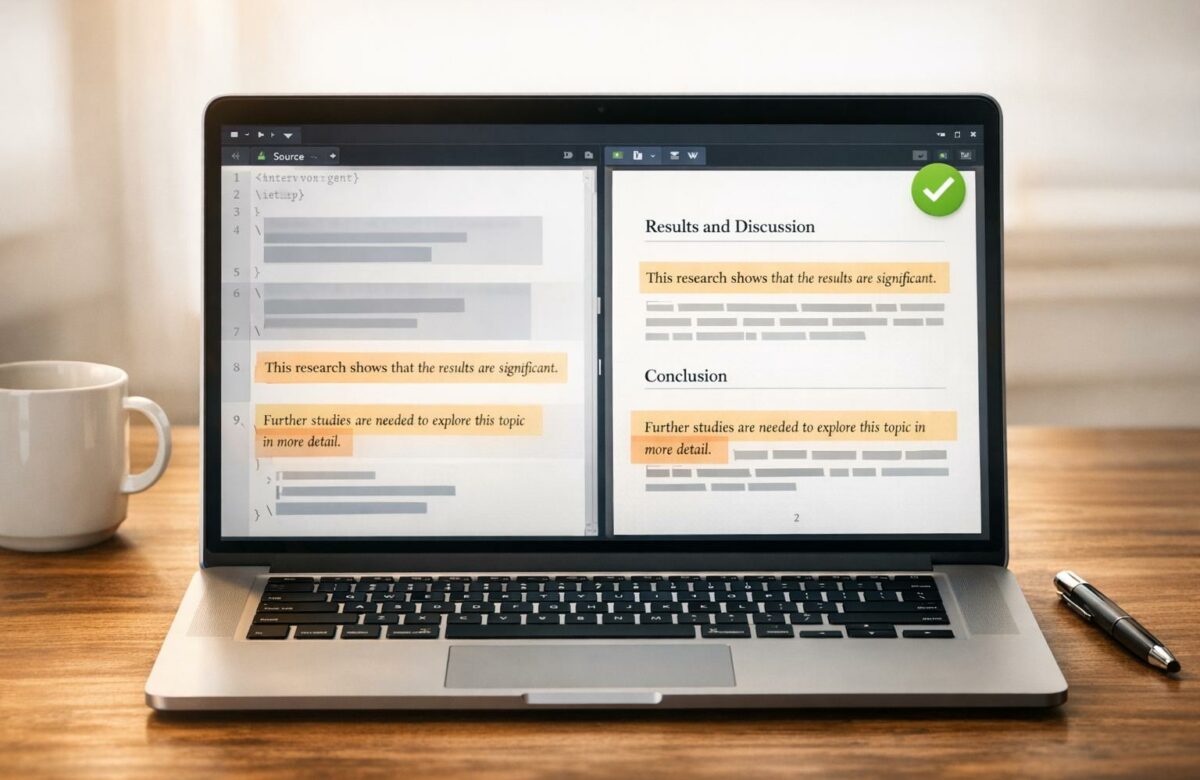
Fix Grammar In Overleaf Projects Without Breaking LaTeX Code
Editing LaTeX documents without breaking code can be tricky. Grammar tools often misinterpret LaTeX commands, causing errors that prevent your document from compiling. But you can fix grammar mistakes while keeping your LaTeX intact using the right tools and techniques.
Here’s how you can do it:
Transform Any Text, On Any Site, In Seconds
Rephrase, translate, and improve text with one shortcut. Works everywhere you write.
Add to Chrome - It's Free!- Use LanguageTool: A browser extension that highlights grammar issues in Overleaf without altering LaTeX commands. Disable Overleaf‘s built-in spell checker to avoid conflicts.
- Try BeLikeNative: This tool rephrases sentences while preserving LaTeX syntax. Copy text (excluding commands), rephrase it, and paste it back.
- Avoid Editing Code-Sensitive Sections: Skip grammar checks in areas with heavy LaTeX code using
%%begin novalidateand%%end novalidate. - Test After Edits: Recompile your document immediately to ensure no syntax errors were introduced.
Improve your academic writing with Writefull. Must-have Overleaf extension.

sbb-itb-32359dc
Setting Up Grammar Checking Tools in Overleaf
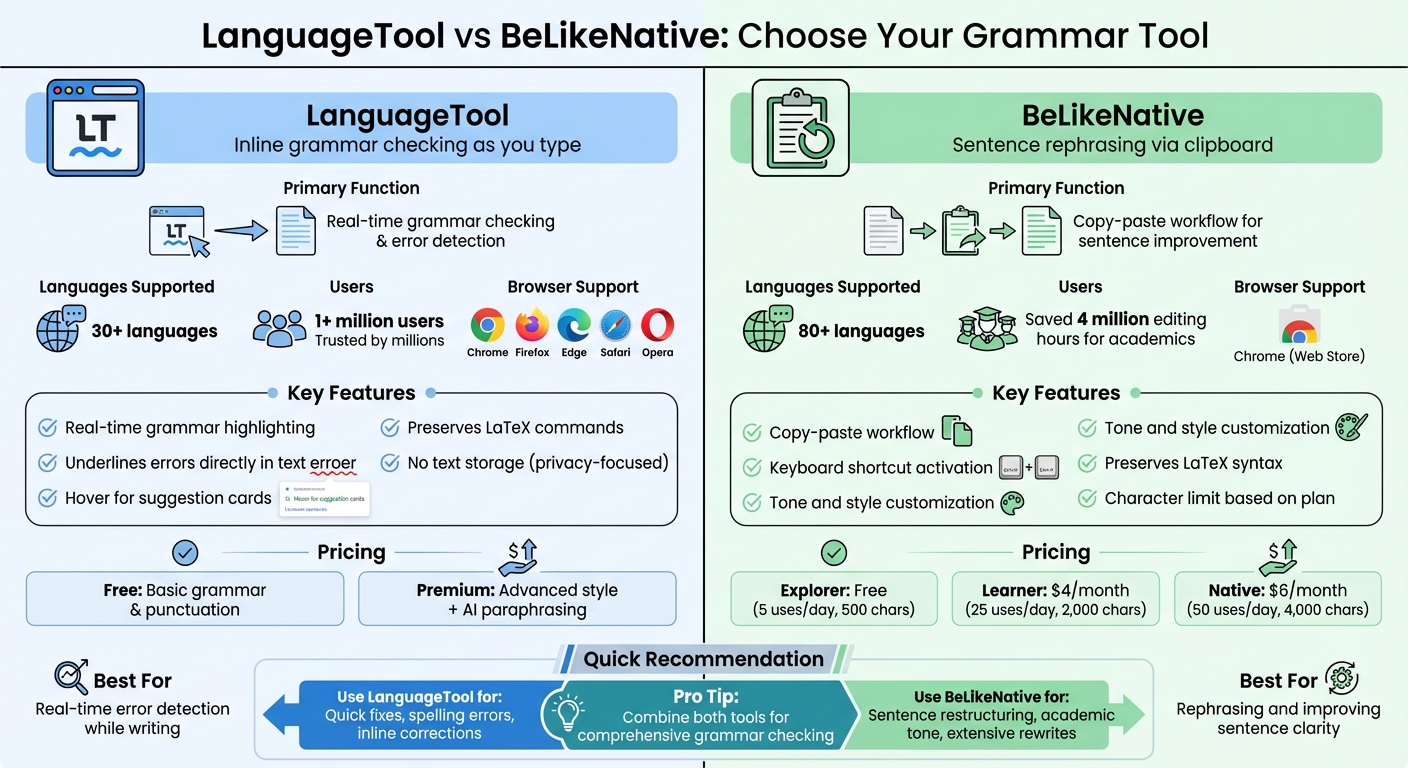
Comparison of Grammar Checking Tools for LaTeX: LanguageTool vs BeLikeNative Features and Pricing
To make grammar corrections in Overleaf without disrupting your LaTeX commands, you’ll need tools that can separate text from the code. Two excellent options for this are LanguageTool for inline grammar checking and BeLikeNative for rephrasing sentences. These browser-based tools integrate directly into your Overleaf workspace, ensuring your LaTeX syntax stays untouched while improving your writing.
Installing LanguageTool for Inline Grammar Highlighting
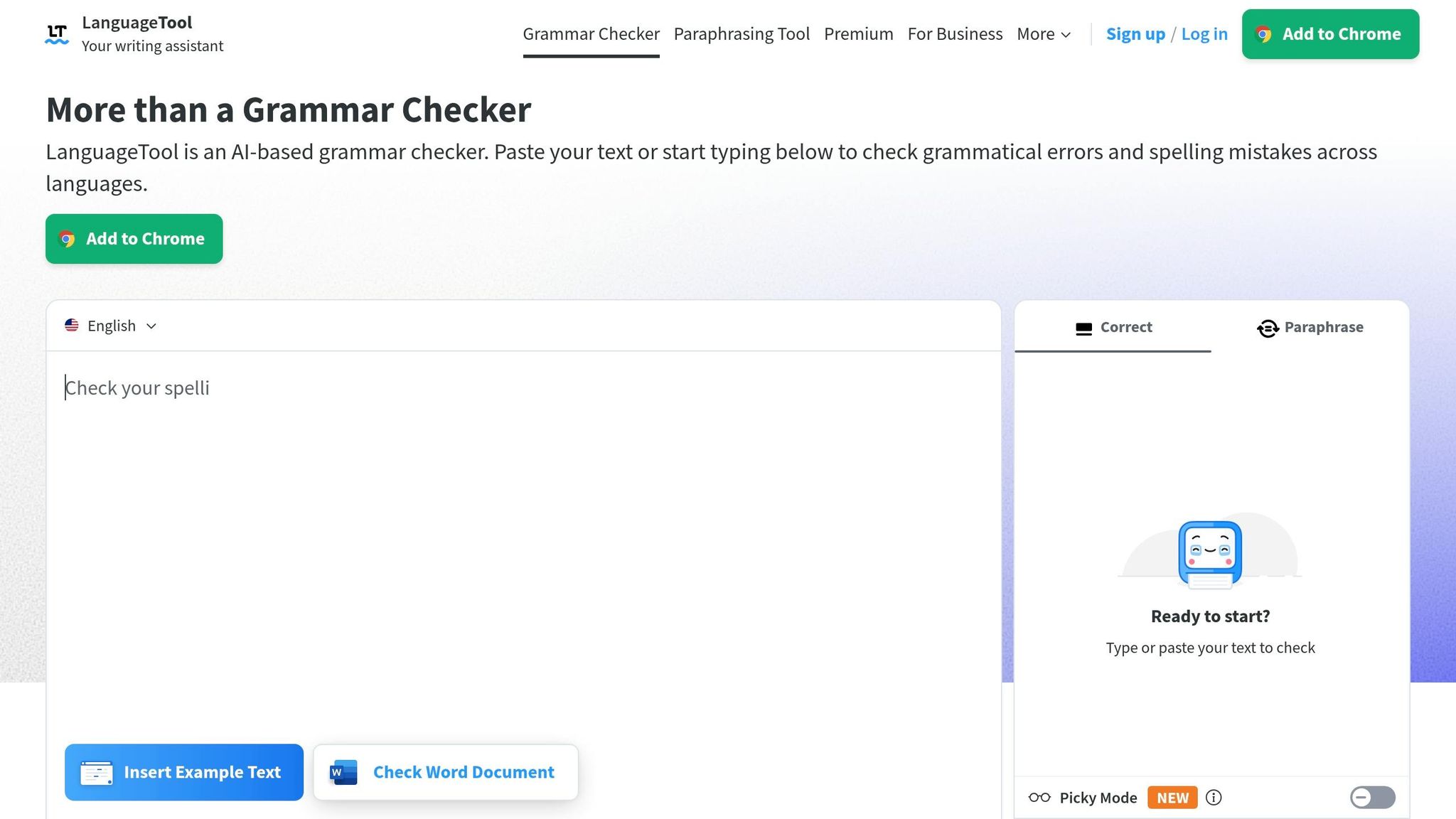
LanguageTool is a browser extension that checks grammar as you type in Overleaf’s Source editor. Trusted by millions and supporting over 30 languages, it highlights potential errors directly in your text. Grammar issues are underlined, and hovering over them reveals suggestion cards, all while leaving LaTeX commands like \begin{} or \cite{} unaffected.
To get started, download the extension for your browser (Chrome, Firefox, Edge, Safari, or Opera) from its official site or your browser’s extension store. Once installed, log in, open any Overleaf project, and LanguageTool will automatically begin analyzing your content. According to LanguageTool:
To respect your privacy, no text is stored by the browser add-on.
One important setup step is disabling Overleaf’s built-in spell checker to avoid overlapping highlights. To do this, click the Menu icon in the top-left corner of your Overleaf project, go to Settings, and switch Spell check to Off. With LanguageTool enabled, you’ll see underlined text for spelling, grammar, and style suggestions. You can accept these changes with a single click or ignore them to retain your original phrasing and LaTeX formatting.
The free version of LanguageTool covers basic grammar and punctuation checks. For advanced style suggestions and AI-based paraphrasing, you can upgrade to the Premium version.
Using BeLikeNative for Grammar Rephrasing

While LanguageTool focuses on inline corrections, BeLikeNative is ideal for rephrasing entire sentences. This Chrome extension works with your clipboard, allowing you to copy LaTeX text, rephrase it using a keyboard shortcut, and paste it back – without altering your LaTeX commands.
To use BeLikeNative, install the extension from the Chrome Web Store and customize your language, tone, and style preferences. It supports over 80 languages and works seamlessly with platforms like Google Docs, Notion, and Overleaf. When you find awkward phrasing in your LaTeX document, select the text (avoiding LaTeX commands), copy it, and activate BeLikeNative via your shortcut. The tool will provide rephrased options that improve clarity while preserving your LaTeX syntax and special characters.
BeLikeNative offers several plans:
- Explorer Plan: Free, with 5 uses per day and a 500-character limit.
- Learner Plan: $4/month, offering 25 uses per day and a 2,000-character limit.
- Native Plan: $6/month, allowing 50 uses per day and up to 4,000 characters – ideal for researchers working on extensive papers.
Fixing Grammar Issues Without Breaking LaTeX Code
Once you’ve got your grammar tools ready, the real challenge is knowing when to fix issues and when to leave things alone to avoid disrupting your LaTeX document. Here’s a practical guide to resolving grammar problems without messing up your LaTeX commands.
Fixing Spelling Errors in Text
Spelling mistakes are usually the easiest to fix since they rarely interfere with LaTeX commands. Tools like LanguageTool highlight potential errors – just hover over the underlined word, check the suggestion, and click to correct it.
For terms that might be flagged incorrectly, like technical jargon or specific proper nouns, you can add them to your personal dictionary in LanguageTool. This way, the tool won’t flag them as errors in the future. As LanguageTool notes:
LanguageTool marks potential mistakes and suggestions by underlining them. It’s up to you which corrections you want to accept to make your text perfect.
If a sentence needs more than just a spelling tweak, you can use BeLikeNative to rephrase it. Copy the text you want to adjust, paste it into BeLikeNative, and let it suggest improvements. This method ensures your LaTeX formatting stays intact while improving the clarity of your writing.
Once spelling is sorted, move on to more complex issues like sentence structure and punctuation.
Correcting Sentence Structure and Punctuation
Fixing awkward phrasing or punctuation can be tricky, especially when LaTeX commands are involved. BeLikeNative’s rephrasing tool is a great option for rewriting sentences to make them clearer or more concise. To avoid accidentally altering LaTeX elements – like \cite{} or \ref{} – copy only the text you want to rephrase, excluding any commands. Paste it into the tool, review the suggestions, and then reinsert the improved version back into your document.
After making changes, double-check that your document still compiles correctly. This ensures that no LaTeX syntax was accidentally removed or altered during the editing process.
Avoiding Grammar Fixes in Code-Sensitive Sections
When it comes to sections filled with LaTeX code, proceed with caution. Grammar tools often flag technical content incorrectly, which can lead to unnecessary or harmful edits. For example, suggestions to change text within a \begin{equation} block or a command like \cite{author2024} should generally be ignored to avoid breaking your document.
To minimize distractions from false positives in code-heavy sections, you can use comments like %%begin novalidate and %%end novalidate in Overleaf. This temporarily disables syntax checking for specific blocks, letting you focus on real grammatical issues elsewhere. After editing, make sure all \begin{} and \end{} commands are properly matched to keep your document error-free.
Troubleshooting and Improving Performance
Resolving Conflicts Between Overleaf and Extensions
Using grammar-checking tools alongside Overleaf can sometimes cause overlapping suggestions or lag. To address this, go to Overleaf’s Settings and disable the built-in spell check. This prevents duplicate suggestions from showing up.
Another common issue involves shortcut conflicts. For example, grammar tools with a "snippets" feature often use a backslash (\) as a trigger, which can interfere with LaTeX commands like \begin or \cite. To fix this, open your extension’s settings and either disable the snippets feature or assign a different trigger character that won’t disrupt your LaTeX workflow.
Once these conflicts are resolved, test your document to check for any lingering lag.
Testing for Lag and Improving Workflow Speed
After tackling conflicts, evaluate your editor’s responsiveness. If you notice lag while typing or scrolling, particularly in longer documents, your grammar extension might be the culprit. To confirm, temporarily disable the extension for overleaf.com using your browser’s toolbar. If the lag disappears, you’ve pinpointed the issue.
For documents with extensive code sections, you can use the %%begin novalidate and %%end novalidate comments to bypass syntax checking in areas like large tables or TikZ figures. Alternatively, you can disable Overleaf’s Code Check entirely through Menu > Settings, especially if you’re using custom macros that generate unnecessary error messages. Additionally, for bibliography files that trigger numerous grammar warnings, insert % LTeX: enabled=false at the top of your .bib files to exclude them from scanning.
If performance issues persist, try toggling your grammar extension on and off depending on your task. Enable it when editing text-heavy sections and disable it when working on code. This selective method ensures a smoother workflow without losing grammar support where it’s most needed.
Best Practices for Grammar Checking in LaTeX Projects
Isolating Text for Grammar Fixes
When working on grammar corrections in LaTeX, it’s essential to isolate text sections to avoid disrupting LaTeX commands. For example, if you’re dealing with complex elements like tables or TikZ figures, you can wrap them with %%begin novalidate and %%end novalidate comments. This tells Overleaf’s Code Check to skip these sections, letting you concentrate on refining the actual text.
If you use custom macros frequently, consider adding a general novalidate header at the top of your file to prevent unintended errors. Another option is to convert your LaTeX document into plain text for external grammar review. After making corrections, update your .tex file manually and ensure it compiles correctly after each adjustment.
Validating Document Compilation After Fixes
Once you’ve isolated sensitive sections, it’s time to ensure the document compiles smoothly. Recompile your LaTeX project immediately after applying grammar fixes to catch any issues early. Overleaf’s "Auto compile" feature can provide instant feedback, but if errors occur, switch to "Stop on first error" mode to pinpoint the problem quickly. For large projects, using the Fast [draft] compile mode can save time by skipping image processing, allowing you to focus solely on validating text changes.
Combining Tools for Better Results
Using a combination of tools can significantly improve grammar checking while keeping your code intact. For inline grammar corrections, LanguageTool is a popular choice, trusted by over 1 million users. It supports more than 30 languages and is available as a browser extension for Chrome and Firefox. On the other hand, BeLikeNative is excellent for rephrasing sentences, adjusting tone, or improving clarity in academic writing.
Conclusion
Improving grammar in Overleaf projects doesn’t mean you have to risk breaking your LaTeX code. The trick lies in using tools specifically built to handle LaTeX syntax while refining your writing. Extensions like LanguageTool and BeLikeNative integrate seamlessly with Overleaf, providing real-time grammar and style suggestions without interfering with your document’s structure. These tools are smart enough to recognize LaTeX commands, ensuring your formatting stays intact while your language gets a boost.
A helpful tip? Use %%novalidate comments to shield code-heavy sections from grammar checks. If Overleaf feels sluggish while typing, you might want to disable its built-in spell checker to avoid overlapping suggestions.
Here’s a quick example of their impact: BeLikeNative has reportedly saved academics over 4 million editing hours, while LanguageTool offers support for more than 30 languages, helping researchers refine their manuscripts. Incorporating these tools into your workflow ensures your LaTeX documents remain polished, professional, and publication-ready – all without compromising the integrity of your code.
FAQs
How can I fix grammar in Overleaf without breaking LaTeX commands?
To correct grammar in Overleaf without interfering with LaTeX commands, you can rely on tools like LanguageTool, which reviews grammar while keeping your code intact. Overleaf also includes a Code Check feature that flags LaTeX errors. If needed, you can disable this in specific sections by adding %%novalidate. While Grammarly provides external grammar suggestions, it doesn’t integrate directly with Overleaf. Using a combination of these tools helps refine grammar without compromising your LaTeX code.
What should I do if a grammar extension makes Overleaf lag?
If you’re noticing that a grammar extension is slowing down Overleaf, you can address this by disabling the Code Check feature. To turn it off across all projects, open the Overleaf menu, navigate to Settings, then find Code Check, and switch it off. If you’d rather disable it for just one file, simply add %%novalidate at the very top of that file. This adjustment helps reduce lag without compromising other features.
How do I exclude equations, tables, and TikZ code from grammar checks?
To stop grammar checks on equations, tables, or TikZ code in LaTeX, you can use specific comments or commands depending on your tool:
- In Overleaf: Wrap the sections you want to exclude with
%%begin novalidateand%%end novalidate. This tells the grammar checker to skip those parts. - In VS Code with LanguageTool: Add
% LTeX: enabled=falseat the beginning of the file or section you want to ignore. This disables grammar checks for the marked content.
These approaches ensure that grammar tools focus only on the text you want checked.
Related Blog Posts
- Best Tools for Multilingual Grammar Feedback
- Top 7 Grammar Tools for Multilingual Writers
- Ai Grammar Fixers That Improve Your Writing Instantly
- How Context-Sensitive Grammar Correction Works
BeLikeNative fixes grammar, rephrases, translates, and simplifies text on any website in 1 second — just highlight and hit a keyboard shortcut. No tab switching. Try it free →

