
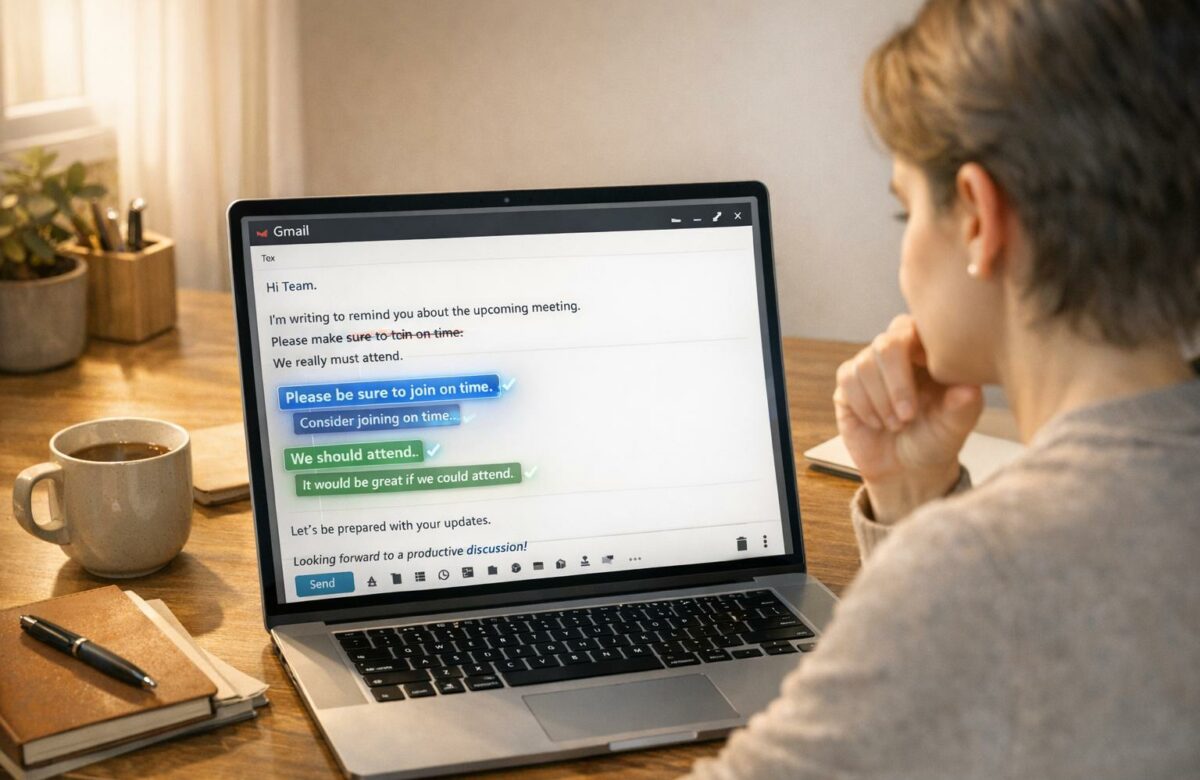
How To Check Tone In Gmail Before Sending
When sending emails, tone matters more than you think. Misinterpreted messages can harm relationships or cause confusion. Gmail now offers AI-powered tools to help you refine your tone before hitting "send." Here’s what you need to know:
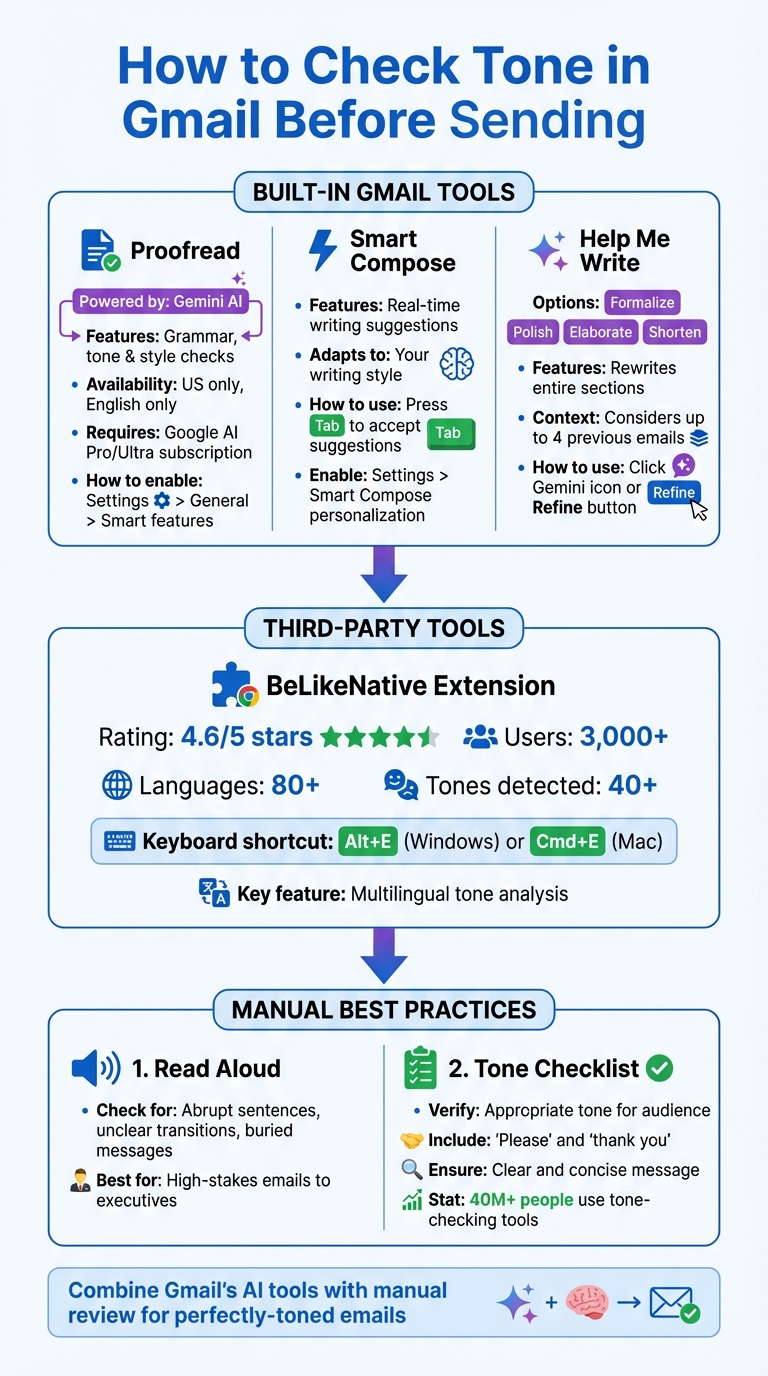
- Proofread Feature: Scans for grammar, tone, and style issues, offering suggestions for clarity and balance.
- Smart Compose: Provides real-time suggestions tailored to your writing style.
- Help Me Write: Lets you refine tone with options like "Formalize", "Polish", or "Shorten."
- Third-Party Tools: Extensions like BeLikeNative offer advanced tone analysis and multilingual support.
These tools, combined with habits like reading emails aloud and using a tone checklist, ensure your messages are clear, professional, and well-received. Keep reading for step-by-step instructions on using Gmail’s tone-checking features effectively.
How to Check Email Tone in Gmail: Step-by-Step Guide
How to Check Tone Using Gmail‘s Built-In Tools
Gmail comes equipped with AI-driven features designed to help you analyze and refine the tone of your emails as you type. Thanks to Google’s Gemini AI, these tools ensure your messages convey the tone you’re aiming for – whether that’s professional, casual, or somewhere in between. The best part? These tools are built right into Gmail, so there’s no need for additional downloads. While many features are free for all users, some advanced options require a premium subscription.
Before diving into the specifics, you’ll need to adjust some settings to access tone tools. Head to Settings > See all settings > General to enable the necessary preferences. Here’s a breakdown of three key Gmail tools that can help you fine-tune your email tone before hitting send.
Using Gmail’s Proofread Feature
The Proofread feature leverages Gemini 3, Google’s advanced AI model, to scan your email drafts for grammar, tone, and style issues. It’s more than just a spell checker – it evaluates whether your message is too formal, overly casual, or unintentionally harsh, offering actionable suggestions to help you strike the right balance.
"You can also use the new Proofread feature for advanced grammar, tone and style checks so everything is polished before you send."
- Blake Barnes, VP Product, Gmail
When the tool highlights words or phrases, simply click on them to see suggested edits. It reviews everything from sentence structure to word choice, ensuring your message is concise, organized, and aligned with your intent.
To activate this feature, go to Settings > See all settings > General > Smart features and toggle it on. Keep in mind, Proofread is available only to users in the United States writing in English, and it requires a Google AI Pro or Google AI Ultra subscription.
Matching Tone with Suggested Replies
Gmail’s Smart Compose feature provides real-time writing suggestions as you type, helping you maintain a consistent tone throughout your email. The tool adapts to your writing style over time, making its suggestions increasingly personalized.
To get the most out of this feature, enable Smart Compose personalization in your settings under "Smart Compose personalization" and select Personalization on. This ensures the AI tailors its suggestions to match your usual communication style.
When a suggestion appears, press Tab to accept it. If a suggestion doesn’t align with your intent, click Bad suggestion to help the AI learn your preferences for future drafts.
Adjusting Tone with Gmail’s Help Me Write Tool
For more in-depth tone adjustments, Gmail’s Help Me Write tool offers robust editing options. Powered by Gemini, this tool can rewrite entire sections of your email, making it especially helpful when you need to refine informal text or elevate your draft to a professional standard.
To use it, click the Gemini icon. If you’re editing an existing draft, highlight the text and click the Refine button (pencil icon). You’ll then see options like Formalize (make it more professional), Polish (improve clarity and flow), Elaborate (add detail), or Shorten (make it concise).
For new drafts, you can guide the AI by including specific instructions in your prompt. For instance, instead of a vague request like “Write an email about the project delay,” try something more precise: “Write a formal apology to my manager about the project delay.” The tool even considers up to four previous emails in a thread to ensure your response fits the ongoing conversation. If you’re not satisfied with the output, click Recreate to generate an alternative version or tweak it further before sending.
These tools make it easier than ever to craft emails that strike the right tone, whether you’re writing to a colleague, a client, or your boss.
Third-Party Tools for Better Tone Analysis
While Gmail’s built-in tone-checking features are helpful, third-party tools take tone analysis to the next level. Chrome extensions, in particular, provide more advanced options for users who want greater control over their email communication. These tools integrate directly into Gmail, offering real-time feedback on your writing without interrupting your workflow.
How Chrome Extensions Improve Gmail Tone Checking
Chrome extensions bring AI-driven insights to your Gmail compose window, identifying tone-related issues that basic proofreading might overlook. As you type, these tools analyze your word choice, phrasing, punctuation, and capitalization to assess the emotional impact of your message. They can detect over 40 different tones, from confident and formal to friendly and constructive.
One standout feature is the real-time visual feedback provided directly in the compose window. For example, emojis might indicate whether your email comes across as professional, casual, or potentially problematic. Some extensions even predict how different audiences – like a peer versus a manager – might perceive your tone, allowing you to make adjustments before sending your message.
"Getting the tone of a message right is extremely important and navigating tone signifiers can be very complex and confusing."
- Alex Shevchenko, Co-founder and Product Manager, Grammarly
These tools also help avoid miscommunications by offering AI-powered rewriting suggestions. With just a click, you can transform a sentence or paragraph to shift the tone – whether you need to make it more constructive or elevate it to a professional level. Most extensions require at least 150 characters to activate their tone-detection features. Once enabled, a detailed sidebar provides a breakdown of detected tones and their intensity, giving you a clear view of how your message might be received.
One tool that stands out in this space is BeLikeNative, which offers unique features for tone adjustment.
How to Install and Use BeLikeNative for Tone Adjustment
BeLikeNative builds on the capabilities of general Chrome extensions, offering specialized features for tone refinement and multilingual communication. It supports tone analysis and adjustment in over 80 languages, making it an excellent choice for users who frequently interact with international colleagues or clients. With a 4.6/5 rating on the Chrome Web Store and over 3,000 users, BeLikeNative has earned positive feedback for its functionality and ease of use.
To get started, download and install BeLikeNative from the Chrome Web Store, then pin it to your browser. Before composing your first email, open the extension settings to select your target language and desired tone – whether formal for work-related emails or casual for personal messages. Highlight the text you want to analyze, then press Alt + E (Windows) or Command + E (Mac) to open the tone analysis panel.
The tool will evaluate your writing and suggest paraphrasing or rewriting options to better align with your intended tone. Once you select an option, BeLikeNative automatically copies the revised text to your clipboard, so you can easily paste it back into your Gmail draft using Ctrl + V (or Cmd + V on Mac). Recent updates have improved the extension’s performance and stability, ensuring a smooth user experience. Users also appreciate its clean interface, which integrates seamlessly into Gmail without adding clutter.
"Tone matters when you’re communicating for work. You can’t quite make the same emotional impact you would in person, so I like using the tone detector to make sure my writing is received well."
- Matt Glaman, Software Engineer
For multilingual users, BeLikeNative’s extensive language support is a major advantage. It helps refine messages across different languages and cultural contexts, ensuring the tone fits each audience. The developers also prioritize privacy by guaranteeing that user data is not sold or used for purposes beyond the extension’s core functionality.
sbb-itb-32359dc
Tips for Writing Better Emails Every Time
While tools like Gmail and Chrome extensions offer automated tone analysis, nothing beats the personal touch of refining your emails manually. Developing strong writing habits can help you spot tone issues before your email lands in someone else’s inbox. These techniques work well alongside the tone-checking tools we mentioned earlier.
Read Your Emails Aloud to Check Tone
Reading your email draft out loud is a simple yet effective way to gauge its tone. Hearing the words can help you catch sentences that feel too abrupt, overly brief, or unnecessarily long-winded. This step ensures your main point doesn’t get lost.
Pay attention to any unintentional harshness caused by too many short sentences or a lack of transitions. Also, watch out for overly elaborate language that might confuse your reader or bury your key message.
"Striking a tone in emails that’s polite and clear can either accelerate your career or hold you back."
- Anjie Zheng, Grammarly
For emails that carry more weight – like those sent to executives or large groups – consider asking a trusted colleague to review your draft. A fresh perspective can reveal tone issues you might miss after rereading it yourself.
Create a Tone Review Checklist
Pair your read-aloud method with a quick checklist to catch potential tone problems. This habit can save you from tone missteps that might damage professional relationships. Start by asking yourself if your tone suits the audience and the situation.
Make sure to include polite phrases like "please" and "thank you" where appropriate, and confirm that your email is clear and to the point. Avoid unnecessary tangents or filler that could dilute your message.
A tone review checklist helps you stay professional, even on days when you’re stressed or in a rush. It’s a small step that can make a big difference. In fact, over 40 million people and 50,000 organizations rely on tone-checking tools to improve their communication.
Conclusion: Getting Email Tone Right in Gmail
Gmail makes it easier than ever to fine-tune the tone of your emails. With its built-in "Help me write" feature, you can quickly adjust your drafts using options like Formalize, Polish, Shorten, or Elaborate. Plus, Smart Compose tailors suggestions to match your personal writing style, letting you focus on the heart of your message while Gmail handles the details.
For even more precision, third-party tools like BeLikeNative step in with real-time tone analysis. This extension evaluates over 40 different tones and uses visual cues to show how your email might come across to the recipient. By pairing Gmail’s built-in tools with BeLikeNative’s feedback, you can achieve emails that are not only well-structured but also emotionally on point.
FAQs
How can I check and adjust my email tone in Gmail before sending?
To activate Gmail’s spelling and grammar tools, start by opening Gmail on your computer. Click the gear icon (⚙️) in the top-right corner, then choose “See all settings.” From there, go to the General tab. Scroll down until you find the “Grammar” and “Spelling” options, and switch them on. If you’d like Gmail to automatically correct mistakes, enable “Autocorrect” as well. Don’t forget to click “Save Changes” at the bottom to apply your settings.
Once these tools are enabled, Gmail will underline spelling mistakes in red and grammar suggestions in blue as you type your email. If you prefer to manually review your email, open the compose window, click the three-dot menu in the bottom-right corner, and select “Check spelling.” Gmail will highlight any errors, giving you the chance to make adjustments and refine your message before sending it. These features are a simple way to ensure your emails look polished and professional.
What are the advantages of using Smart Compose in Gmail?
Smart Compose streamlines email writing by providing AI-driven text suggestions as you type, making the process quicker and easier. It learns your writing habits, helping you draft messages with less effort while maintaining your personal style.
This tool works effortlessly across different devices and supports various languages, ensuring smooth and efficient communication. It’s an excellent way to keep your emails polished, concise, and in line with the tone you want to convey.
How can I use tools to check and adjust my email tone in Gmail?
Third-party tools can bring a new level of polish to your Gmail experience by offering advanced tone-checking capabilities right within your email drafts. Take Grammarly, for instance – a browser extension that evaluates your writing in real time. It examines your word choice, phrasing, punctuation, and even capitalization to provide insights into your email’s tone. Whether you’re aiming for a friendlier vibe or a more formal touch, these tools can suggest tweaks and even let you rewrite entire sentences or paragraphs with just one click.
These tools integrate directly into Gmail, so you get instant feedback without ever leaving the compose window. Beyond tone analysis, many of them also catch grammar mistakes, spelling errors, and even inclusivity concerns. The result? A polished email that aligns perfectly with your communication goals before you hit send.

