

How To Expand Vocabulary While Writing In Google Docs
Expanding your vocabulary in Google Docs is straightforward and efficient with its built-in features and add-ons. Here’s how you can do it:
- Use the Dictionary and Thesaurus: Right-click any word to access definitions or synonyms directly in your document. The Explore tool offers related terms and web resources for deeper insights.
- Enable Smart Compose and Grammar Tools: Activate these under Tools > Preferences to receive real-time suggestions for better word choices and grammar corrections.
- Set Custom Vocabulary Preferences: Use the Substitutions feature to replace shorthand with advanced terms automatically.
- Install Add-Ons: Tools like Power Thesaurus, OneLook Thesaurus, and ProWritingAid enhance word variety, provide creative alternatives, and improve writing style.
- Track New Words: Create a personal vocabulary list in Google Docs, Keep, or Sheets to regularly learn and use new words.
- Leverage BeLikeNative: This Chrome extension refines word choices, rephrases sentences, and adjusts tone for formal or casual writing.
How to Use the Dictionary in Google Docs
Transform Any Text, On Any Site, In Seconds
Rephrase, translate, and improve text with one shortcut. Works everywhere you write.
Add to Chrome - It's Free!
Configure Google Docs for Vocabulary Learning
Fine-tune Google Docs to enhance your vocabulary skills. These adjustments will help the platform suggest better word choices, catch mistakes, and ensure your writing aligns with U.S. English standards.
Turn On Spelling, Grammar, and Smart Compose
Start by enabling Smart Compose through Tools > Preferences. Once activated, you can accept gray suggestions by hitting the Tab or right-arrow key.
Next, enable spelling and grammar checks by going to Tools > Spelling and grammar > Check spelling and grammar. Words flagged for corrections will appear underlined – red for spelling errors and blue for grammar issues. Right-click these underlined words to view suggested fixes. If you frequently use specific terms that might be flagged, you can add them to your personal dictionary via Tools > Spelling and grammar > Personal dictionary.
Set Up Custom Vocabulary Preferences
Use the Preferences menu to expand your vocabulary with custom substitutions. Go to Tools > Preferences and open the Substitutions tab. In the Replace box, enter a shorthand (e.g., "v1"), and in the With box, type a more advanced term like "venerable." Once saved, Google Docs will automatically replace your shorthand with the full word in all synced documents.
Apply U.S. English Settings
Switching to U.S. English ensures accurate spellchecking, grammar suggestions, and thesaurus recommendations tailored to American conventions. For a specific document, go to File > Language and select English (United States). To make this change apply to all documents, update your Google Account’s language preference. Navigate to General preferences for the web > Language, add English (United States), and move it to the top of your list using the up arrow.
"Every word processor must maintain an effective and comprehensive dictionary for all supported languages. Doing so enables these programs to work seamlessly."
– John Horan, Writer, Chrome Ready
U.S. English settings also standardize spelling (e.g., "color" instead of "colour") and date formats (e.g., December 28, 2025). To ensure your custom vocabulary syncs across devices, enable Synchronize dictionary in your Google Account settings under Input Tools.
Once these settings are in place, you can dive into using Google Docs’ built-in dictionary and thesaurus features to further enrich your writing.
Use the Built-In Dictionary and Thesaurus
Google Docs comes packed with handy tools like a built-in dictionary and thesaurus to help you refine your word choices. These features make it easy to find definitions, synonyms, and usage examples – all without leaving your document.
Access Definitions Through the Dictionary Panel
Want to know more about a word? Just highlight it, right-click, and select "Define [word]." This opens a panel with the definition, part of speech, pronunciation, and even examples of how the word is used. The panel stays open as you write, so you can compare definitions while working on your text. Even better, you can click on words within the definitions to explore their meanings further.
For a more in-depth search, try the Explore tool. Right-click a word and choose "Explore", or go to Tools > Explore. This brings up a sidebar where you can find synonyms, related terms, and even web content tied to the word. It’s a great way to dig deeper while keeping everything you need in one place.
Find and Use Synonyms
If you’re looking to avoid repetition or add variety to your writing, the thesaurus is a lifesaver. Right-click a word and choose "Explore" to see a list of synonyms in the sidebar. Pay attention to the subtle nuances between words – terms like "slim" and "skinny" might seem similar, but their connotations can change the tone of your message.
"The Thesaurus assists your creativity without replacing your unique voice." – Riley Mitchell, Texta.ai
Use synonyms strategically to replace overused words or generic terms. For instance, instead of writing "good", try "superb" or "exceptional" to make your language more precise and engaging.
Build a Personal Vocabulary List
Consider keeping a dedicated Google Doc or a section at the end of your file for new words you come across. Copy definitions directly from the Dictionary panel and paste them into your vocabulary tracker. To make it a habit, set a daily goal to learn and use at least one new word in your writing. Over time, this consistent practice will help you naturally expand your vocabulary.
"Regularly looking up words helps you learn and incorporate new vocabulary into your writing." – David Harris, Adazing
For extra convenience, you can use Google Keep or a Google Sheet to organize your word list. These tools sync across devices, making it easy to review and memorize new terms whenever you have a moment. If you’re looking for even more ways to grow your vocabulary, try exploring add-ons specifically designed for Google Docs.
Install Add-Ons for Vocabulary Building
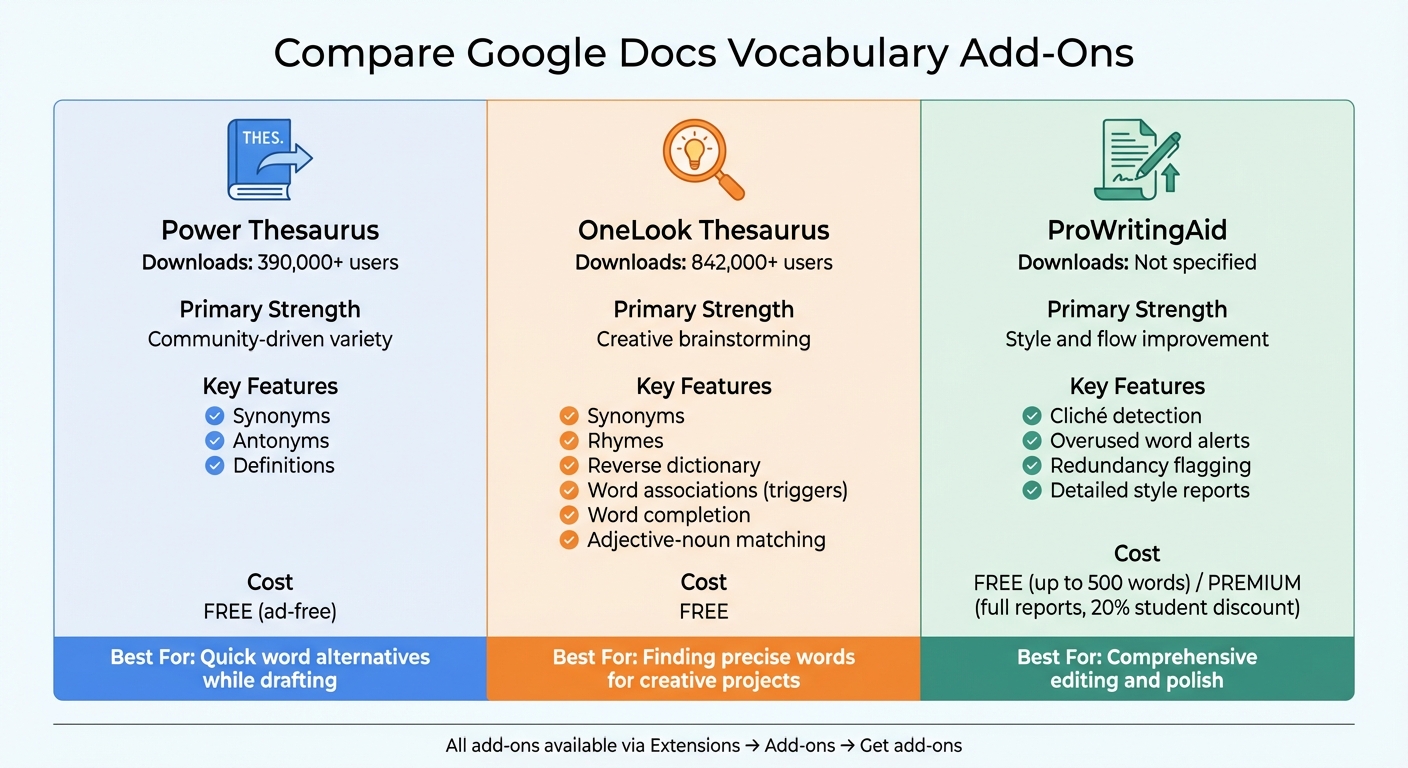
Google Docs Vocabulary Add-Ons Comparison: Features and Best Use Cases
Boosting your vocabulary in Google Docs is a breeze when you use the right add-ons. These tools can expand the platform’s built-in capabilities, making your writing more dynamic and precise.
Find and Install Add-Ons
To get started, open any document and go to Extensions → Add-ons → Get add-ons. This will open the Google Workspace Marketplace. Use the search bar to look for vocabulary-related tools, or refine your search by selecting "Works with Docs" to see compatible options.
Once you’ve found an add-on, click Install and then Continue. You’ll need to grant permissions by clicking Allow when prompted. If the add-on doesn’t show up right away, refresh your document to activate it. After installation, access the tool by navigating to Extensions → [Add-on Name] → Start or Home.
Below are some popular add-ons that can help you expand your vocabulary effectively.
Top Add-Ons for Vocabulary Growth
Power Thesaurus is a favorite among users, with over 390,000 downloads. It provides a clean sidebar packed with synonyms, antonyms, and definitions. It’s completely free and ad-free, making it perfect for quick word replacements without interruptions. To use it, simply reload your document after installation and access it through Extensions → Power Thesaurus → Home.
OneLook Thesaurus goes beyond basic vocabulary tools, serving over 842,000 users. It offers six unique features, including synonyms, rhymes, word associations (triggers), word completion, and tools to match adjectives with nouns and vice versa. Its standout feature is the "reverse dictionary", which lets you search for words based on a description. For example, typing "urge to travel" suggests "wanderlust."
"The OneLook Thesaurus add-on delivers brainstorming power directly to your editing process." – Datamuse
ProWritingAid functions as a writing coach, helping you refine your style by flagging overused words, clichés, and redundancies. It also provides detailed style reports. The free version analyzes up to 500 words, while full reports require a premium subscription (students can get a 20% discount). This tool is ideal for writers who want to improve both their vocabulary and overall writing quality.
Here’s a quick comparison of these tools:
Compare Add-On Features
| Tool | Primary Strength | Key Features | Ideal For |
|---|---|---|---|
| Power Thesaurus | Community-driven variety | Synonyms, antonyms, definitions | Quick word alternatives while drafting |
| OneLook Thesaurus | Creative brainstorming | Rhymes, reverse dictionary, triggers | Finding precise words for creative projects |
| ProWritingAid | Style and flow | Cliché detection, overused word alerts | Comprehensive editing and polish |
sbb-itb-32359dc
Use BeLikeNative to Expand Vocabulary in Google Docs
BeLikeNative is a Chrome extension designed to work directly within Google Docs, offering a smarter way to refine your writing. Whether you’re a writer or a language learner, this tool can help you improve word choices, rephrase sentences, and spot awkward phrasing. With support for over 80 languages, it even lets you adjust the tone of your writing to suit formal or casual settings. Seamlessly integrated into Google Docs, it’s a handy companion for building a stronger vocabulary and streamlining the editing process.
Install and Set Up BeLikeNative
Getting started is simple. Head to the Chrome Web Store, search for "BeLikeNative", and click Add to Chrome. Once installed, follow the Quick Start guide to configure your target language, tone, and style preferences. BeLikeNative appears as a side panel in Google Docs, making it easy to use. Just highlight any text, then press Alt + E (Windows) or Command + E (Mac) to open the panel. Alternatively, click the BeLikeNative tooltip that pops up over the selected text.
Improve Text with BeLikeNative Features
BeLikeNative offers several features to enhance your writing:
- Rewrite: Instantly generates alternative phrasing for highlighted text, helping you find synonyms and avoid repetition.
- Error Detection: Flags complex grammar issues, style inconsistencies, and awkward wording.
- Tone Selector: Suggests vocabulary tailored to the tone you want, whether formal or casual.
Once the tool refines your text, the updated version is automatically copied to your clipboard, making it easy to paste back into your document.
BeLikeNative Plans and Pricing
BeLikeNative offers four subscription plans to match different writing needs:
| Plan | Price | Daily Uses | Character Limit | Best For |
|---|---|---|---|---|
| Free | $0 | Limited | 500 | Beginners testing basic spelling and grammar tools |
| Learner | $4 | 50 | 4,000 | Students and casual writers improving vocabulary |
| Native | $6 | 125 | 6,000 | Regular writers looking to enhance their workflow |
| Premium | $14 | 180 | 10,000 | Advanced users needing maximum capacity |
All plans include support for 80+ languages and advanced writing features, making BeLikeNative a versatile tool for writers at any level.
Build Daily Writing Habits in Google Docs
Expanding your vocabulary takes regular effort. Writing and revising consistently in Google Docs gives you more opportunities to discover, learn, and use new words effectively. By incorporating daily practices alongside the tools and settings available in Google Docs, you can steadily strengthen your vocabulary.
Set Word Learning Goals for Each Document
Before starting a new draft, set a goal for how many new words you want to learn or use. To make this process smoother, head to Tools > Spelling and Grammar > Personal dictionary and add new words you’re working on so they won’t be flagged as errors later. If your writing tool offers a goal-setting feature, use it to track your progress. Once your goals are in place, focus on applying them by revising and refining your draft.
Revise Drafts to Improve Word Choice
Revising isn’t just about fixing mistakes – it’s a chance to elevate your word choices. Open your draft and use Tools > Thesaurus to find more precise or engaging synonyms for overused or vague terms. For those using Grammarly Premium, the tool highlights dull language and suggests more dynamic alternatives. Writer Austin C. G. shared how finding the right synonym helped him fix "clunky" paragraphs caused by repetitive wording. Additionally, the Explore tool (Tools > Explore) can help you discover related terms that bring extra depth to your writing. Regularly revisiting and refining your drafts not only improves the quality of your work but also reinforces your vocabulary growth.
Track Progress with Version History
Version History in Google Docs is a great way to track how your writing – and vocabulary – has evolved. Navigate to File > Version history > See version history, then check the "Show changes" box to review key updates, like "First Draft" and "Final Vocabulary Review". These milestones provide a clear picture of your progress. You can also revisit which AI suggestions from Gemini you accepted, helping you absorb those improvements for future projects. By consistently reviewing your edits, you’ll see measurable growth in your vocabulary over time.
Conclusion
Expanding your vocabulary in Google Docs is a simple and effective process. By using the platform’s built-in tools, like the dictionary and thesaurus, along with specialized add-ons and AI-powered tools such as BeLikeNative, you can easily access definitions, synonyms, and helpful suggestions right within your document. Features like the right-click definition tool and the Explore function make finding the perfect word quick and seamless, while add-ons provide even more word options to explore.
Of course, technology is just part of the equation. Your commitment to daily practice plays a huge role in improving your vocabulary. Setting word goals, revising drafts with fresh synonyms, and reviewing the Version History in Google Docs can turn vocabulary building into a consistent habit. As David Harris from Adazing wisely puts it:
"Regularly looking up words helps you learn and incorporate new vocabulary into your writing".
BeLikeNative integrates effortlessly with Google Docs, enhancing your word choices and improving clarity. Ultimately, it’s up to you to choose words that align with your tone, audience, and message. By blending these tools with your own judgment and writing habits, you can develop a sharper, more precise vocabulary that takes your writing to the next level.
FAQs
How can I automatically replace abbreviations with more advanced terms in Google Docs?
You can take advantage of Google Docs’ Custom Substitutions feature to streamline your writing process by automatically replacing abbreviations or shorthand with their full forms as you type. To set this up, head to Tools → Preferences, click on the Substitutions tab, and create your custom shortcuts. For instance, enter your shorthand (like sop) in the Replace field and the corresponding full term (such as standard operating procedure) in the With field. Once saved, this feature will apply your substitutions across all your Google Docs.
For a more universal solution that works on any website, consider using a Chrome extension like Replacement of words. This extension allows you to define shorthand and full-term pairs in its settings, and it will automatically replace them in real time, even in Google Docs.
Both options help you elevate your writing with minimal effort, making it easier to maintain a polished and professional tone.
How can add-ons like Power Thesaurus help improve vocabulary in Google Docs?
Add-ons like Power Thesaurus can turn Google Docs into a handy tool for boosting your vocabulary. Once you install it, the add-on integrates seamlessly into the sidebar, letting you search for synonyms, antonyms, and definitions without ever leaving your document. With just a click, you can swap out overused or plain words for more engaging alternatives.
Power Thesaurus taps into a community-driven database, offering a broad range of word choices while prioritizing the most relevant synonyms to fit your context. This not only simplifies your writing process but also gives you the chance to pick up new words as you go, turning editing into a mini learning experience. Its ease of use and rich features make it a fantastic addition for improving your writing directly within Google Docs.
How can BeLikeNative help improve my vocabulary while using Google Docs?
BeLikeNative equips you with handy tools and strategies to boost your vocabulary right inside Google Docs. By using built-in features like the thesaurus and dictionary, along with integrating third-party add-ons, it offers practical tips for finding synonyms, understanding definitions, and choosing stronger words to improve your writing.
With real-time suggestions and context-based word enhancements, BeLikeNative helps your vocabulary expand naturally as you type, making it simpler to communicate your ideas with clarity and impact.
Related Blog Posts
- How BeLikeNative Simplifies Multilingual Writing
- How To Polish Your Writing With Chrome Ai Extensions
- Top 7 Grammar Tools for Multilingual Writers
- 5 Writing Exercises for Retaining New Vocabulary
BeLikeNative fixes grammar, rephrases, translates, and simplifies text on any website in 1 second — just highlight and hit a keyboard shortcut. No tab switching. Try it free →

