

Fix Grammar Errors In Trello Cards Automatically
Correcting grammar in Trello cards is now effortless with BeLikeNative, a Chrome extension that integrates directly with Trello. Instead of manually proofreading, you can fix errors with a shortcut, saving time and improving clarity across your boards. Here’s how to get started:
- Install Chrome: BeLikeNative works via a Chrome extension, also compatible with Chromium-based browsers like Edge and Brave.
- Set Up Trello: Ensure you have an active Trello account with editing permissions.
- Choose a Plan: Options range from the free Explorer plan (5 daily uses, 500-character limit) to the Premium plan ($14/month, 125 daily uses, 6,000-character limit).
Key Steps:
- Install the Extension: Find "BeLikeNative: AI Writing with Shortcuts" in the Chrome Web Store and add it to your browser.
- Activate Your Plan: Start with a 7-day free trial, then select a subscription tier that fits your needs.
- Fix Grammar in Seconds: Highlight text in a Trello card, use the shortcut (Alt + E on Windows or Command + E on Mac), and paste the corrected text back.
BeLikeNative supports American English (en-US) and offers tone customization for professional or casual communication. Paid plans provide higher character limits and daily uses, making it ideal for teams managing detailed projects. Save time, improve your workflow, and keep your boards polished with this tool.
What You Need Before Starting
Getting started is quick and straightforward. You’ll need to have three things ready. Let’s break them down step by step.
Install Chrome Browser
Since BeLikeNative relies on a Chrome extension, Google Chrome is the first thing you’ll need. If you don’t already have it, download Chrome from its official website. The extension is also compatible with other Chromium-based browsers, such as Microsoft Edge, Brave, Arc, and Dia.
Once the extension is installed, make sure to pin it to your browser toolbar for easy access. This will save you time when you need to use it.
Set Up Trello Access
You’ll need an active Trello account with editing permissions for the boards you plan to work on. Make sure you’re logged into Trello before you start – this will allow you to copy text from cards, make corrections, and paste the updated content back seamlessly.
Choose a BeLikeNative Plan
BeLikeNative offers four subscription plans to suit different needs:
- Explorer Plan: Free, with a limit of 5 uses per day and a 500-character cap. A good option for occasional users.
- Learner Plan: $4/month, allowing 25 uses daily with a 2,000-character limit. Perfect for regular Trello users who frequently update cards.
- Native Plan: $6/month, offering 50 uses per day and a 4,000-character limit. This is ideal for heavier users.
- Premium Plan: $14/month, providing 125 uses per day with a 6,000-character limit, along with partnership benefits.
Pick the plan that best fits your workflow and usage needs.
How to Install and Set Up BeLikeNative
Install BeLikeNative Chrome Extension
Head to the Chrome Web Store and search for "BeLikeNative: AI Writing with Shortcuts". Once you find it, click the blue Add to Chrome button. A popup will appear – confirm by selecting Add extension. The extension has received strong ratings.
After installation, pin the extension to your toolbar by clicking the puzzle icon. This ensures it’s always accessible when you’re working in Trello. The extension uses a side panel interface instead of a popup, making your workflow smoother and keeping everything neatly organized. Once it’s installed, set up your account and subscription to get started.
Sign Up and Activate Your Plan
Click the BeLikeNative icon in your toolbar to open the side panel. You’ll be prompted to start a 7-day free trial, which begins immediately. Sign up with your email and create a password.
Once registered, you’ll be directed to the dashboard, where you can choose your subscription tier. You won’t be charged until your trial period ends, giving you time to explore the tool before committing.
Configure Settings for English (en-US)
After activating your account, open the BeLikeNative dashboard through the side panel. Navigate to Settings and select English (en-US) from the dropdown menu under the Language section. This ensures the tool applies American spelling and grammar rules to your Trello cards.
Next, choose your preferred tone. For workplace Trello boards, opt for Formal or Professional to maintain a polished tone. For personal or casual boards, the Casual mode might be a better fit. If you’re on the Learner plan or higher, you can also customize keyboard shortcuts – the default shortcut to activate the side panel is Alt + E on Windows or Command + E on Mac. Lastly, make sure your browser permissions allow clipboard access, as BeLikeNative automatically copies corrected text for quick pasting.
How to Fix Grammar Errors in Trello Cards
Copy Text from a Trello Card
Start by opening your Trello card and finding the text you want to fix. This might be in the description, a comment, or even a checklist item. Highlight the specific sentence or paragraph that needs editing. If you’re using BeLikeNative, it works right inside your Trello tab. Just select the part of the text you need to correct – this helps you stay within your plan’s character limits. Once you’ve selected the text, you’re ready to initiate the correction process.
Use BeLikeNative Shortcut for Grammar Correction
After selecting the text, press Alt + E if you’re on Windows or Command + E on a Mac. This shortcut activates the grammar correction tool. In about a second, the extension processes your text and copies the corrected version directly to your clipboard. It’s quick and efficient, saving you significant time – over an hour a day, according to user feedback. The tool follows American grammar and spelling conventions based on en-US settings. For example, if your original text says, "The color of the organisation’s logo needs finalised", it will update to, "The color of the organization’s logo needs to be finalized." You can also tweak the tone in your settings, switching between a formal style for professional boards and a casual tone for internal use.
Paste Corrected Text Back into Trello
With the updated text now in your clipboard, go back to the Trello field where it belongs. Click inside the text area, then press Ctrl + V on Windows or Cmd + V on Mac to paste it. Make sure your cursor is in the right spot before pasting. BeLikeNative works seamlessly in all Trello text fields without requiring any extra integrations. Users have reported a 66% boost in productivity, saving over 85 hours every month.
sbb-itb-32359dc
BeLikeNative Plans for Trello Users
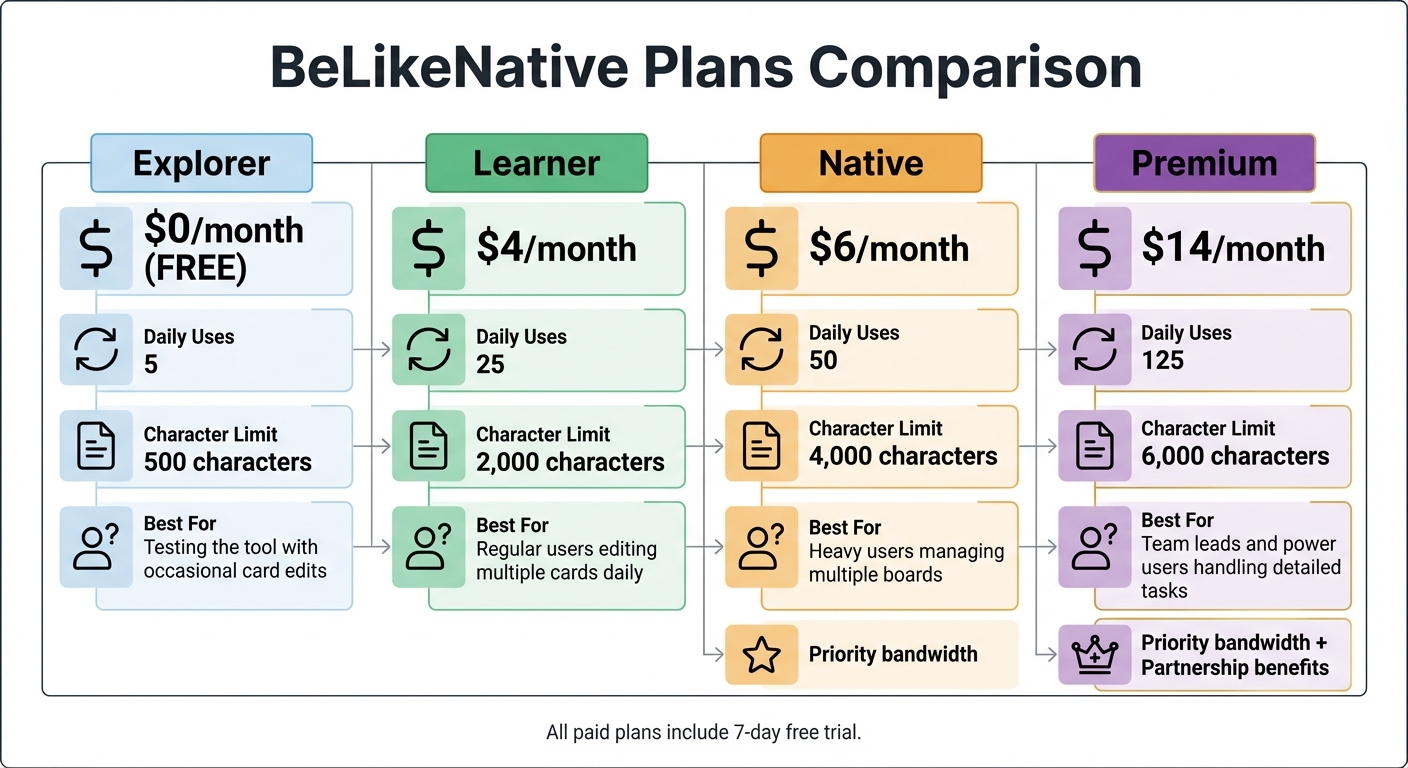
BeLikeNative Trello Plans Comparison: Features and Pricing
Plan Comparison Table
Take a look at the table below to find a plan that fits your Trello editing needs:
| Plan | Price | Daily Uses | Character Limit | Best For |
|---|---|---|---|---|
| Explorer | $0/month | 5 | 500 characters | Testing the tool with occasional card edits |
| Learner | $4/month | 25 | 2,000 characters | Regular users editing multiple cards daily |
| Native | $6/month | 50 | 4,000 characters | Heavy users managing multiple boards |
| Premium | $14/month | 125 | 6,000 characters | Team leads and power users handling detailed tasks |
All paid plans include editing tools and shortcuts. If you choose the Native or Premium tiers, you’ll also get priority bandwidth for faster performance.
Which Plan to Choose
If you edit Trello cards occasionally, the Explorer plan works perfectly – it’s free and lets you test the tool without commitment. For more frequent editing, the Learner plan is ideal, offering enough capacity for regular updates. Many users find this plan meets their daily needs.
Need more flexibility? The Native plan is designed for those managing detailed boards or requiring longer text fields, like client briefs or checklists. If your work involves extensive documentation or managing multiple boards, the Premium plan is the way to go. It’s tailored for team leads and power users who need to handle full project specs or detailed meeting notes without breaking content into smaller sections.
Troubleshooting Common Issues
If you’re running into problems with BeLikeNative after completing the setup, here are some troubleshooting tips to help you resolve common issues, especially when dealing with grammar corrections in Trello.
Clipboard Shortcut Not Working
If the BeLikeNative shortcut isn’t responding, the issue might be related to Windows Explorer. You may notice repeated pastes even after copying new content. This can happen if Windows’ clipboard manager freezes or if system files are corrupted. To fix it:
- Press Ctrl+Shift+Esc to open Task Manager.
- Right-click on Windows Explorer and select Restart.
If that doesn’t solve the problem, run SFC and DISM commands to repair system files that could be affecting the shortcut. Also, confirm that the BeLikeNative Chrome extension has permission to access your clipboard. Check for conflicts with other extensions that might interfere with the shortcut functionality.
Character Limit Errors
BeLikeNative plans come with specific character limits:
- Explorer: 500 characters
- Learner: 2,000 characters
- Native: 4,000 characters
- Premium: 6,000 characters
If your Trello card description exceeds your plan’s limit, break the text into smaller sections and process them individually. For larger documents, consider upgrading to the Native or Premium plan, which allows for longer text in a single session. Alternatively, you can use Trello’s "Notes & Docs" Power-Up to divide detailed content into manageable sections that stay within your character limit. Lastly, check your language settings to avoid inconsistencies in style.
Language Settings for en-US
To ensure proper American English conventions – like using "color" instead of "colour" – make sure BeLikeNative is set to English (en-US). Double-check your settings to confirm the correct language variant is selected. Without this configuration, the tool might default to other English variants, leading to inconsistencies in your Trello cards. This is especially important when collaborating with US-based teams or clients. If issues persist, revisit the settings to confirm en-US is properly configured.
Conclusion
BeLikeNative is your go-to tool for instantly correcting grammar errors in Trello cards, making team communication smoother and more effective. This Chrome extension works in real-time to fix typos and awkward phrasing, ensuring every card looks polished and professional. The result? Less time spent proofreading and more time focusing on what truly matters – getting work done.
With a simple shortcut, you can clean up text in seconds without ever leaving Trello. Whether you’re managing a small project or overseeing a large team, clear and error-free communication builds trust and reduces the chance of miscommunication. Because it integrates directly with Trello, your workflow stays uninterrupted while your cards maintain a professional tone.
The tool adapts to your needs as your usage grows. From the free Explorer plan to the advanced Premium option, there’s a plan for every workflow. If you’re working with detailed card descriptions or managing multiple boards, the Native or Premium plans ensure you have the capacity to handle it all – no need to split your text into smaller chunks.
BeLikeNative supports over 80 languages and integrates seamlessly with your Trello setup – no complicated installation required. With en-US settings enabled, every correction adheres to American English standards, so you’re always ready to hit the ground running. Choose the plan that works best for you and elevate your Trello experience today.
FAQs
Can BeLikeNative automatically fix grammar errors in Trello cards?
Currently, there isn’t an integration between BeLikeNative and Trello to automatically correct grammar in Trello cards. While the BeLikeNative Chrome extension works with platforms like Gmail, Microsoft Teams, and Notion, Trello isn’t included in its supported apps.
If BeLikeNative adds Trello to its compatibility list in the future, they would need to release updated documentation with setup instructions. For now, users looking to fix grammar in Trello may need to rely on alternative tools or manual editing methods.
How does BeLikeNative improve grammar and productivity in Trello?
BeLikeNative simplifies the process of fixing grammar, punctuation, and style mistakes in Trello cards. With its Chrome extension, you can highlight text directly on a card and apply corrections instantly – no need to switch tabs or open extra tools. This integration keeps your communication clear and error-free while saving valuable time.
Supporting over 80 languages, BeLikeNative also offers customizable tone and style settings, making it ideal for teams that want consistent and polished writing across their Trello boards. Plus, with built-in rephrasing and translation tools, adjusting content for different audiences is a breeze. At just $6 per month, it’s a budget-friendly way to boost productivity and ensure your Trello communication always shines.
What is the best BeLikeNative plan for frequent Trello users?
The details provided don’t clarify which BeLikeNative plan works best for frequent Trello users. While the platform’s features and advantages are outlined, there’s no mention of specific plans, pricing, or usage limits.
For personalized advice, check out BeLikeNative’s official pricing page or contact their support team directly for more information.

