
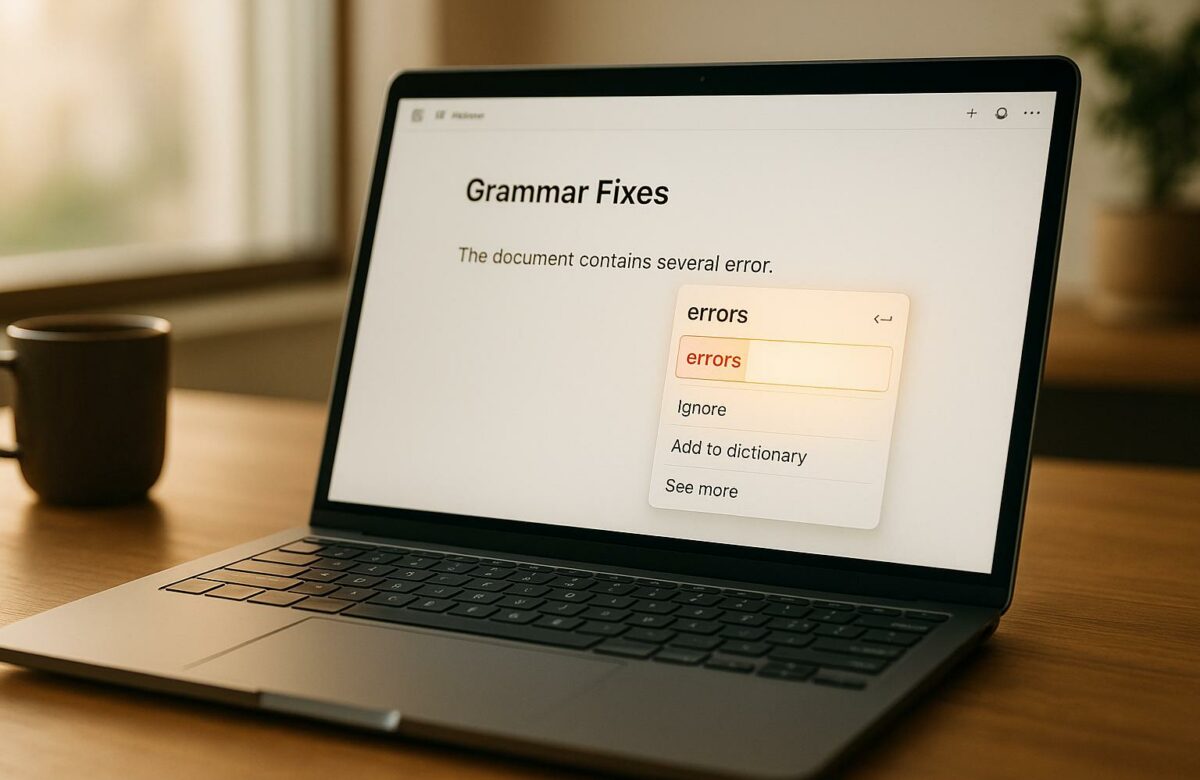
How To Fix Grammar In Notion Without Switching Tabs
If you’re tired of switching tabs to fix grammar while working in Notion, there are several ways to streamline the process. Here’s the quick answer:
- Use Notion’s Built-in Tools: Notion’s desktop app highlights misspelled words, but it relies on your device’s language settings and doesn’t catch contextual errors.
- Try Notion AI: For $10/month, it offers advanced grammar and tone corrections, but you need to manually highlight text for fixes.
- Enable Browser Spell Check: When using Notion in a browser, activate your browser’s built-in spell checker for real-time corrections.
- Install BeLikeNative: This Chrome extension integrates with your clipboard, allowing grammar fixes, tone adjustments, and support for 80+ languages without leaving Notion.
Each option has pros and cons: built-in tools are free but limited, Notion AI is more advanced but requires manual input and a subscription, while BeLikeNative offers flexibility and multilingual support starting at $4/month.
For the easiest workflow, combine browser spell check with a tool like BeLikeNative for instant fixes and fewer interruptions.
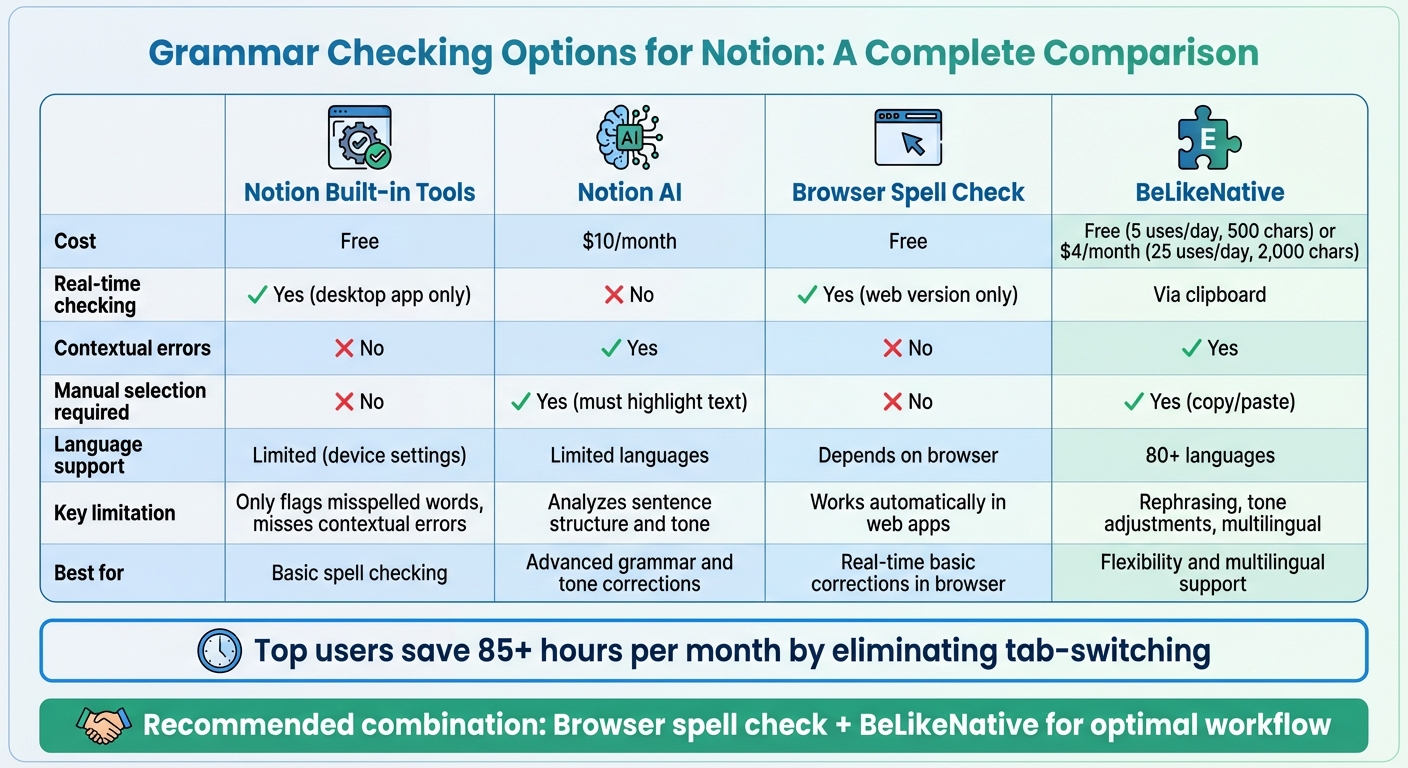
Comparison of Grammar Checking Tools for Notion: Features, Pricing, and Capabilities
Notion‘s Built-in Grammar and Spell Check Features
Basic Grammar Tools in Notion
Notion’s spell-checking works differently depending on the platform you’re using. On desktop apps for Mac and Windows, misspelled words are underlined, and you can right-click them to see suggestions. However, if you’re using the web version, spell checking relies on your browser’s built-in tools. To enable or disable spell check in the desktop app, you can right-click on a word and toggle the feature. It’s worth noting that Notion doesn’t offer a global setting for this – you’ll need to manage it individually for each document.
Now, let’s explore how Notion AI enhances these basic tools with more advanced capabilities.
Using Notion AI for Grammar Corrections
Notion AI steps up the game with its "Fix spelling & grammar" feature. This tool doesn’t just check for spelling – it also analyzes sentence structure and tone . To use it, highlight the section of text you’d like to correct, click the "Ask AI" button in the menu bar, and choose "Fix spelling & grammar" from the available options . The AI will generate a corrected version of your text, which you can either replace your original text with or add as a new block. However, keep in mind that this feature doesn’t work in real-time; you’ll need to manually select and process text for corrections.
While these tools are helpful, they do come with certain limitations.
Where Notion’s Native Tools Fall Short
Notion’s built-in spell checker has its drawbacks. It only flags outright misspelled words and doesn’t catch contextual mistakes, like confusing "form" with "from", since it relies entirely on your device’s language settings . Notion AI, while more advanced, can struggle with intricate or creatively written sentences, sometimes misinterpreting them or suggesting unnecessary changes. It also supports a limited number of languages. On top of that, Notion’s block-based structure can make it tricky to integrate with third-party grammar tools. These gaps underscore the need for more comprehensive and seamless grammar-checking solutions.
How to Use Grammarly Desktop for Notion in Mac (tutorial)
Setting Up Your Browser and Notion for Grammar Checks
Getting your browser and Notion ready for grammar checks is quick and makes catching errors in real-time much easier. When using Notion in a web browser, the browser’s built-in spell checker takes over. This means you’ll need to tweak your browser settings rather than Notion itself. Once configured, you can edit grammar directly in Notion without jumping between tabs. With everything set up, grammar checking runs smoothly in the background.
Here’s how to adjust your browser, Notion AI, and custom dictionaries for the best results.
Enabling Browser Spell Check
Start by ensuring your browser is set to catch errors across all web apps, including Notion.
- Google Chrome: Click the three-dot menu at the top right and go to "Settings." From the left-hand menu, select "Languages", then find the "Spell check" section. Turn on the option to check spelling when typing on web pages.
- Safari: Spell check is usually on by default. To double-check, go to the menu bar and navigate to Edit > Spelling and Grammar.
- Microsoft Edge: Similar to Chrome, go to "Settings", then "Languages", and enable spell checking in the appropriate section.
Using Notion AI for Grammar Fixes
Access Notion AI by opening the content block menu or typing /Ask AI. While Notion AI serves as a general writing assistant, there aren’t specific instructions for adjusting its settings for U.S. English. To use it for grammar, select the text you want to edit and choose the "Fix spelling & grammar" option from the AI menu, as explained earlier.
Building a Custom Browser Dictionary
If you often use technical terms, product names, or acronyms, your browser might flag them as errors even when they’re correct. To avoid this, right-click on any flagged word and select "Add to dictionary" from the menu. This works across most browsers and helps you create a personalized dictionary over time. By doing this, you’ll reduce unnecessary alerts and can focus on actual grammar issues without distractions.
Using BeLikeNative for Grammar Fixes in Notion
BeLikeNative brings enhanced grammar tools directly into Notion, eliminating the need to switch tabs. This Chrome extension works seamlessly via clipboard integration, offering more than just basic spell checking. It provides features like rephrasing, tone adjustments, and support for over 80 languages, helping you refine your writing and make it more impactful.
Installing and Setting Up BeLikeNative
Once installed, BeLikeNative integrates with your clipboard and runs quietly in the background. It’s ready to use right away. The free Explorer plan allows up to 5 uses per day, each covering 500 characters. For those with greater needs, the Learner plan costs $4 per month and offers 25 uses daily, with a limit of 2,000 characters per use.
How to Use BeLikeNative in Notion
Using BeLikeNative with Notion is simple. Just copy the text you want to improve, and the extension processes it instantly. The polished version is ready to paste back into your document, all without leaving your Notion workspace. This seamless workflow keeps interruptions to a minimum.
Multilingual Support and Tone Adjustments
BeLikeNative goes beyond grammar fixes by tailoring language, tone, and style to suit various writing needs. Whether you’re drafting a formal business report or jotting down quick, concise notes, the extension adapts to your requirements. With support for over 80 languages, it’s also a great tool for collaborating with international teams while maintaining a consistent voice across your content.
sbb-itb-32359dc
Best Practices for Grammar Checking in Notion
Making grammar checks a regular part of your Notion workflow helps keep your writing polished and professional. The trick is to seamlessly integrate these checks into your routine, so they feel like a natural part of your process rather than an extra chore.
Building Consistent Grammar Check Habits
Incorporate grammar checks at key points in your workflow. For example, after a meeting, quickly review your notes while the details are still fresh. When working on project documents, check the grammar before sharing them with your team or marking tasks as complete. These small, consistent steps make a big difference in ensuring clear and professional communication.
By making grammar checks a habit, you also maintain a unified tone across all your work.
Maintaining Consistent Tone and Style
A consistent tone is especially important when multiple collaborators contribute to shared Notion workspaces. For U.S. business English, tools like BeLikeNative can help adjust tone to suit your needs – whether you’re drafting formal client proposals or creating casual internal updates. Stick to clear, straightforward language and avoid unnecessary jargon. Always double-check that any tone adjustments preserve the original meaning of your content.
Editing Long Notion Pages
When working with lengthy Notion pages, breaking the document into smaller sections can make editing more manageable. Review one section at a time to maintain focus and improve clarity. Notion AI tends to deliver better results when working with smaller chunks of text, so processing your content in segments can lead to more accurate grammar corrections.
To streamline your workflow, use Notion’s toggle blocks to collapse sections you’ve already reviewed. This minimizes distractions and keeps your attention on the current paragraph. This method ensures thorough editing while avoiding the hassle of switching between tabs, making your grammar-checking process smoother and more efficient.
Troubleshooting Grammar Tools in Notion
If grammar suggestions aren’t working as expected, here are some quick steps to get things back on track.
Fixing Missing Grammar Suggestions
First, ensure your operating system’s language matches the language you’re writing in. Then, navigate to Settings & Members by clicking the three dots in Notion. Under the General tab, make sure spell check is enabled.
If the issue persists, restart Notion and confirm you’re using the latest version – it might resolve any temporary glitches. For stubborn problems, clearing Notion’s cache can help. On Windows, delete the "Notion" folder located at C:\Users\USERNAME\AppData\Roaming. For Mac users, go to Edit > Spelling and Grammar > Show Spelling and Grammar, and enable the "Automatic by Language" option.
Resolving BeLikeNative Issues
If the BeLikeNative extension isn’t functioning properly in Notion, start by confirming that the extension is installed and enabled in your browser. Also, check that you’re using the most recent version. If problems continue, uninstall and reinstall the extension.
Be aware of usage limits tied to your plan. The Explorer plan allows up to 5 uses per day with a 500-character limit, while the Learner plan offers 25 daily uses with a 2,000-character cap. If you’ve reached your daily limit, you’ll need to wait for it to reset or consider upgrading your plan. For Learner, Native, or Premium plan users, tweaking custom settings can also enhance grammar checks.
Handling Incorrect Suggestions
Grammar tools aren’t foolproof – they can sometimes flag correct text or miss the nuances of your writing. If suggestions seem off, check your settings and adjust the tone or style. Switching between formal and casual modes can often improve the tool’s accuracy.
Ultimately, trust your instincts. If a correction feels wrong or alters your intended meaning, it’s okay to ignore it. For Native and Premium plan users, you can report specific issues through the community access feature, which helps refine the tool over time. Remember, grammar tools are there to assist you, but they’re no substitute for careful editing and your own judgment.
Conclusion
Fixing grammar in Notion has never been easier, and you don’t even need to leave your workspace. Whether you rely on Notion’s built-in spell check, Notion AI, browser-based tools, or BeLikeNative’s clipboard integration, there’s an option to suit your needs.
The best choice depends on your writing habits. For simple corrections, browser spell check and native tools get the job done. If you’re looking for advanced fixes, Notion AI is available for $10/month. Need multilingual support with instant rephrasing and tone adjustments? BeLikeNative provides seamless corrections directly to your clipboard.
"BeLikeNative eliminates that friction entirely. It’s seamless, efficient, and designed to enhance your writing process without any hassle." – BeLikeNative
Enable browser spell check, set up Notion AI, or try BeLikeNative to simplify grammar fixes and save time. In fact, top BeLikeNative users report saving over 85 hours each month by avoiding repetitive tasks like copying, pasting, and switching tabs.
FAQs
How does Notion AI’s grammar-checking compare to other tools?
Notion AI offers simple grammar and style corrections, making it handy for fixing errors, improving readability, and tweaking tone. That said, it doesn’t include advanced features like in-depth style recommendations or plagiarism checks that some dedicated grammar tools provide.
If you’re looking for basic grammar fixes and clarity enhancements directly in your Notion workspace, it’s a practical choice. For more advanced editing tasks, though, you might want to explore specialized tools that provide a broader range of features.
Does BeLikeNative support grammar corrections in languages other than English?
Yes, BeLikeNative offers grammar correction features for several languages besides English. It’s built to assist users in refining their writing across different languages, making it a helpful resource for multilingual communication.
What are the drawbacks of relying on browser spell check for grammar in Notion?
Browser spell check in Notion comes with a few limitations. One major issue is its difficulty in grasping context. This means it might overlook subtle grammar errors or misinterpret more intricate sentence structures. It can also falter when dealing with longer, more detailed text, leaving some mistakes unnoticed.
Another challenge lies in its dependency on the dictionaries provided by your browser or operating system. The quality of these dictionaries can vary, leading to inconsistent outcomes, particularly when it comes to advanced grammar fixes or refining writing style.

