
Fix Spanish To English Preposition Mistakes Automatically
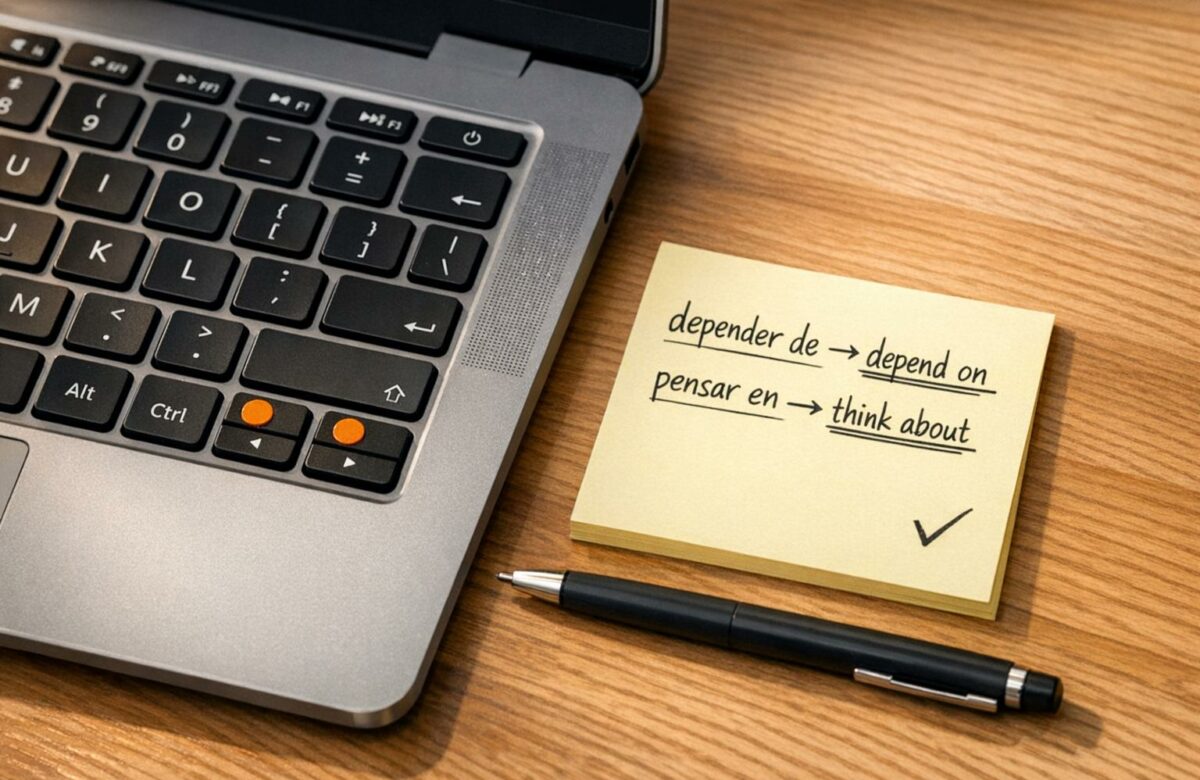
Prepositions are tricky – especially when translating Spanish to English. Misusing them can confuse readers and make your writing feel unnatural. Spanish prepositions like "en" or "a" don’t always have direct English equivalents, leading to common mistakes like "I arrived to home" instead of "I arrived home." These errors can disrupt your message, particularly in professional settings.
AI tools like BeLikeNative can help. They analyze your text, detect preposition errors, and suggest corrections instantly. For example, the tool knows when to use "on the bus" instead of "in the bus" or "interested in" rather than "interested on." It’s fast, accurate, and works across platforms like Gmail, Google Docs, and WhatsApp Web.
Transform Any Text, On Any Site, In Seconds
Rephrase, translate, and improve text with one shortcut. Works everywhere you write.
Add to Chrome - It's Free!Here’s how it works:
- Install one of the best writing extensions for Chrome, such as BeLikeNative.
- Highlight your text and trigger corrections with a shortcut.
- Review suggestions and apply them.
Plans range from free (5 corrections/day) to $14/month (125 corrections/day). Whether you’re drafting emails or translating documents, this tool saves time and improves accuracy. While AI fixes most errors, always review suggestions to ensure they match your intent.
English for Spanish Speakers – Ten Common Preposition mistakes (with subtitles)
sbb-itb-32359dc
Setting Up BeLikeNative for Preposition Correction
BeLikeNative is quick to install and works effortlessly with platforms like Gmail, Google Docs, WhatsApp Web, Notion, and more.
Installing the BeLikeNative Chrome Extension
To get started, head to the Chrome Web Store and search for "BeLikeNative: AI Writing with Shortcuts." Click the "Add to Chrome" button to install the extension. The process is instant, and no registration is required. Once installed, the BeLikeNative icon will appear in your browser’s toolbar.
The extension boasts a 4.6 out of 5-star rating from 195 user reviews and is trusted by 3,000 users.
Click the BeLikeNative icon to access settings where you can adjust language preferences and tone. First-time users can enjoy a 7-day free trial to explore its correction capabilities before deciding on a paid plan. You can also set up handy keyboard shortcuts to make corrections even faster.
Setting Up Clipboard Shortcuts
After installation, configure shortcuts to streamline your workflow. BeLikeNative allows you to trigger corrections with just a keystroke. The default shortcut is Alt + E for Windows or Command + E for Mac, which opens the side panel. This eliminates the hassle of switching tabs or copying and pasting text into separate tools.
For paid users, shortcuts can be customized further. For instance, you can set a shortcut specifically for "Fix Grammar" to instantly correct prepositions. According to user data, this feature saves over an hour of daily work, with top users gaining up to 85 extra productive hours each month.
Choosing Spanish Input and English Output Languages
Once your shortcuts are ready, fine-tune the language settings for better results. Open the side panel, select Spanish as the input language and English as the output. You can also choose the tone of your writing – formal for professional communication or casual for more relaxed contexts. These settings ensure the AI applies precise English preposition rules to your Spanish input. With support for over 80 languages, the extension is a powerful tool for multilingual users.
How to Fix Preposition Mistakes with BeLikeNative
Adding Spanish Text to the Tool
Once you’ve set up the tool, start by inputting your Spanish text. Highlight the specific portion of text you want to correct – whether it’s a sentence or an entire paragraph – in any supported multilingual chat and productivity apps like Google Docs, Notion, Gmail, or WhatsApp Web. Alternatively, you can paste the Spanish text directly into the tool’s text box. To get the best results, focus on highlighting sections where preposition errors might occur, as this helps the AI deliver more accurate corrections.
Using Shortcuts to Trigger Corrections
After highlighting your Spanish text, press Alt + E on Windows or Command + E on Mac. This shortcut instantly rewrites, translates, and copies the corrected version of your text.
Reviewing and Applying Suggested Corrections
Once the tool provides the corrected text, take a moment to review it. Pay close attention to how prepositions, like "en", are handled. If needed, explore how AI adjusts writing style for multilingual audiences through the tool’s suggestions. When you’re happy with the corrections, paste the revised text back into your document. For nuanced preposition usage, always double-check the context to ensure the AI’s interpretation aligns with your intent.
BeLikeNative Pricing Plans
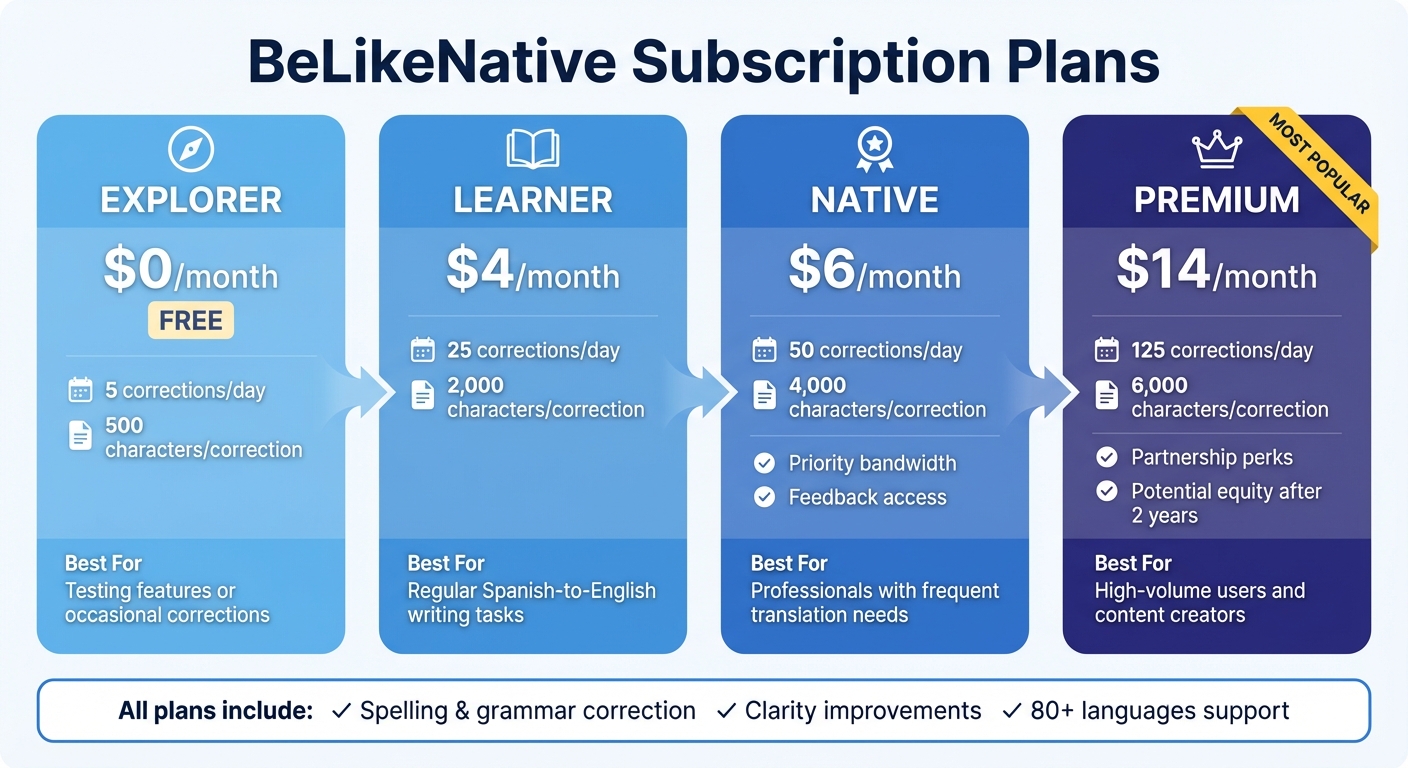
BeLikeNative Pricing Plans Comparison for Spanish to English Translation
If you’re looking to improve your Spanish-to-English preposition accuracy, BeLikeNative has four pricing options designed to match your translation needs and writing volume. Whether you’re casually refining a few sentences or managing heavy translation tasks daily, there’s a plan for you.
The Free plan is completely free and provides 5 corrections per day with a 500-character limit. It’s ideal for those testing the tool or handling occasional fixes. For more frequent use, the Learner plan, priced at $4/month, offers 25 daily corrections, a 2,000-character limit, and customization options for shortcuts and functions.
For professionals who need higher capacity, the Native plan at $6/month includes 50 daily uses and a 4,000-character limit, along with priority bandwidth and the chance to contribute feedback on upcoming features. At the top tier, the Premium plan costs $14/month and provides 125 corrections per day, a 6,000-character limit, and exclusive partnership perks, including potential equity after two years.
Plan Comparison Table
| Plan | Monthly Price | Daily Uses | Character Limit | Best For |
|---|---|---|---|---|
| Free | $0 | 5 | 500 | Testing features or occasional corrections |
| Learner | $4 | 25 | 2,000 | Regular Spanish-to-English writing tasks |
| Native | $6 | 50 | 4,000 | Professionals with frequent translation needs |
| Premium | $14 | 125 | 6,000 | High-volume users and content creators |
Every plan includes spelling and grammar correction, clarity improvements, and support for over 80 languages. The main differences lie in the number of corrections and the character limits available per day. If you only translate a few emails or small texts daily, the Learner plan should suffice. For handling multiple documents or client projects, the Native or Premium plan is better suited.
Pick the plan that aligns with your workload and keep refining your Spanish-to-English writing with ease.
Tips for Better Preposition Accuracy
Fine-tune your use of BeLikeNative by tweaking its settings and combining AI suggestions with your own manual review to achieve more accurate preposition usage.
Adjusting Tone and Style Settings
Before diving into corrections, make sure to set the tone that matches your writing purpose. BeLikeNative offers options like formal, casual, and technical, which influence the AI’s preposition choices. For example, in a formal legal document, the phrase might be "consult with", while in a casual email, "talk to" feels more natural. You can find these tone and style settings in the side panel – adjust them before asking the AI to make corrections. This ensures the suggestions align with the intended audience and context. Once you’ve done that, reinforce these AI-generated fixes with your own careful review.
Combining AI Corrections with Manual Checks
Preposition errors often arise in Spanish-to-English translations due to literal interpretations. For instance, the Spanish preposition "en" might not always translate directly to "in." Depending on the sentence, "on" or "at" could be a better fit.
After BeLikeNative suggests a correction, take the time to review the entire paragraph. Does the preposition sound natural in the overall context? Compare the AI’s suggestions and think about the broader meaning of the sentence. This extra step is crucial, as prepositions are tricky and often depend on subtle nuances that automated tools might miss.
Conclusion: Improve Your Spanish-to-English Writing with BeLikeNative
BeLikeNative makes fixing Spanish-to-English preposition errors a breeze by quickly correcting awkward translation mistakes. With an easy setup and handy keyboard shortcuts, it seamlessly integrates into your workflow, saving you time and effort.
What sets this tool apart is how effortlessly it blends into your existing writing process. Whether you’re drafting an email in Gmail or working on a document, BeLikeNative provides corrections right as you type. This means no more jumping between translation apps or endless copy-pasting – just uninterrupted focus and clear writing.
Prepositions can be tricky, and while AI corrections are incredibly helpful, reviewing the context is key. BeLikeNative’s advanced language models analyze your sentences to suggest the most likely preposition for the situation. However, your judgment plays a crucial role – always double-check suggestions to ensure they align with your intended meaning and tone.
With pricing options starting at $0 per month for basic features and going up to $14 per month for advanced grammar tools for multilingual writers, there’s a plan for every user. Supporting over 80 languages and integrating smoothly with popular platforms, BeLikeNative adapts to your writing needs while helping you maintain clarity and professionalism.
Try BeLikeNative today to enhance your Spanish-to-English writing, save time on edits, and deliver polished communication that meets your audience’s expectations.
FAQs
Will it work on any website I write in?
Grammarly‘s browser extension, known for its multilingual suggestions, is designed to function on most websites and web-based text editors. It integrates effortlessly with popular online platforms, assisting you in spotting and fixing errors as you write.
How do I make the fixes sound more natural in my context?
AI-driven tools like LanguageTool or Trinka AI can help you refine your writing by spotting errors and offering stylistic suggestions to improve clarity and flow. By consistently reviewing these suggestions and practicing with tools that adapt to context, you’ll start to notice common patterns, improve your phrasing, and create language that feels more fluent and natural for your intended audience.
What happens when I hit the daily correction limit?
If you hit the daily correction limit, the tool might temporarily stop offering corrections or suggestions. This limit usually resets after 24 hours, depending on the service. To keep refining your writing, you can either wait for the reset or manage your usage more strategically.
Related Blog Posts
- Best AI Paraphrasing Tools for Spanish – Reword, Rewrite & Sound Natural!
- Top 7 Spanish Grammar Tools for Business Writing
- How To Fix Spanglish In Professional Documents
- Best AI English Teacher Plugin For Chrome
BeLikeNative fixes grammar, rephrases, translates, and simplifies text on any website in 1 second — just highlight and hit a keyboard shortcut. No tab switching. Try it free →

