
How To Generate Professional Replies In Microsoft Teams
Microsoft Teams is a key tool for workplace communication, but crafting professional replies can be challenging. Striking the right tone, avoiding misunderstandings, and responding efficiently are essential for maintaining productive conversations. This guide simplifies the process with practical tips and tools to help you respond effectively while saving time.
Key Takeaways:
- Use Built-in Features: Leverage Suggested Replies for quick responses and Rewrite with Copilot to adjust tone and length.
- Message Templates: Create reusable templates with Markdown formatting for consistency.
- BeLikeNative Extension: Enhance replies with AI-powered tools for tone adjustment, grammar fixes, and translations, saving time and improving clarity.
- Best Practices: Write concise, well-structured messages, use @mentions sparingly, and respect team members’ time zones.
By combining Microsoft Teams’ built-in tools with add-ons like BeLikeNative, you can streamline your communication and maintain professionalism in every reply.
Suggested Replies – Turn ON or OFF | Microsoft Teams
Using Microsoft Teams’ Built-in Features for Professional Replies
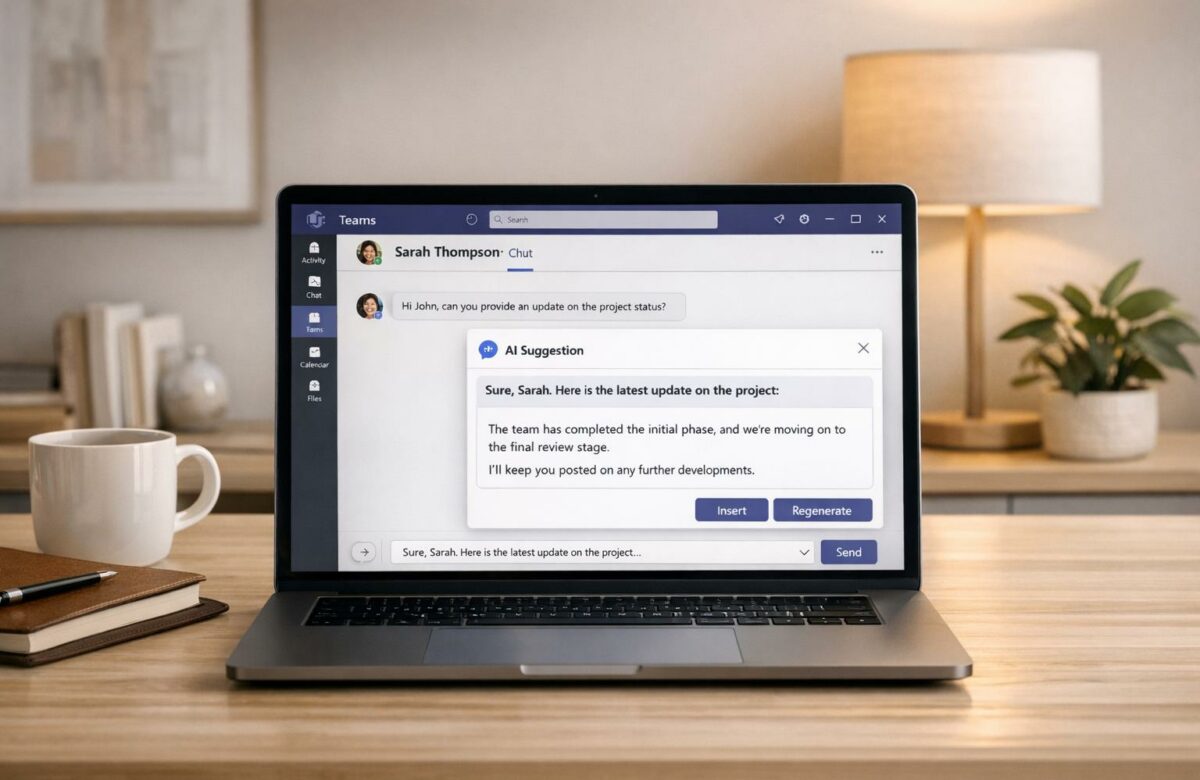
Microsoft Teams has built-in tools to make replying quicker and more professional. One standout feature is Suggested Replies, which provides AI-generated responses like "Sounds good" or "Will do." These appear above the compose box and are perfect for routine confirmations. Enabled by default, this feature operates within your organization’s Microsoft 365 environment, keeping your message data secure. If you’d rather type out responses manually, you can turn this feature off by going to Settings and more (…) > Settings > General, and unchecking Show suggested replies in chat.
For those with a Microsoft 365 Copilot license, the Rewrite with Copilot tool offers even more flexibility. You can tweak the tone of your messages – choosing options like "Professional", "Confident", or "Enthusiastic" – or adjust the length to be either "Concise" or "Longer". As Luca Valadares from Microsoft notes, "Copilot in Teams’ chat and channels compose box is a powerful tool that helps take your messages to the next level". Additionally, the Custom tone feature lets you use open prompts, such as asking it to "turn this into a bulleted list" or "translate to Spanish", giving you precise control over your message style.
Setting Up Quick Responses for Faster Replies
Suggested replies are especially handy for quick acknowledgments. In group chats, they can even include @mentions when you’re replying to a message where you’ve been tagged. For mobile users, this feature can be found under Settings > Messaging > Suggested replies.
However, it’s best to avoid using these automated replies for complex or sensitive conversations, as they might come across as impersonal.
Creating Message Templates for Consistent Communication
Need to send similar messages regularly? Markdown formatting can help you create reusable templates. For example, use "##" for headers, "*" or "-" for lists, and "Text" for hyperlinks. If you often share project updates, you could draft a template with sections like "## Progress This Week" and "## Next Steps." Save it in a chat with yourself for easy access whenever needed . To add line breaks without accidentally sending the message, use Shift+Enter .
Microsoft Teams also supports automatic spelling and grammar checks, highlighting errors with red underlines. Right-clicking on these underlines gives you suggestions for corrections. Combine this with the Format option in the compose box, which allows you to add bold text, italics, and bulleted lists, to ensure your messages look polished and professional.
Next, we’ll dive into how BeLikeNative builds on these tools for even more streamlined communication.
Improving Replies with BeLikeNative‘s Chrome Extension
BeLikeNative Pricing Plans Comparison for Microsoft Teams
Microsoft Teams already comes with built-in tools, but BeLikeNative’s Chrome extension takes things up a notch by adding AI-powered features directly into your browser. Unlike other tools that require you to jump between tabs or copy and paste text, BeLikeNative integrates seamlessly with the web version of Teams. This means you can refine your messages on the spot without breaking your workflow. The extension works as a convenient pop-up or sidebar, making it easy to access AI enhancements while staying focused.
Power users report a 66% boost in productivity, saving over 85 hours each month. Even casual users save more than an hour daily by avoiding the hassle of tab switching and repetitive copy-pasting. Plus, the extension supports communication in 80 languages, making it a versatile tool for global teams. Want to get started? Here’s how to install BeLikeNative and start using it with Teams.
Installing BeLikeNative for Microsoft Teams
Getting started with BeLikeNative is simple. Head to the Chrome Web Store, search for "BeLikeNative", and click Add to Chrome. Once installed, open Microsoft Teams in your Chrome browser, and you’re ready to go.
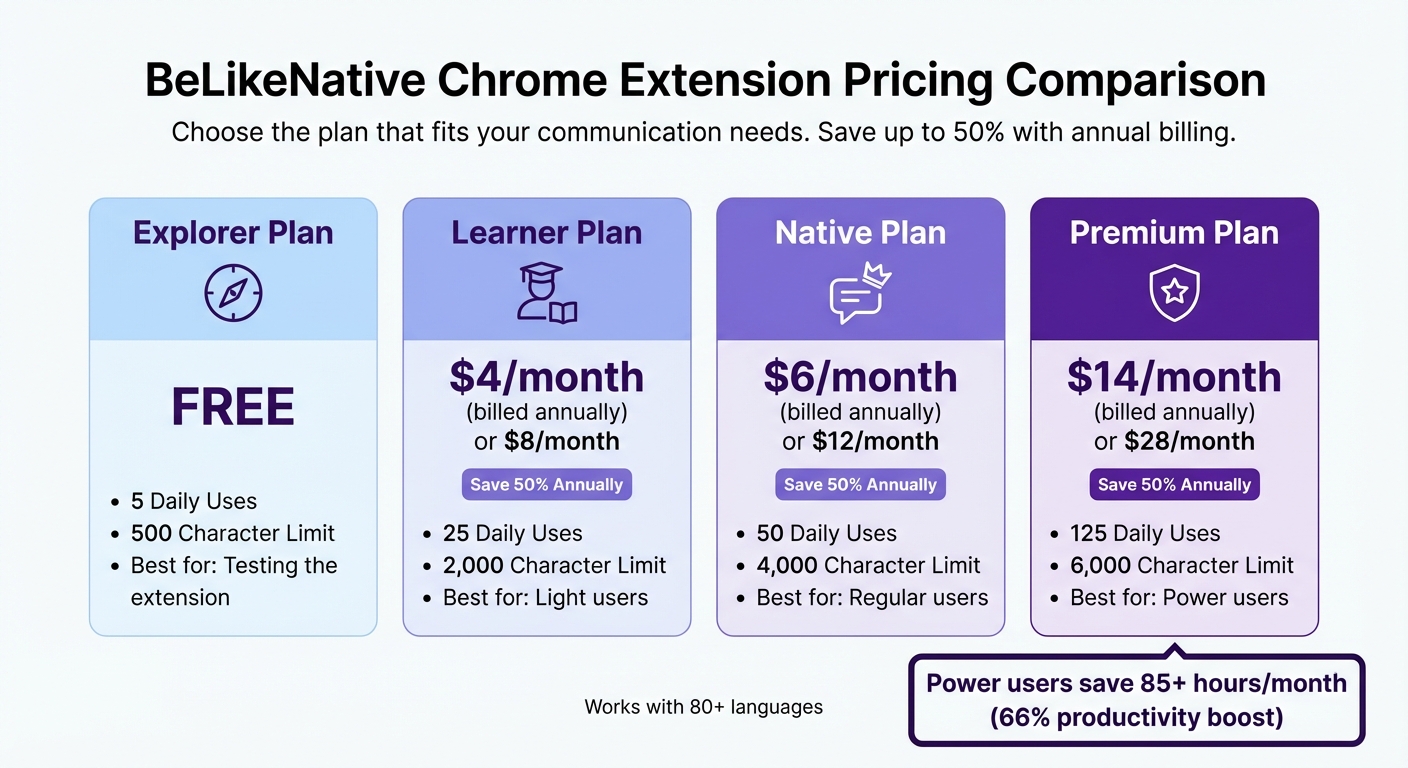
BeLikeNative offers four pricing plans to fit different needs:
- Explorer plan: Free, with 5 daily uses and a 500-character limit.
- Learner plan: $4/month (billed annually) or $8/month (billed monthly), offering 25 daily uses and a 2,000-character limit.
- Native plan: $6/month (billed annually) or $12/month (billed monthly), allowing 50 daily uses with a 4,000-character limit.
- Premium plan: $14/month (billed annually) or $28/month (billed monthly), providing 125 daily uses and a 6,000-character limit.
Adjusting Tone and Clarity for Workplace Messages
BeLikeNative makes it easy to fine-tune the tone and clarity of your messages. Whether your reply feels too casual for a client or too technical for a general team channel, the extension has you covered. Just highlight your text in the Teams compose box and activate the Paraphraser using a keyboard shortcut. For simplifying complex instructions, the Simplify This feature breaks down the message into easy-to-follow steps. Need to clean up grammar or awkward phrasing? The Fix Grammar tool catches errors before you hit send.
For international teams, the Translate feature supports over 80 languages, so you can communicate effectively without leaving the chat. You can even customize which features appear in the interface and assign your own keyboard shortcuts through the BeLikeNative dashboard, tailoring the extension to your workflow.
Using Clipboard Shortcuts to Edit Replies Quickly
BeLikeNative also streamlines editing with its clipboard integration. Highlight your text, press the shortcut, and the polished version is instantly copied to your clipboard. This eliminates the need to open separate tools or windows.
For instance, if you’re responding to a busy team channel, highlight your draft, use the Write Instant Reply shortcut to generate a context-appropriate response, and paste it back into the chat. The Fix Punctuation feature ensures your message looks polished, while the Paraphraser adjusts the tone to suit the situation – whether professional or casual. Since these tools work directly within your browser, you can stay focused and maintain your workflow.
sbb-itb-32359dc
Following Workplace Communication Best Practices
Effective workplace communication relies on how well you structure and deliver your message. While Microsoft Teams makes it simple to send quick replies, a little extra thought about your tone and audience can significantly impact how your message is received. Here are some strategies to help you craft clear and impactful messages.
Writing with a Professional Tone and Structure
Professional messages should be concise and purposeful, ensuring they deliver value without unnecessary fluff. But concise doesn’t mean robotic – there’s still room for a touch of personality. Microsoft advises: "Tone doesn’t always translate. Do keep your IMs brief, but be careful not to be brusque".
Tailor your tone to the recipient. An informal tone might work for a peer, but messages for managers or larger groups often require a more formal approach. Keep small talk to a minimum and get straight to the point when messaging colleagues directly.
Formatting also plays a big role in making complex information easier to digest. Use bold text to highlight deadlines or important names, and break down tasks with bulleted or numbered lists. In group chats, reserve @mentions for when someone’s specific action is required – overusing them can come across as demanding.
Reactions, like a thumbs-up emoji, are a simple and professional way to acknowledge a message without adding unnecessary replies. This is especially helpful in large Teams channels, which can include up to 250 participants. Keeping conversations streamlined ensures everyone stays on track.
Communicating Across Languages and Teams
For global teams, built-in tools in Microsoft Teams can bridge language gaps. If you receive a message in another language, hover over it and select Translate to get the gist before responding. The Immersive Reader tool can also read messages aloud, helping you catch subtle nuances or complex phrasing.
When writing for multilingual teams, focus on clarity and readability. Use bold text, bullet points, and clear headings to make your message easy to scan, especially for non-native speakers. Avoid overly decorative language – stick to straightforward, simple wording.
If you’re unsure about how your tone might come across, AI tools like Microsoft Copilot can help refine your message. It can rewrite your text to sound more "professional" or "confident" while also translating it into languages like Spanish. Finally, respect time zones and availability. If someone’s status is set to "unavailable", hold off on messaging unless it’s urgent. This small step shows consideration for global schedules and personal boundaries.
Conclusion
Replying professionally in Microsoft Teams becomes much simpler when you leverage the platform’s built-in tools alongside smart editing solutions. Features like quick responses, Markdown formatting, and Copilot’s tone adjustments work seamlessly with tools like BeLikeNative to help you communicate effectively and efficiently. As the Microsoft 365 Team aptly puts it, "Maintaining a robust, respectful chat etiquette can help you boost productivity, engagement, and connection with colleagues".
By tailoring your approach to the situation, you can make the most of these features. For instance, suggested replies and Markdown formatting ensure clarity, while translation tools help bridge language gaps for global teams. BeLikeNative’s clipboard-based editing adds an extra layer of polish, making sure your messages are both professional and easy to understand.
Professional communication also means respecting your colleagues’ time. Use @mentions thoughtfully, reactions to acknowledge messages, and choose the right medium for each conversation. These small, intentional habits can significantly enhance productivity and collaboration.
Whether managing a small team or working with a larger group, these practical techniques can sharpen your communication. Start by integrating one or two methods into your routine, and gradually expand from there. The result? Clearer, faster, and more impactful replies that foster efficient and effective teamwork.
FAQs
How can I make my messages in Microsoft Teams more professional and clear?
To communicate effectively and professionally in Microsoft Teams, you can take advantage of built-in tools and straightforward strategies. Start with Copilot, which can help refine your messages for tone and clarity. For example, you can ask it to make a message sound more formal or approachable, helping you save time while maintaining the right level of professionalism.
Make use of rich-text formatting options like bold, italics, and bullet points to emphasize important details and improve readability. Turn on spell-check to catch any typos, and consider using tools like Grammarly for real-time grammar and tone suggestions. If you find yourself sending similar messages frequently, save reusable templates to keep your communication consistent and efficient.
By using these tools and techniques, you can ensure your messages in Teams are clear, polished, and professional.
What are the advantages of using message templates in Microsoft Teams?
Message templates in Microsoft Teams are a real time-saver. Instead of crafting responses from scratch, you can use pre-written messages that are easy to tweak. This means you can respond faster, tackle more pressing tasks, and keep your workflow running smoothly.
These templates also help keep your team’s communication consistent. By standardizing things like tone, formatting, and branding, they reduce the chances of miscommunication and ensure a polished, professional image. Plus, they’re a great tool for onboarding new team members – providing clear examples of effective communication makes it easier for everyone to collaborate and stay on the same page.
How can BeLikeNative help me create professional responses in Microsoft Teams?
BeLikeNative provides actionable tips to help you create polished and effective responses in Microsoft Teams. By emphasizing communication techniques, appropriate tone, and workplace etiquette, it ensures your messages are not only clear but also professional and respectful.
On top of that, BeLikeNative shares advice on using features like AI-powered writing assistants and pre-designed message templates within Teams. These tools can help streamline your workflow, boost clarity, and make teamwork more efficient.

