
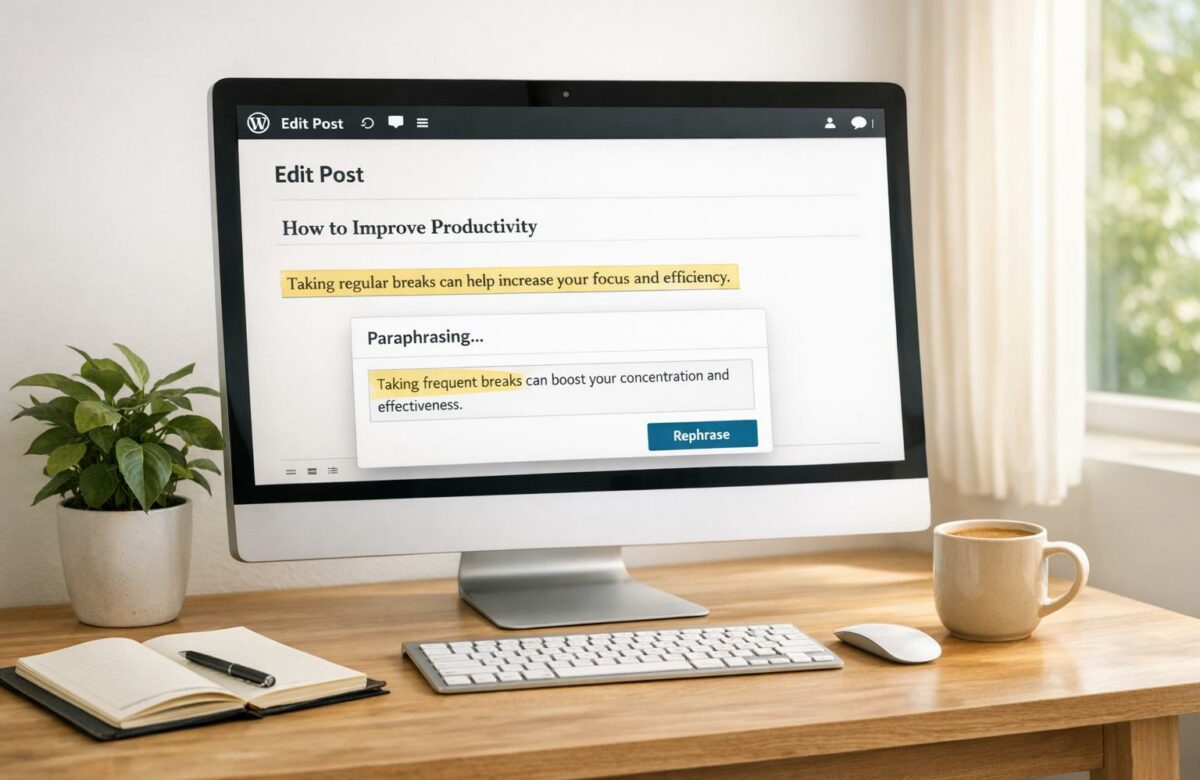
How To Paraphrase Text In WordPress Editor
Want to improve your WordPress content quickly? Paraphrasing helps you rewrite text to make it clearer, more engaging, and better suited for your audience. Tools like BeLikeNative simplify this process, offering features like tone adjustments, multilingual support, and direct integration with WordPress.
Here’s what you need to know:
- What is paraphrasing? Rewriting text while keeping its original meaning intact.
- Why paraphrase? Simplify complex ideas, save time, and improve readability.
- Key tool: BeLikeNative integrates with WordPress, allowing you to paraphrase text directly in the editor using shortcuts.
- Setup: Install BeLikeNative’s Chrome extension, configure tone and language preferences, and start paraphrasing with ease.
- Best practices: Review paraphrased content for accuracy, localize for U.S. readers, and maintain proper formatting in WordPress.
Quick Tip: Use tools like BeLikeNative or WordPress AI plugins to rework content efficiently without leaving the editor. This saves time and ensures your writing resonates with readers.
Let’s dive into how you can use these tools and techniques to enhance your WordPress posts.
Preparing Your WordPress Editor for Paraphrasing
WordPress Editors: Block vs. Classic
Since December 2018, WordPress has made the Block Editor (Gutenberg) the default editing tool. Unlike the Classic Editor, which uses a continuous text field, the Block Editor treats each element – like text, images, or headings – as an individual block. This design allows for precise text selection (using Shift+Click) and includes built-in tools for tone adjustments and text transformations. It also integrates smoothly with tools like BeLikeNative, making paraphrasing faster and more efficient.
"The modern WordPress Editor can do anything the Classic Editor can do and much more, so even though the Classic Editor is still available, it is not recommended."
While the Classic Editor is still an option, you’ll need to install a plugin to use it in newer WordPress versions. However, if you’re planning to paraphrase content, the Block Editor’s advanced features and flexibility make it the better choice.
Setting Up Your Paraphrasing Tools
Start by logging in to your WordPress dashboard at yourdomain.com/wp-admin. For the best experience, use an updated browser like Chrome, Firefox, or Edge.
To work with BeLikeNative, install its Chrome extension and select a plan that fits your needs. Options include a free Explorer plan (limited to 5 uses per day and 500 characters per use) or the Premium plan at $14 per month, which offers 125 uses per day and a 6,000-character limit.
For a distraction-free workspace, activate Spotlight or Distraction-free mode through the Options menu (found under the three-dot icon). You can also pin the block toolbar to the top of your screen by enabling the "Top Toolbar" option. This keeps formatting tools out of the way, giving you a cleaner view of your content.
Once your tools are ready, you’re all set to open or create a post and begin paraphrasing.
Opening and Editing Posts
To edit an existing post, go to Posts > All Posts, hover over the title, and click Edit. If you’re starting fresh, select Posts > Add New or Pages > Add New. Use the List View or Shift+Click to select specific blocks for editing. Before making extensive changes, it’s a good idea to click Save Draft to avoid losing your progress.
How to Paraphrase Text with BeLikeNative in WordPress
Step-by-Step Paraphrasing Guide
Once you’ve set up BeLikeNative, paraphrasing content directly in WordPress is straightforward. Follow these steps to get started:
First, install the BeLikeNative extension from the Chrome Web Store and pin it to your browser toolbar. After installation, open the settings to choose your desired tone – formal or casual – and set the target language to Native English for U.S. readers. This ensures that the paraphrased text feels natural and fits seamlessly with American English conventions.
When you’re ready to paraphrase, highlight the text in your WordPress editor (you can use Shift+Click for multiple selections). Then, press Alt + E (Windows) or Command + E (Mac) to open the BeLikeNative side panel. The tool will process your text instantly and copy the updated version to your clipboard. Simply paste the revised text back into the editor to replace the original. This streamlined process eliminates the need to switch tabs, saving time and improving workflow efficiency.
Customizing Tone, Language, and Style for U.S. Audiences
Once the paraphrasing feature is active, you can tailor the output to suit your audience. Open the BeLikeNative side panel and select the tone that aligns with your content’s purpose. For example, choose Formal for professional materials like white papers or business emails, and Casual for personal blogs or social media posts. The extension refines your text by correcting awkward phrases and ensuring a consistent style, making it sound natural to native English speakers.
You only need to configure these settings once, and they will apply automatically in future paraphrasing sessions.
Using BeLikeNative for Multilingual Workflows
BeLikeNative isn’t just for English – it supports over 80 languages, making it an excellent tool for multilingual projects. If you’re working with content from non-English sources or drafts written in another language, you can highlight the foreign text directly in WordPress. Use the extension’s translate-and-paraphrase feature to convert it into polished U.S. English in one step. This eliminates the need for separate translation and editing, transforming rough drafts into smooth, native-like content while cutting down on editing time.
Paraphrasing with WordPress Plugins and AI Tools
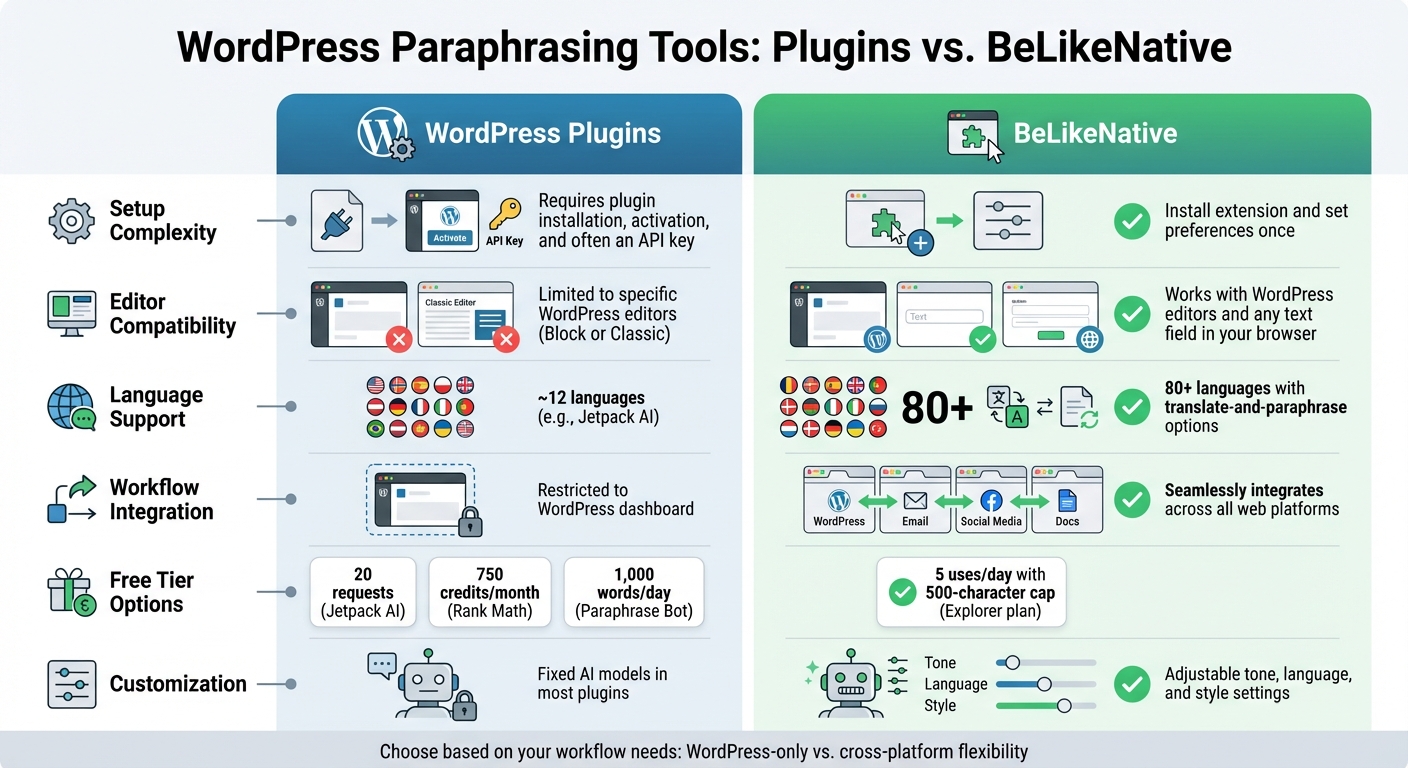
WordPress Paraphrasing Tools Comparison: Plugins vs BeLikeNative
How AI Paraphrasing Plugins Work with WordPress
AI-powered plugins bring extra functionality to WordPress, making it easier to paraphrase text without leaving the editor. Tools like Jetpack AI and Aiify integrate directly into the Block Editor (Gutenberg) by adding special blocks or buttons. For those using the Classic Editor, Paraphrase Bot provides a "paraphrase" button that appears when you highlight text.
Using these plugins is straightforward – highlight the text you want to adjust, click a toolbar button, and let the AI generate a reworded version. Some tools, like Jetpack AI, even let you choose from a variety of tones, such as formal, conversational, humorous, or confident. This offers more flexibility compared to BeLikeNative, which primarily focuses on formal and casual tones. Additionally, Rank Math‘s Content AI includes a meta box within the editor, suggesting content improvements and optimizing it for better SEO.
Professional blogger Tristram Bernard shared his experience with these tools:
"This plugin is a game-changer! It saved me countless hours by instantly paraphrasing my content with remarkable accuracy".
In fact, 71% of users highlight time savings as the main advantage of using AI tools for content creation.
These plugins provide a practical solution for paraphrasing directly within the WordPress editor, paving the way for a comparison with BeLikeNative.
Plugins vs. BeLikeNative: A Comparison
WordPress plugins and BeLikeNative offer distinct approaches to paraphrasing. Plugins are installed directly into WordPress and work exclusively within its editor, while BeLikeNative functions as a browser extension, allowing it to operate across multiple platforms like WordPress, Google Docs, Notion, and even email clients.
| Feature | WordPress Plugins | BeLikeNative |
|---|---|---|
| Setup Complexity | Requires plugin installation, activation, and often an API key | Install the extension and set preferences once |
| Editor Compatibility | Limited to specific WordPress editors (Block or Classic) | Works with WordPress editors and any text field in your browser |
| Language Support | Supports around 12 languages (e.g., Jetpack AI) | Covers over 80 languages with translate-and-paraphrase options |
| Workflow Integration | Restricted to the WordPress dashboard | Seamlessly integrates across all web platforms without switching tools |
| Free Tier | Options like 20 requests (Jetpack AI), 750 credits/month (Rank Math), or 1,000 words/day (Paraphrase Bot) | Limited to 5 uses/day with a 500-character cap on the Explorer plan |
| Customization | Fixed AI models in most plugins | Offers adjustable tone, language, and style settings |
While WordPress plugins excel in enhancing editor functionality, BeLikeNative stands out for its cross-platform compatibility and broader integration. This makes BeLikeNative particularly appealing for users who need a flexible tool that works beyond the confines of WordPress, aligning with the goal of improving writing efficiency across various platforms.
sbb-itb-32359dc
Best Practices for Quality Paraphrased Content
Reviewing and Localizing Your Paraphrased Content
AI tools can be helpful for paraphrasing, but they’re not perfect. A manual review is essential to make sure your content sounds natural and resonates with U.S. audiences. Automated tools can sometimes produce awkward phrasing or miss subtle cultural nuances, especially in more complex language.
Pay attention to U.S. conventions: spell words like "color" instead of "colour", use "theater" rather than "theatre", and follow the MM/DD/YYYY date format. Stick to imperial measurements and Fahrenheit when referencing temperatures. These small details make your writing feel more localized and relatable.
Adopt a conversational tone by using active voice and contractions. As WordPress Developer Resources points out:
"Contractions are your friends! They’re more conversational, and a simple way to make text sound friendlier and less formal".
Avoid hedging phrases like "might help" or "allows you to" and replace them with direct, confident statements about what the feature or idea delivers.
Another key point: don’t just swap out words with synonyms. That approach risks plagiarism and doesn’t genuinely reframe the original content. Matt Ellis from Grammarly explains:
"Plagiarism isn’t just about words; it’s also about ideas. To avoid plagiarism completely, you must rewrite the idea(s) with new words and credit the source material with a citation".
For better readability, aim for a grade 8 reading level on the Flesch-Kincaid scale. Simplify complex sentences, replace technical jargon with plain language, and keep paragraphs short. Tools like Jetpack’s writing assistant can help you track your reading grade score in real time.
Once you’ve reviewed your content for localization and readability, move on to formatting it properly in WordPress.
Maintaining Proper Formatting in WordPress
After ensuring your content fits localized standards, focus on preserving the structure of your document. Paraphrased content can sometimes disrupt formatting, especially in WordPress’s Block Editor, where each paragraph, heading, or list exists as its own block. Use the List View (Document Overview) tool to check that your headings, subheadings, and content blocks are in the correct order.
When pasting text into WordPress, each paragraph is automatically placed into a separate block. To create a single-spaced line break within the same block – without starting a new one – hold Shift and press Enter. This keeps related information together while avoiding unnecessary spacing.
The Transform feature allows you to change block types easily, such as converting a Paragraph block into a Heading, List, or Quote, while keeping your styles and CSS intact. If you need to move multiple blocks together, use the Group Block option to combine them into one unit. For consistent styling, take advantage of the Copy Styles and Paste Styles options in the block toolbar.
For more precise control, switch to Edit as HTML mode to adjust the underlying code directly. This can help resolve formatting issues that arise during paraphrasing. Once your adjustments are complete, you can return to the visual editor. To prevent accidental changes after formatting, use the lock blocks feature.
Using Paraphrasing Tools Ethically
Paraphrasing effectively in WordPress requires both technical skills and ethical writing practices. AI tools can assist, but they should never replace your own judgment or creativity.
Always give credit to your sources, even when paraphrasing. As Wordtune explains:
"Paraphrasing is legal if done correctly. If a writer genuinely wishes to rewrite an idea or concept in a different way, free of malicious intent, paraphrasing is acceptable and legal".
Proper paraphrasing involves citing your sources with parenthetical references or hyperlinks to maintain professional integrity.
To ensure originality, use a plagiarism checker. Grammarly’s tool, for example, scans your work against academic databases and billions of online texts to confirm it’s unique. This step protects your reputation and builds trust with your audience.
Finally, avoid using paraphrasing tools to mask copied content or sidestep copyright laws. The goal is to restate ideas in your own words while adding your own perspective, analysis, or context. If you find yourself heavily rewording a single source, ask whether you’re truly creating something original or just reshaping someone else’s work. Ethics matter just as much as quality.
Troubleshooting and Improving Your Workflow
Common Paraphrasing Issues in WordPress
One frequent challenge is editor compatibility. Many paraphrasing plugins are designed exclusively for the Classic Editor, which can be a problem if you’re using the more modern Block Editor. To avoid frustration, confirm that the plugin you’re considering supports your preferred editor before installing it.
Another issue is AI hallucinations, where tools generate incorrect or outdated information. This is particularly relevant since GPT-4o‘s training data only goes up to October 2023. Always verify technical details, statistics, and dates manually to ensure accuracy.
Then there’s the problem of robotic-sounding text. AI-generated paraphrased content can sometimes feel lifeless or overly mechanical. Tools like BeLikeNative help add a natural tone to the content, but it’s still a good idea to inject your own personality and style to make the text truly yours.
Lastly, daily word limits can slow down large projects. If you find yourself hitting these limits often, consider upgrading to a paid plan. For example, BeLikeNative’s Premium plan, priced at $14/month, offers higher usage limits to support more demanding workflows.
By addressing these common issues, you can simplify your editing process. The next section outlines ways to make your workflow even more efficient.
Making Your Workflow More Efficient with BeLikeNative
One way to save time is by using keyboard shortcuts, which reduce the need for constant tab switching. For instance, BeLikeNative allows you to trigger AI tools directly within the Block Editor using shortcuts like //. This integration lets you refine text without leaving your workspace, streamlining the entire process.
Another tip is to track usage and choose a plan that fits your needs. BeLikeNative offers tiered pricing, starting with a free plan that provides 5 uses per day (up to 500 characters). For bloggers, the $4/month Learner plan – offering 25 uses per day and a 2,000-character limit – often strikes the right balance. For heavier use, the Premium plan at $14/month allows 125 uses per day (up to 6,000 characters).
You can also customize tone and style to better suit U.S. audiences or your specific brand voice. BeLikeNative lets you set these preferences before paraphrasing, reducing the need for extensive revisions later.
Finally, grouping blocks in WordPress can speed up formatting. Use the Group Block option to move multiple blocks as a single unit. Once grouped, apply the "Copy Styles" and "Paste Styles" features to ensure consistent typography across sections. After you’re satisfied, lock the blocks to prevent accidental changes during further edits.
These strategies can help you work smarter, not harder, when managing your content.
Conclusion
Transforming your WordPress content workflow has never been easier. With BeLikeNative integrated directly into your editor, you can rewrite content effortlessly while keeping the original meaning intact and adjusting the tone to suit your audience. The plugin’s impressive 4.7/5 rating from over 200 downloads speaks volumes. As Tristram Bernard, a professional blogger, puts it:
"This plugin is a game-changer! 🚀 It rapidly paraphrased my content with precise accuracy. Highly recommended for any serious blogger!"
Getting started is simple. Begin with the free Explorer plan, and as your needs expand, move up to the $4 Learner plan for regular posts or the $14 Premium plan for high-volume production. With these options, you can customize your content’s tone, style, and formatting to resonate with your readers. Plus, handy keyboard shortcuts like // make the editing process even faster, ensuring consistency across all your posts.
Whether you’re using the Block Editor or the Classic Editor, BeLikeNative ensures AI-generated content feels natural and relatable. This can boost your search engine rankings while making your content more engaging for readers. From setup to advanced features like shortcuts, every aspect of BeLikeNative is designed to streamline and enhance your content creation process.
FAQs
How can I use BeLikeNative to paraphrase text in WordPress?
Using BeLikeNative to paraphrase text in WordPress is a breeze, thanks to its handy browser extension. Start by installing the BeLikeNative extension for your preferred browser – whether it’s Chrome, Firefox, or Brave. Once installed, you’ll notice a green leaf icon near your browser’s address bar.
When you’re in the WordPress editor (whether Classic or Gutenberg), simply highlight the text you’d like to paraphrase. Then, click the BeLikeNative icon and choose your preferred language, tone, and style from the options menu. The tool will instantly generate a reworded version of your text, ready to copy and paste into your post. It keeps the original meaning intact while offering a fresh way to present your ideas.
Supporting over 80 languages, BeLikeNative also lets you tweak tone and complexity, making it perfect for everything from blog articles to product descriptions. There’s no complicated setup or need for API keys – just make sure you’re connected to the internet, and you’re good to go.
What are the advantages of using the WordPress Block Editor for paraphrasing text?
The WordPress Block Editor streamlines the process of paraphrasing by breaking your content into individual, manageable blocks. Each block – whether it’s a paragraph, heading, or image – can be edited separately, so you can tweak specific parts of your text without affecting the rest of your content. This setup helps keep your edits clear and organized.
Another handy feature is the ability to save your rewritten sections as reusable blocks. This means you can easily drop them into other posts without having to rewrite or copy-paste, saving you time and keeping your content consistent across your site. The editor’s visual interface also gives you a real-time preview of how your updates look within the overall layout. You can fine-tune formatting, spacing, or alignment directly in the editor – no coding required. It’s a user-friendly tool that works for everyone, regardless of technical skills.
How do I paraphrase text in WordPress without changing its meaning?
To maintain the original meaning of your text while paraphrasing, begin with an AI-based paraphrasing tool that focuses on precise rewriting. Once the tool generates the new version, go through it thoroughly to ensure the key ideas and intent are intact. For the most polished outcome, pair the automated process with manual editing to enhance the tone, clarity, and smoothness of the content.

