
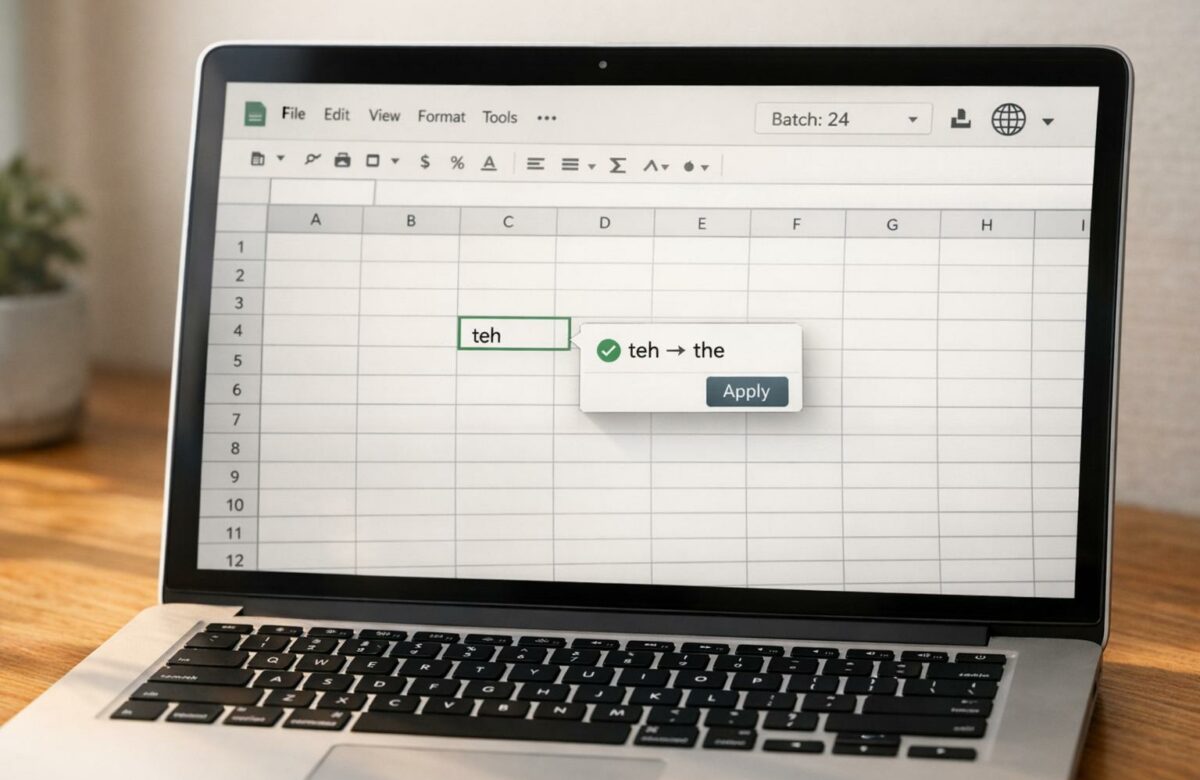
How To Proofread Google Sheets Cells Instantly
Proofreading text in Google Sheets can be challenging, especially with large datasets or multilingual content. Errors like inconsistent text entries or typos can disrupt formulas and damage your work’s reliability. Here’s how you can streamline the process:
- Problem: Google Sheets lacks built-in, real-time proofreading tools, and browser extensions often fail to work effectively within cells.
- Solution: Use the BeLikeNative Chrome extension to proofread text directly in Google Sheets. It supports over 80 languages, adjusts tone and style, and simplifies error correction.
Key Features of BeLikeNative:
Transform Any Text, On Any Site, In Seconds
Rephrase, translate, and improve text with one shortcut. Works everywhere you write.
Add to Chrome - It's Free!- Clipboard Workflow: Copy cell content, trigger proofreading with a shortcut, and paste the corrected text back instantly.
- Custom Shortcuts: Set up shortcuts for specific tones or languages for faster editing.
- Batch Proofreading: Process multiple cells or large text ranges with character limits based on your plan.
- Automation: Use Google Apps Script to create custom functions for proofreading at scale.
Plans and Limits:
| Plan | Character Limit per Use |
|---|---|
| Free | 500 |
| Learner | 4,000 |
| Native | 6,000 |
| Premium | 10,000 |
By combining BeLikeNative with smart Google Sheets practices like helper columns and data validation, you can save time, avoid errors, and maintain consistency in your data.
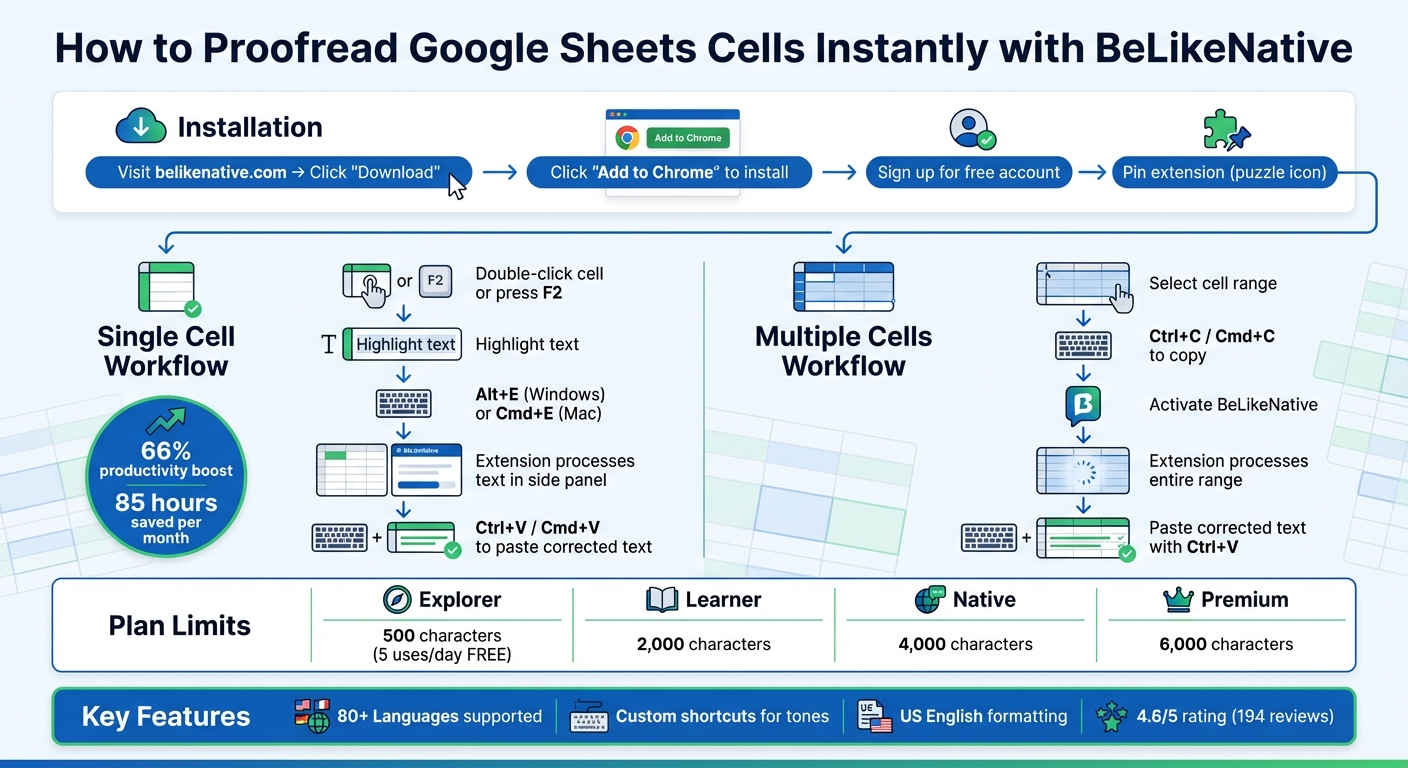
How to Proofread Google Sheets Cells with BeLikeNative – Step-by-Step Workflow
Installing BeLikeNative for Proofreading
How to Install BeLikeNative
You can get BeLikeNative up and running in no time. Head to belikenative.com and hit the "Download" button to grab the Chrome extension. Once redirected, click "Add to Chrome" to complete the installation process. After that, sign up for a free account to unlock the proofreading features. The Free plan gives you 5 uses per day for free, which is perfect for quick proofreading tasks in tools like Google Sheets.
Once you’re signed in, make sure to pin the extension using the puzzle piece icon in Chrome. This keeps it handy for when you need it.
Now, let’s talk about creating shortcuts to make your proofreading even faster.
Creating Shortcuts for Quick Access
BeLikeNative becomes even more powerful with custom shortcuts. Start by copying any cell content with Ctrl+C (or Cmd+C on a Mac), and use a single shortcut to trigger proofreading. The extension will process the text immediately and copy the corrected version back to your clipboard. Just hit Ctrl+V to paste the polished text wherever you need it.
You can also customize shortcuts to suit your workflow. For example, assign a specific key combination to proofread text with a particular tone – whether formal or casual – or even in a different language. Since BeLikeNative supports over 80 languages, this feature is a lifesaver for multilingual projects. Custom shortcuts eliminate the need for repetitive manual edits, saving you both time and effort.
Proofreading Single Cells with BeLikeNative
Copy, Proofread, and Paste Process
If you’re looking for the quickest way to proofread a single cell, BeLikeNative’s clipboard workflow has you covered. Here’s how it works: double-click the cell or hit F2 to activate edit mode, which places the text cursor inside the cell. Then, highlight the text you want to proofread and press Alt + E on Windows or Command + E on Mac. This triggers the extension to open a side panel, where it processes your text and copies the corrected version straight to your clipboard.
Once the AI has done its magic, simply press Ctrl+V (or Cmd+V on Mac) to paste the updated text back into the cell. The entire process happens seamlessly within Google Sheets, so there’s no need to switch between tabs or programs.
"Your improved text will instantly appear in your clipboard, ready to use. This process saves you time and effort in refining your writing." – BeLikeNative
According to user feedback, top BeLikeNative users have seen a 66% boost in productivity, with frequent use saving them over 85 hours per month on writing and proofreading tasks. The tool also boasts a 4.6/5 rating from 194 reviews on the Chrome Web Store.
Once your text is polished, you can further refine it by tweaking the tone and style to fit your needs.
Adjusting Tone and Style for US English
To ensure your content aligns with American conventions, start by setting US English in BeLikeNative’s settings. This adjusts the extension to apply American spelling (e.g., "color" instead of "colour") and grammar rules. You can also choose between formal and casual tones based on the context of your spreadsheet – formal is ideal for professional reports, while casual works better for internal team communications.
The tone you select directly impacts how BeLikeNative rewrites your text. For instance, "formal" produces polished, professional language that’s perfect for client-facing documents, while "casual" delivers a more conversational vibe. With support for over 80 languages, you can also switch between English varieties or even entirely different languages without reinstalling the tool. Just make sure to review the side panel results before pasting to confirm the output meets your specific requirements.
Proofreading Multiple Cells with BeLikeNative
Expanding beyond single-cell workflows, here’s how to handle proofreading for multiple cells simultaneously.
Handling Larger Text Ranges
If you’re working with more than one cell, start by selecting the range you want to proofread. This could be an entire column, row, or a specific block of data. Once selected, press Ctrl+C (or Cmd+C on a Mac) to copy the range. Then, activate BeLikeNative to process the text. The extension will proofread everything in one go and place the corrected version in your clipboard.
Keep in mind that character limits depend on your plan:
- Free: 500 characters
- Learner: 2,000 characters
- Native: 4,000 characters
- Premium: 6,000 characters
For large datasets, break them into smaller batches to stay within these limits. After processing, paste the corrected text back into your sheet by selecting the top-left cell of the original range and pressing Ctrl+V. To avoid issues with Google Sheets’ 6-minute script execution limit, try processing a few hundred rows at a time.
Automating Proofreading with Google Sheets Formulas
If you’re comfortable with Google Apps Script, you can automate the proofreading process. Start by navigating to Extensions > Apps Script and creating a custom function (e.g., =CORRECT_TEXT(A2)). Save the script and drag the formula down a helper column to apply it across multiple cells.
Use the helper column to compare the original text with the corrected version. Once you’re satisfied, apply Paste Special > Values Only to replace the formulas with static text. This prevents the script from running repeatedly and helps save on API costs, which are usually just a few cents for processing thousands of cells. AI-powered tools can handle up to 10,000 results per hour, making this an efficient option.
sbb-itb-32359dc
Proofreading US Formatting and Multilingual Data
Checking US Date and Number Formats
To ensure your spreadsheet uses US formatting, go to File > Settings and set the Locale to "United States." This will automatically format dates as MM/DD/YYYY and apply commas for thousands and periods for decimals.
Formatting inconsistencies in dates or numbers can interfere with formulas and data analysis. BeLikeNative simplifies this by correcting these inconsistencies in your text.
If you encounter dates or numbers that don’t align with US formatting, you can use a helper column with BeLikeNative to standardize them. Just copy the problematic data, activate the extension using your shortcut, and paste the corrected version back into your spreadsheet.
Now, let’s look at how BeLikeNative handles multilingual data to maintain consistency across different languages.
Proofreading in 80+ Languages
BeLikeNative works with more than 80 languages, making it a great tool for teams managing international data. When you copy text from a cell, the extension automatically detects the language and proofreads it. Alternatively, you can manually choose the target language in the settings for added control.
For multilingual spreadsheets, activate the cell by double-clicking or pressing F2. If you’re translating while proofreading, the extension can adjust the tone and style to align with US English standards, ensuring your data is consistent across languages.
Automation Tips and Error Prevention
Combining BeLikeNative with Google Sheets Shortcuts
Speed up your proofreading process by pairing BeLikeNative with Google Sheets shortcuts. For instance, press F2 (or Fn + F2 on a Mac) to enter edit mode in any cell. This instantly activates the BeLikeNative extension, making it easy to copy, correct, and paste your text back into the sheet.
For repetitive tasks, try creating a helper column next to your data. Copy the text you want to proofread into this column, activate BeLikeNative using your shortcut, and paste the corrected version back into the helper column. Once you’re satisfied with the changes, use Ctrl + Shift + V to paste the values. This prevents formulas from being recalculated unnecessarily.
If you’re dealing with large datasets, consider processing them in smaller batches – just a few hundred rows at a time. Google Apps Script has a 6-minute execution limit, so breaking the task into chunks helps avoid timeouts and keeps the proofreading process running smoothly.
To make your workflow even more efficient, adopt habits that help catch and prevent errors early.
How to Avoid Common Errors
One effective way to reduce errors is by using data validation. Head to Data > Data validation in Google Sheets and set up dropdown menus for commonly used entries like "Status" or "Category." This eliminates the need for manual typing and reduces the risk of typos. These small adjustments work hand-in-hand with automated tools like BeLikeNative to ensure your data remains accurate.
For specialized or industry-specific terms that BeLikeNative might flag incorrectly, you can right-click the term and select "Add to dictionary." This ensures the tool won’t flag the same term in future proofreading sessions.
"It’s simply more efficient to do the spelling/grammar/tone check in Google Sheets before you mail merge than trying to use AI to check every full individual message after you’ve generated them." – Sam Greenspan, GMass
Conclusion
Proofreading in Google Sheets doesn’t have to feel like a chore. By incorporating BeLikeNative into your workflow, you can quickly spot grammar issues, refine tone, and maintain consistency across large datasets. Its seamless clipboard integration and customizable settings for formality and US English spelling make it a handy tool for any professional.
To get even more out of it, combine BeLikeNative with smart Google Sheets practices. For example, use helper columns to review edits before applying them, and take advantage of keyboard shortcuts to activate the extension in seconds. These small adjustments can make the entire proofreading process smoother and more efficient.
Whether you’re polishing product descriptions, organizing customer feedback, or preparing a report for a client, error-free data ensures your formulas work as intended and helps protect your professional image. As many users have pointed out, clean and accurate text provides a strong foundation for analysis, saving time and boosting reliability in your workflow.
FAQs
How does BeLikeNative simplify multilingual proofreading in Google Sheets?
BeLikeNative makes proofreading multilingual content in Google Sheets a breeze by using advanced tools that identify and fix errors across different languages. With integrations like LanguageTool, you can proofread directly within Google Sheets – no need to jump between applications.
To take accuracy up a notch, BeLikeNative suggests using AI-powered tools that handle grammar and spelling checks in multiple languages. These solutions help ensure your content is polished and error-free, making it easier to manage spreadsheets for diverse audiences effectively.
What are the character limits for each BeLikeNative plan?
Currently, details about character limits for the various BeLikeNative plans aren’t readily available. Most resources emphasize features like proofreading tools and AI integrations but don’t dive into specifics about subscription plan limits.
To get the most accurate and current details, it’s best to check the official BeLikeNative website or contact their support team directly.
Can I use BeLikeNative to automate proofreading in Google Sheets?
Yes, BeLikeNative lets you simplify proofreading in Google Sheets by using AI-driven tools. With these tools, you can automatically spot and fix grammar, spelling, and formatting mistakes right inside your spreadsheet. This not only saves time but also boosts accuracy, especially when dealing with large datasets or content in multiple languages.
To get the most out of it, try setting up automated workflows. These can quickly identify and resolve errors, making your spreadsheet tasks more seamless and dependable.
Related Blog Posts
- How to Improve Your Writing Quality with Browser Extensions
- How BeLikeNative Simplifies Multilingual Writing
- How To Polish Your Writing With Chrome Ai Extensions
- How To Fix Typos In Slack Before You Hit Send
BeLikeNative fixes grammar, rephrases, translates, and simplifies text on any website in 1 second — just highlight and hit a keyboard shortcut. No tab switching. Try it free →

