
How To Summarize Long Articles In Chrome Instantly
Reading lengthy articles can be time-consuming, but Chrome users now have a quick solution: the BeLikeNative extension. This tool simplifies reading by summarizing articles directly within your browser. Here’s how it works:
- Install BeLikeNative: Add it from the Chrome Web Store and pin it to your toolbar for easy access.
- Summarize Instantly: Highlight text, use a shortcut, and get concise summaries in seconds.
- Flexible Features: Choose between modes like "Summarize" for key points or "Simplify This" for clearer language. Adjust tone, style, and language to suit your needs.
- Subscription Plans: Options range from free to premium, with daily usage limits and varying character caps.
BeLikeNative saves time by eliminating the need to switch tabs or manually condense content. Whether you’re a student, professional, or researcher, this tool helps you focus on the essentials without extra effort.
How to Install BeLikeNative in Chrome
Installation Steps
Getting BeLikeNative up and running in Chrome takes less than a minute. Start by heading to the Chrome Web Store and searching for "BeLikeNative." Alternatively, you can visit the official BeLikeNative website and click the "Add to Chrome" button.
Once you locate the extension, click "Add to Chrome." A permission popup will appear – confirm by selecting "Add extension." This step allows the extension to interact with text across websites and integrate with your clipboard. After installation, the BeLikeNative icon will appear in your browser toolbar. If it doesn’t activate right away, simply reload your open tabs to initialize it. New users can take advantage of a 7-day free trial to explore features like summarization, rephrasing, and translation.
After completing the installation, you can move on to setting up quick access options.
Initial Setup
To make the extension easily accessible, pin it to your toolbar. Click the puzzle piece icon (Extensions) in the top-right corner of Chrome, find BeLikeNative in the list, and click the pin icon. This keeps the extension icon visible next to your address bar, giving you one-click access to its settings.
For even faster use, customize keyboard shortcuts at chrome://extensions/shortcuts. Setting up shortcuts allows you to trigger summarization instantly, skipping the need to navigate through menus. According to users, this feature can save over an hour of time daily. Don’t forget to adjust the extension settings to match your preferences, including language, tone, and style.
How to Summarize Articles with BeLikeNative
How to Summarize Articles with BeLikeNative in 4 Steps
Getting Started with BeLikeNative
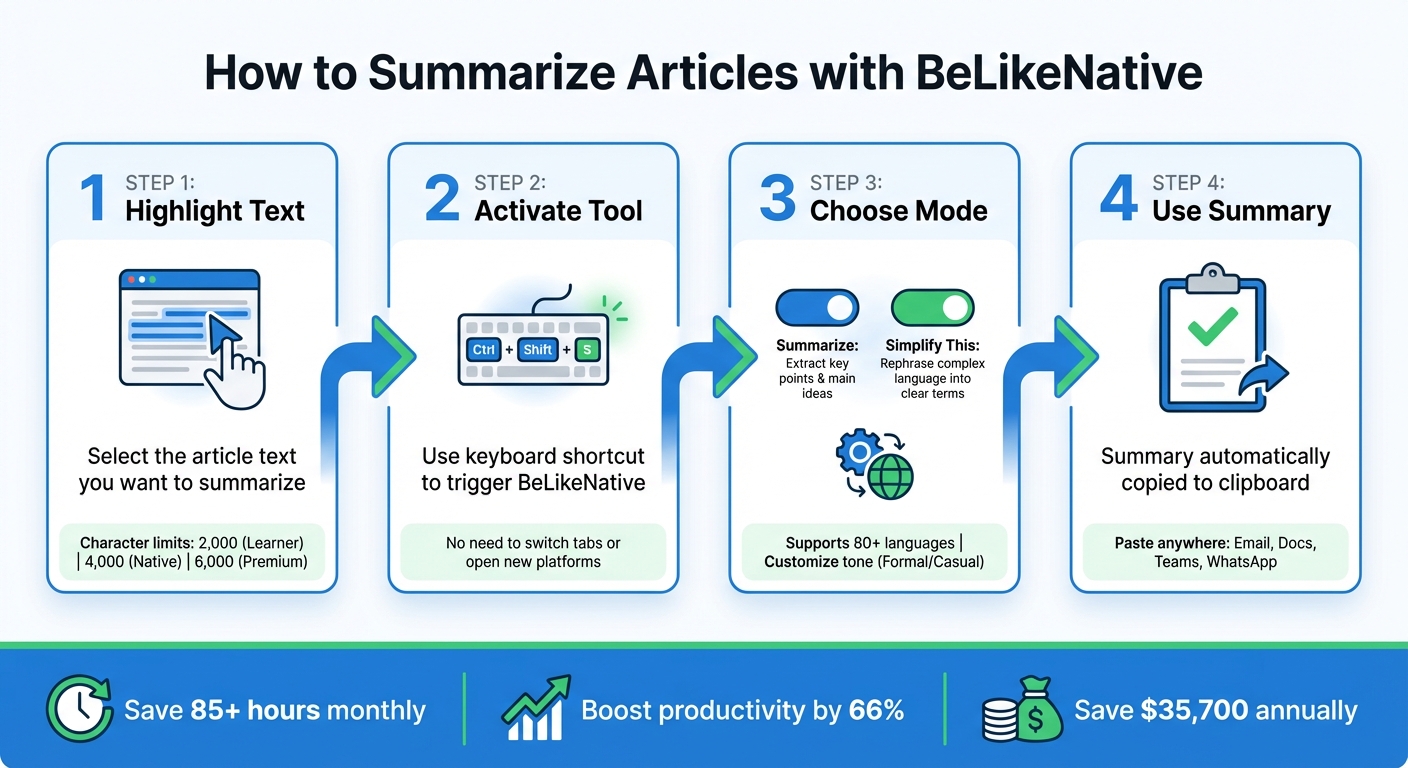
Once you’ve installed and pinned BeLikeNative to your toolbar, summarizing articles is quick and straightforward. Start by navigating to the article you want to condense and highlight the relevant text. You can select anything from a single paragraph to the entire article – just keep in mind the character limits for your plan: 2,000 for Learner, 4,000 for Native, and 6,000 for Premium.
After highlighting, use the shortcut to activate the tool. Then, select the mode that suits your needs best. BeLikeNative processes the text instantly, without requiring you to leave your current tab or open another platform. The summary is automatically copied to your clipboard, ready for immediate use.
Picking the Right Summarization Mode
BeLikeNative offers two core options for summarizing content: Summarize and Simplify This.
- The Summarize mode pulls out the main ideas and key points, making it ideal for quickly digesting research papers, news stories, or lengthy reports.
- The Simplify This mode rephrases technical or complex language into clear, straightforward terms, which is especially helpful for academic or legal documents.
Both modes support over 80 languages, and you can customize the tone and style – choose "Formal" for professional content or "Casual" for a more relaxed approach. Once the summary is ready, review it and use it as needed.
Using the Summary
After BeLikeNative processes the text, the summary is instantly placed in your clipboard. Simply paste it (Ctrl+V on Windows, Cmd+V on Mac) into your desired application, whether it’s an email, a document, or a messaging tool like WhatsApp Web, Microsoft Teams, or Google Docs. Review the summary for accuracy, and if needed, refine it further with tools like Paraphraser or Fix Grammar.
This seamless process eliminates repetitive tasks like switching tabs or manually generating summaries. Users have reported saving over 85 hours each month and boosting productivity by up to 66%, thanks to this efficient workflow.
Customizing Your Summaries
Changing Language, Style, and Tone
With BeLikeNative, you can fine-tune your summaries to align with your specific communication needs. Whether it’s adjusting the language, style, or tone, this tool offers flexibility. Supporting over 80 languages, it enables you to summarize content in English and then translate it into Spanish, French, Mandarin, and more.
BeLikeNative allows you to select different languages, tones, and styles to match the needs of your communication. Whether you need formal language for a business email or casual phrasing for a quick message, the tool adapts to your preferences.
This means you can opt for a polished, formal tone for professional emails or go with a relaxed, conversational style for casual messages.
Controlling Summary Length
The length of your summaries depends on the character limit tied to your subscription plan. Here’s how the plans break down: the Learner plan supports up to 2,000 characters per action, the Native plan allows 4,000 characters, and the Premium plan accommodates up to 6,000 characters. If you’re summarizing a longer article, you can manage this by breaking it into sections and processing them individually.
Daily usage limits also vary by plan – Learner users get 25 summaries per day, Native users get 50, and Premium users enjoy up to 125. These limits refresh every 24 hours. For more details on features and limits, check out the table below.
BeLikeNative Plans and Usage Limits
BeLikeNative offers a range of subscription options to suit different needs. The Explorer plan is free and provides a great way to try out the tool, while paid plans unlock higher limits and advanced features.
| Plan | Monthly Price | Daily Uses | Character Limit | Key Features |
|---|---|---|---|---|
| Explorer | $0/month | 5 | 500 | Supports 80+ languages, spelling/grammar correction, community access |
| Learner | $4/month | 25 | 2,000 | Everything in Explorer, editable functions and shortcuts |
| Native | $6/month | 50 | 4,000 | Everything in Learner, priority bandwidth, influence on extension development |
| Premium | $14/month | 125 | 6,000 | Everything in Native, partnership benefits, potential equity after 2 years, lifetime license option |
Users of BeLikeNative have reported saving over 85 hours monthly and boosting productivity by 66%. This efficiency translates into significant savings – more than $35,700 annually – by cutting down on repetitive tasks like switching tabs and manually copying text.
sbb-itb-32359dc
Tips for Better Article Summarization
Focus on the Key Sections
When summarizing, zero in on the most crucial parts of the article rather than trying to condense everything. Most articles follow an inverted pyramid structure, meaning the introduction and early paragraphs typically cover the "who, what, where, when, and why". The conclusion often provides the main takeaway or final insights, especially in opinion pieces or research-based content.
To streamline this process, aim for the first sentence of each paragraph under major subheadings – these often capture the core ideas. Skip over less relevant content like sidebars, author bios, ads, or repetitive examples. If sections like "Executive Summary" or "Key Findings" are available, prioritize those for a more focused and impactful summary.
Pair Summarization with Rephrasing
Once you’ve identified the key sections, improve your summary by rephrasing for better readability. Articles often include technical terms or awkward phrases that can make summaries harder to digest. This is where combining summarization with rephrasing becomes especially helpful. After using BeLikeNative to generate a draft summary, you can highlight the text and use tools like "Rephrase" or "Simplify This" to clean up clunky transitions. If you’re sharing the summary in a casual setting, like a Slack message, you can even adjust the tone from formal to conversational.
Rephrasing not only shortens the content but also ensures clarity and flow. Features like "humanize" help maintain a natural tone. Before sharing, take advantage of "Fix Grammar" or "Fix Punctuation" tools to catch any lingering errors.
Summarize Across Languages
BeLikeNative supports over 80 languages, making it easy to summarize articles in multiple languages without juggling multiple tools. Simply highlight the text in its original language, use the keyboard shortcut, and the summary will be ready in your preferred language. This multilingual capability is especially useful for tackling international research or news.
For longer pieces, be mindful of your plan’s character limits: 2,000 for Learner, 4,000 for Native, and 6,000 for Premium. When working with complex or translated content, combining summarization with rephrasing can help refine any awkward phrasing, ensuring the final result is clear and polished. This approach eliminates the hassle of switching between tabs or tools, saving you valuable time.
Conclusion
Summarizing content in Chrome just got a whole lot easier – no more switching tabs or juggling multiple apps. With BeLikeNative, you can condense long articles, research papers, or technical reports directly in your browser using a simple keyboard shortcut. In seconds, you’ll turn hours of reading into concise, actionable takeaways, all without disrupting your workflow.
What sets BeLikeNative apart is its flexibility. You can tweak the language, tone, and summary length to fit your preferences. It even supports multiple languages and works with varying character limits, making it just as effective for quick updates as it is for in-depth research.
But it doesn’t stop there. BeLikeNative also refines your content by rephrasing and fixing grammar, ensuring the final output is clear and polished. By focusing on the most important sections and adapting the output to your needs, this tool helps you process information faster while keeping the context intact.
Save time and streamline your reading process. Install BeLikeNative today, explore its summarization modes, and discover how much more productive your daily workflow can become.
FAQs
How does BeLikeNative simplify complex or technical language in summaries?
BeLikeNative streamlines the process of simplifying dense or technical language with its “Simplify This” feature. By choosing a Simple tone and an Academic style in the settings, the tool transforms complex text into straightforward, easy-to-digest summaries.
This feature is ideal for making sense of detailed articles, technical documents, or content filled with jargon. It saves time while making the material easier to grasp.
What are the character limits for the BeLikeNative subscription plans?
The exact character limits for BeLikeNative subscription plans aren’t provided in the available details. To get precise information about plan features and restrictions, check your account settings or reach out to BeLikeNative support for help.
Can I customize BeLikeNative summaries to fit different tones and languages?
BeLikeNative lets you tailor summaries to fit your needs with ease. You can choose from over 80 languages and even pick a tone or style that suits your preference. Whether you’re aiming for a formal approach, a casual vibe, or something in between, this tool gives you the flexibility to shape content just the way you want.

