
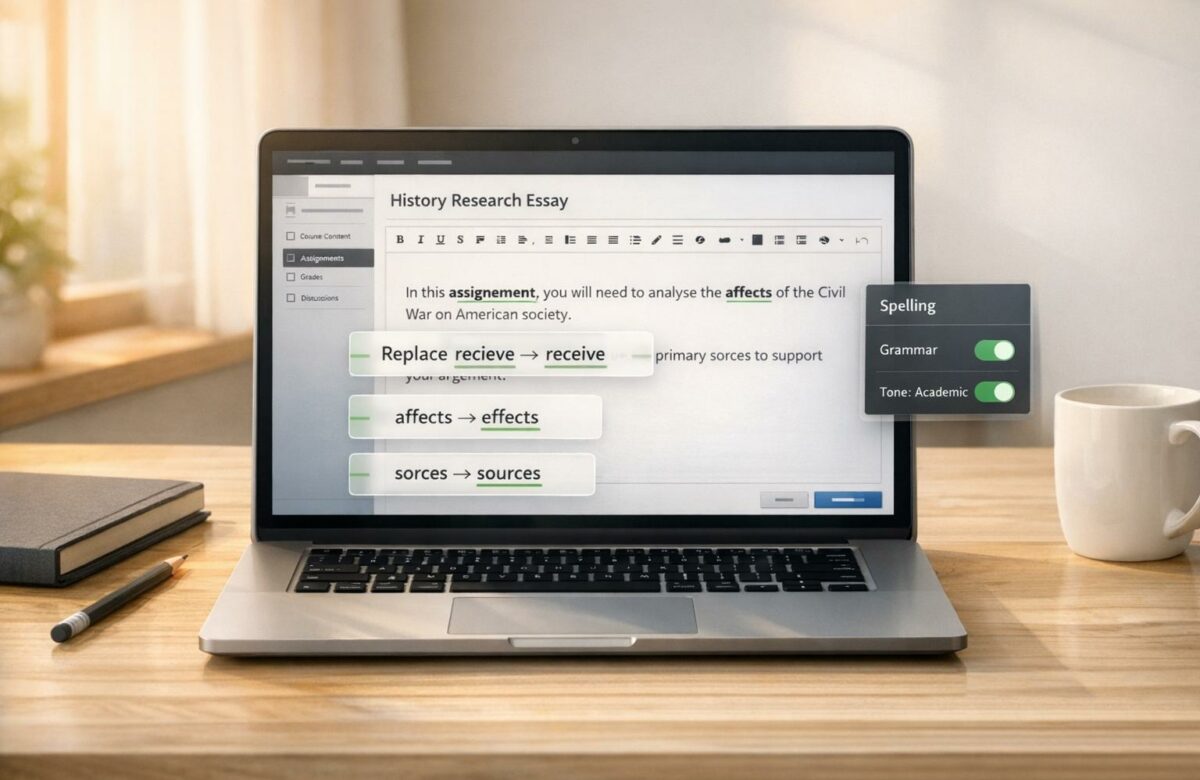
Fix Spelling Errors In Blackboard Assignments Automatically
Spelling errors can hurt your grades and slow you down. Blackboard’s text editor doesn’t offer advanced spell-check, making manual proofreading a tedious and error-prone process. Enter BeLikeNative – a browser extension designed to fix spelling mistakes directly within Blackboard. It saves time, improves accuracy, and helps refine your academic writing.
Key Benefits of BeLikeNative:
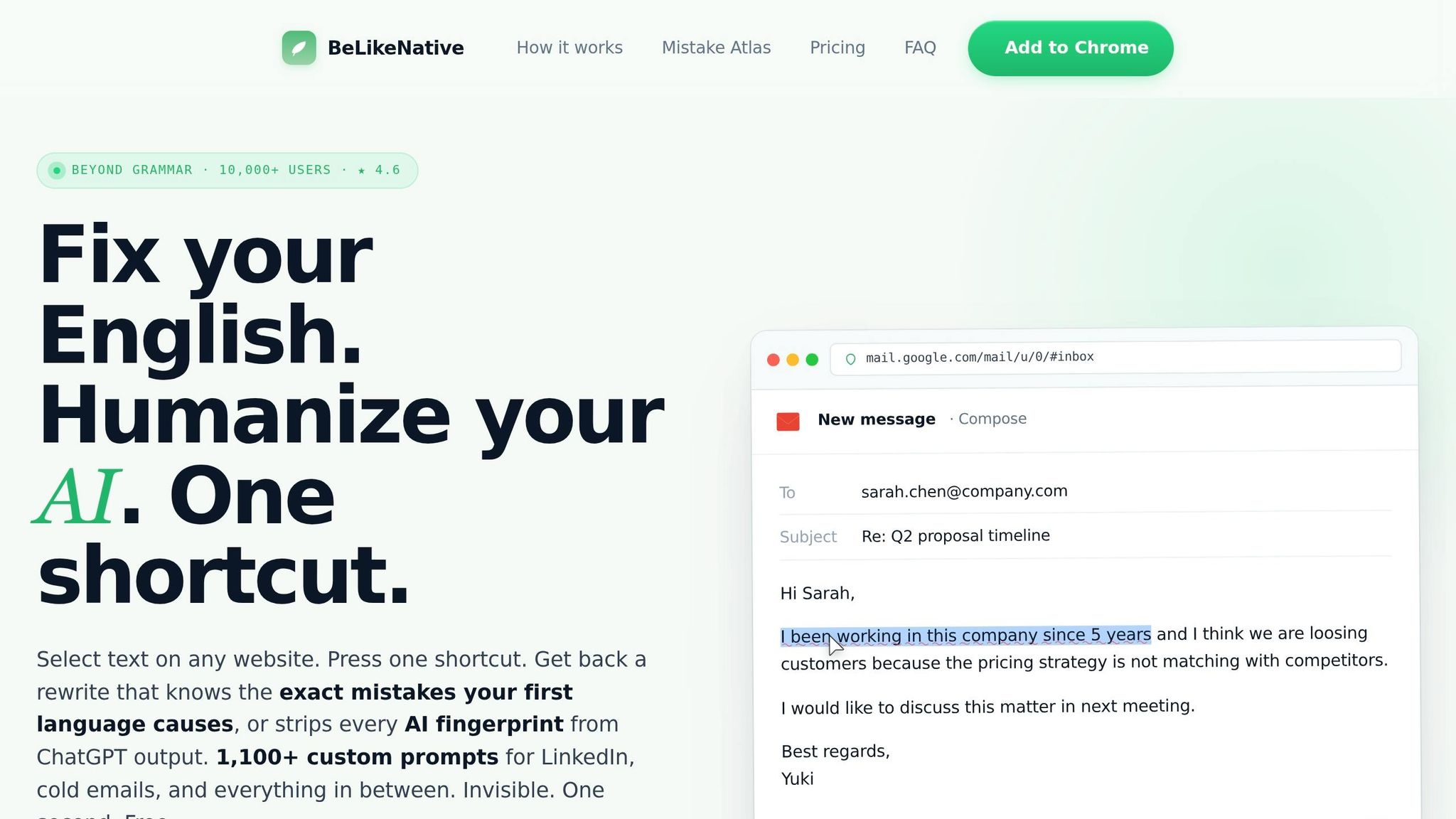
Transform Any Text, On Any Site, In Seconds
Rephrase, translate, and improve text with one shortcut. Works everywhere you write.
Add to Chrome - It's Free!- Real-time corrections: Fix spelling, grammar, and tone as you type.
- Seamless integration: Works directly in Blackboard without extra setup.
- Customizable settings: Adjust tone and style for academic standards.
- Plans for all needs: Free Explorer plan for basic use; paid plans for more features.
Getting Started:
- Install BeLikeNative from the Chrome Web Store.
- Highlight text in Blackboard, use the shortcut, and paste corrected text.
- Adjust settings for tone, style, and language preferences.
With BeLikeNative, you can submit polished assignments faster and focus on your ideas, not proofreading.
How to Set Up BeLikeNative for Spelling Correction
Installing the BeLikeNative Chrome Extension
Getting started with BeLikeNative is quick and easy. Open Google Chrome, head over to the Chrome Web Store, and search for "BeLikeNative." Once you find it, click the "Add to Chrome" button, and the extension will install automatically.
After installation, the BeLikeNative icon will appear in your browser toolbar. With more than 5,500 users and a 4.6/5 rating based on 256 reviews, it’s a trusted tool for students across various platforms. You can start using its basic features right away – no account setup required. However, if you want to manage usage limits or explore additional features, you can create an account later. Once installed, the extension seamlessly integrates with platforms like Blackboard for smooth spelling correction.
Setting Up BeLikeNative to Work with Blackboard
The best part? BeLikeNative requires no manual setup to work on Blackboard. The extension automatically activates on any website where text input is possible, including Blackboard’s assignment fields, discussion boards, and message areas. This eliminates the hassle of manual proofreading, saving time and effort.
Here’s how it works: highlight the text in any Blackboard field, use the keyboard shortcut, and paste the corrected version back into the field. It’s that simple. Users have reported saving over an hour each day while boosting productivity by 66%.
Before diving into your first assignment, take a moment to adjust the tone and style settings within the extension. For university writing, setting the tone to "Formal" or "Academic" ensures corrections meet academic standards. Plus, with support for over 80 languages, it’s an excellent tool for non-native English speakers. Once you’re familiar with how it integrates, you can explore which plan best suits your needs.
What the Explorer Plan Includes
The Explorer plan is completely free and covers all the basics you need to fix spelling errors in Blackboard assignments. It includes support for over 80 languages, secure data handling, access to the user community, and early access to new features.
However, the free plan has some limitations. You’re limited to 5 free uses per day, with a maximum of 1,000 characters per correction. If you find yourself needing more, the Learner plan is available for just $4/month. This plan allows up to 25 daily uses and increases the character limit to 2,000 per correction – perfect for tackling longer assignments while staying productive.
sbb-itb-32359dc
Using BeLikeNative to Fix Spelling Errors in Blackboard
Using Keyboard Shortcuts to Correct Text
Correcting spelling errors in Blackboard is quick and simple with BeLikeNative. When you’re working in any Blackboard text field – whether it’s for an essay, a discussion post, or a message – just highlight the text you want to fix. Use the designated keyboard shortcut, and within a second, the corrected text is copied to your clipboard. You can then paste it back into the same field.
This streamlined "Highlight → Shortcut → Done" process eliminates the hassle of switching tabs or using external tools. You stay on the same Blackboard page, keeping your focus intact. This workflow ensures you can refine your writing without interruptions, which brings us to the next step.
Adjusting Language, Tone, and Style Settings
Before diving into corrections, take a moment to set the tone and style preferences in the BeLikeNative extension. For most university assignments, choosing a "Formal" or "Academic" tone aligns your writing with academic standards. You can also tweak the style settings to match the specific requirements of your assignment. With support for over 80 languages, the tool is especially helpful for non-native English speakers. Once your settings are tailored to the task, you’re ready to finalize your draft.
Reviewing and Submitting Error-Free Work
After pasting the corrected text back into Blackboard, take a final look to ensure everything is in order. While BeLikeNative handles spelling and grammar, it’s important to confirm that the changes fit the assignment’s guidelines and your instructor’s expectations. Also, keep an eye on character limits based on your plan – whether it’s 1,000 characters for the free Explorer plan or 2,000 characters for the Learner plan. This final review helps ensure your submission is polished and ready to go.
Spellcheck in Blackboard Tests and Discussion Posts
BeLikeNative Plans and Pricing
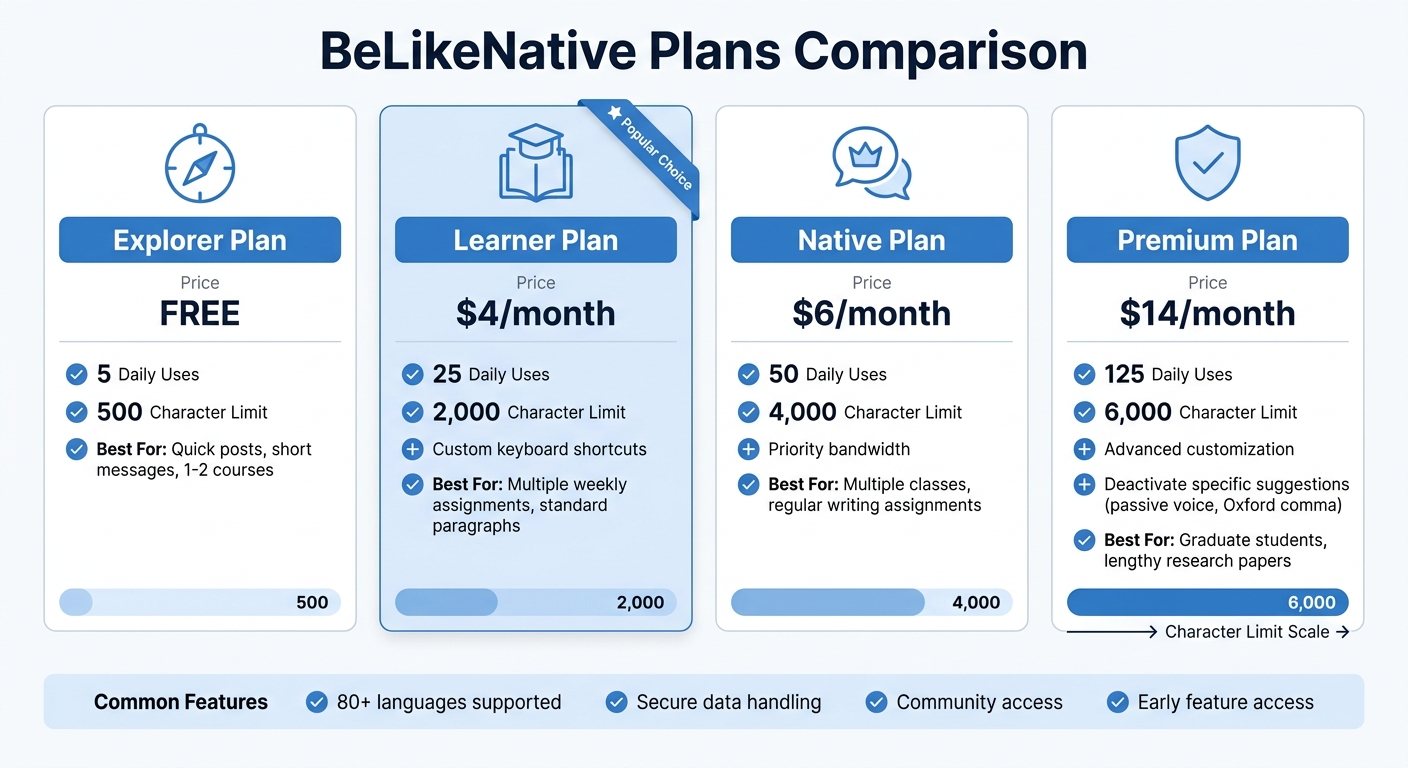
BeLikeNative Pricing Plans Comparison for Students
Explorer vs. Learner Plan Comparison
The Explorer plan is free and allows up to 5 free uses per day with a 1,000-character limit. It’s great for quick posts or short messages. However, if you’re a student tackling longer essays or submitting multiple assignments weekly, the Learner plan might be a better fit. For just $4/month, it offers 25 uses per day and increases the character limit to 2,000 – perfect for standard assignment paragraphs. Plus, it includes the ability to customize keyboard shortcuts, making it easier to integrate into your workflow.
Native and Premium Plans for Frequent Users
For students managing multiple classes with regular writing assignments, the Native plan at $6/month steps it up. It provides 50 uses per day and a 4,000-character limit, along with priority bandwidth for quicker corrections. Meanwhile, the Premium plan is ideal for heavy users. At $14/month, it offers 125 uses per day, a 6,000-character limit, and advanced customization options. Premium users can deactivate specific suggestions, like passive voice alerts or Oxford comma corrections, tailoring the tool to their preferences. These plans grow with your workload, making them ideal for more demanding schedules.
Which Plan Works Best for Blackboard Users
For Blackboard users, the right plan depends on how often you submit assignments and their typical length. If you’re only taking one or two courses with occasional short tasks, the free Explorer plan should suffice. Students enrolled in three or more writing-heavy classes will benefit from the Learner or Native plans to avoid daily use limits. Graduate students or anyone working on lengthy research papers exceeding 4,000 characters should consider the Premium plan. It allows you to process entire sections in one go, eliminating the hassle of splitting up your work. Select a plan that matches your coursework and submission needs.
Conclusion
Key Takeaways
Spelling mistakes and awkward phrasing don’t have to derail your productivity or affect your grades. BeLikeNative simplifies proofreading by letting you correct, rephrase, and refine your text directly in Blackboard – no need to switch tabs. Just highlight your text, use a keyboard shortcut, and in less than a second, the polished version is ready to paste. It goes beyond spelling corrections by allowing you to fine-tune tone for academic writing, translate text in over 80 languages, and even customize shortcuts to fit your workflow.
With over 5,500 users and a 4.6/5 rating on the Chrome Web Store, students have found this tool to be a game-changer. Many report saving more than an hour every day by cutting out repetitive tasks. Whether you’re managing one course or juggling multiple writing-heavy classes, BeLikeNative helps you stay on top of your assignments with less stress and more efficiency.
How to Start Using BeLikeNative
If you’re ready to make academic writing easier, getting started is simple. Head to the Chrome Web Store, add the extension, and pin it to your toolbar. Once installed, it works seamlessly on Blackboard and other websites where you type – no complex setup required. Just highlight the text you want to improve, press your shortcut, and paste the corrected version.
Start with the free Explorer plan for smaller assignments. Need more features or higher character limits? You can upgrade to a paid plan anytime (pricing details are outlined above). With BeLikeNative, you can submit polished, professional work without the hassle of last-minute edits.
FAQs
Will BeLikeNative work in every Blackboard text box?
BeLikeNative functions seamlessly in all Blackboard text boxes when used alongside compatible tools such as Grammarly or Microsoft Editor. To enable this, you’ll typically need to rely on browser extensions or built-in spell-check features. Keep in mind, though, that performance can differ depending on your browser and specific configuration.
Is my writing safe when I use BeLikeNative on Blackboard?
Yes, your writing remains secure when using BeLikeNative on Blackboard. It integrates effortlessly with tools like Grammarly or built-in browser spell checkers, automatically identifying and fixing spelling mistakes to help maintain accuracy and polish in your assignments.
Can I fix long essays without hitting character limits?
Tools such as Grammarly and other spell-checking extensions are excellent for spotting and fixing errors in entire documents or large text blocks. They work smoothly with Blackboard assignments when used through compatible browser extensions. This makes it easy to proofread and edit extensive sections of text without being limited by character restrictions.
Related Blog Posts
- How to Improve Your Writing Quality with Browser Extensions
- How To Fix Typos In Slack Before You Hit Send
- Best AI English Teacher Plugin For Chrome
- Fix Grammar In Canvas Discussion Board Posts
BeLikeNative fixes grammar, rephrases, translates, and simplifies text on any website in 1 second — just highlight and hit a keyboard shortcut. No tab switching. Try it free →

